

ZimaCube 2 Pro Internal Hardware Overview
When looking over the design and build of the ZimaCube 2 Pro, it is arguably how the system is organized internally that is the more interesting aspect. Whereas the system is rather unassuming from the outside, IceWhale has put in a good bit of effort to make all the drive bays and expandable compute hardware fit into the box and work within the constraints of the Intel platform powering the system.
First up, let us take a closer look at the front hard drive bays.
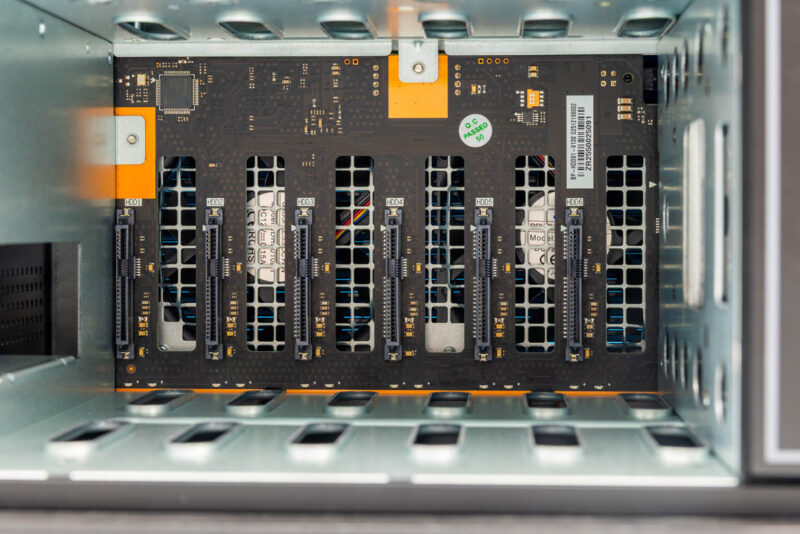
The 6-bay backplane is relatively straightforward, with a full-power and data SATA connector aligned to each tray. From this view, we can just make out the two fans that are providing ample ventilation for the drive bay.
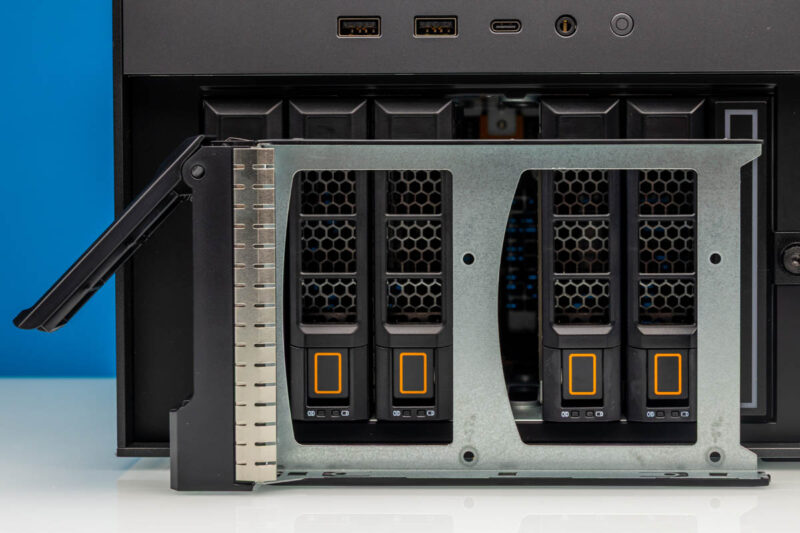
Meanwhile, the vertically mounted drive trays offer mounting holes for both 3.5″ and 2.5″ drives. There are no tool-less features here, so you will be screwing in each and every drive. This is one area that, in 2026, we really wish IceWhale would update. These should be tool-less for 3.5″ drives.
Moving over to the SSD drive bay, we have the single SSD drive tray with a lot going on including its own microcontroller.
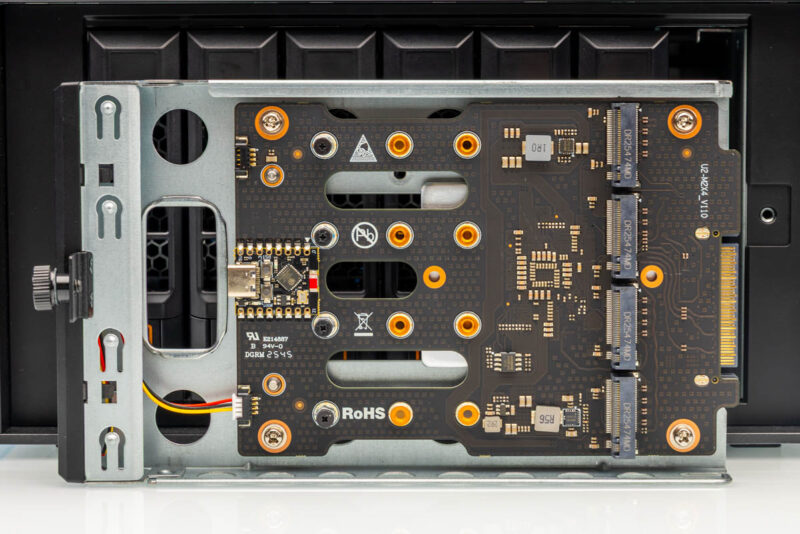
Here, IceWhale is driving a 4x M.2 board via a U.2 connector and backplane. The SSD tray can accept up to four M.2 SSDs, with mounting holes for 2280, 2242, and even 2230 SSDs.
Disassembling the SSD tray reveals that IceWhale drives the individual M.2 slots via an ASMedia ASM2824 PCIe switch chip.
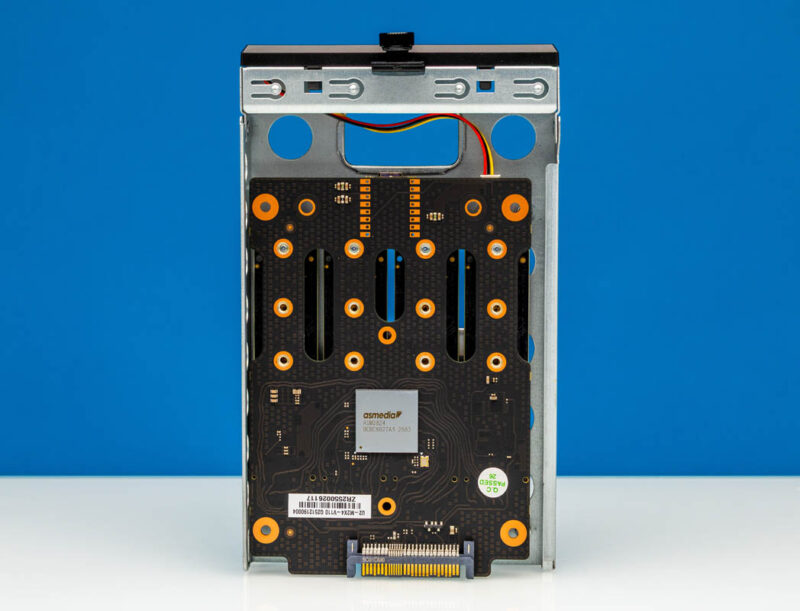
This is a 24-lane PCIe Gen3 switch, which provides a full PCIe Gen3 x4 connection to each M.2 slot. Meanwhile, the upstream port is configured as a PCIe Gen3 x4 connection as well, meaning that all four drives are intelligently sharing a PCIe Gen3 x4 connection. In practice, this means that the system can only ever get full bandwidth to a single SSD at once, but it is a needed trade-off to have a removable tray while also keeping in mind that the Alder Lake-P SoC only offers a total of 20 PCIe lanes. It is a much faster and more efficient configuration than what I was initially expecting, which was that IceWhale was bifurcating the upstream x4 connection to x1 for each SSD.
Moving on, cracking open the back of the drive bay reveals the two fans that provide cooling for it. These fans have very accessible 4-pin power connections if you ever need to swap them.
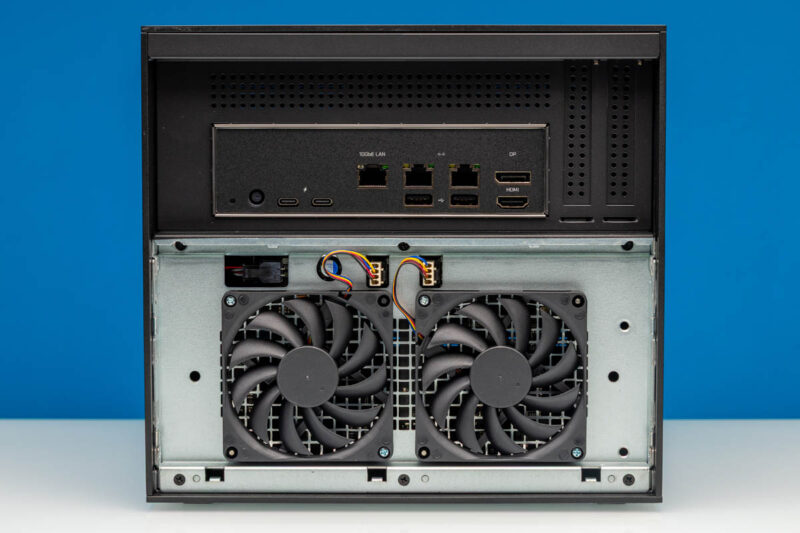
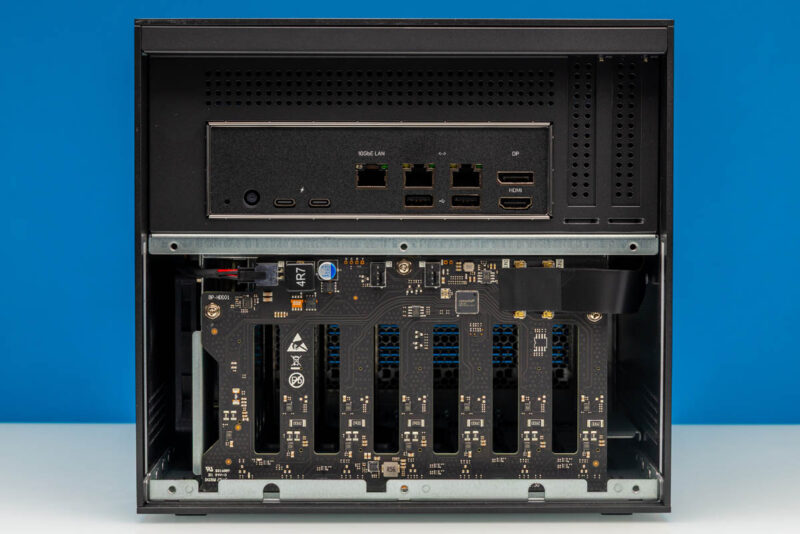
Removing the tray containing the fans then exposes the back side of the drive bay, where we find one more ASMedia chip of note.
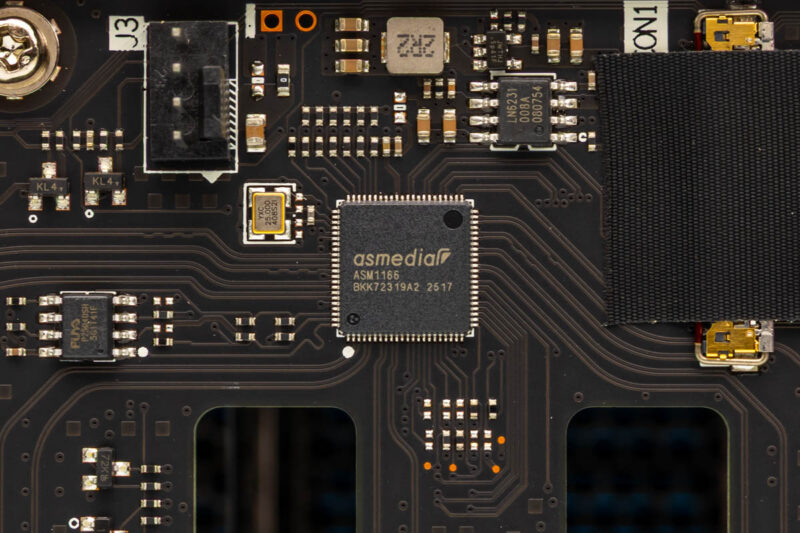
Tucked behind is an ASMedia ASM1166 controller. This is a SATA controller, which, coincidentally enough, is capable of driving up to 6 SATA devices. Since Alder Lake-P cannot drive 6 SATA drives natively, IceWhale needed to use an external controller, forgoing Intel’s native SATA connectivity entirely in favor of a PCIe Gen3 x2-powered SATA controller.
But enough of the drive bay. Let us dig into the compute bay that makes up the top half of the system.
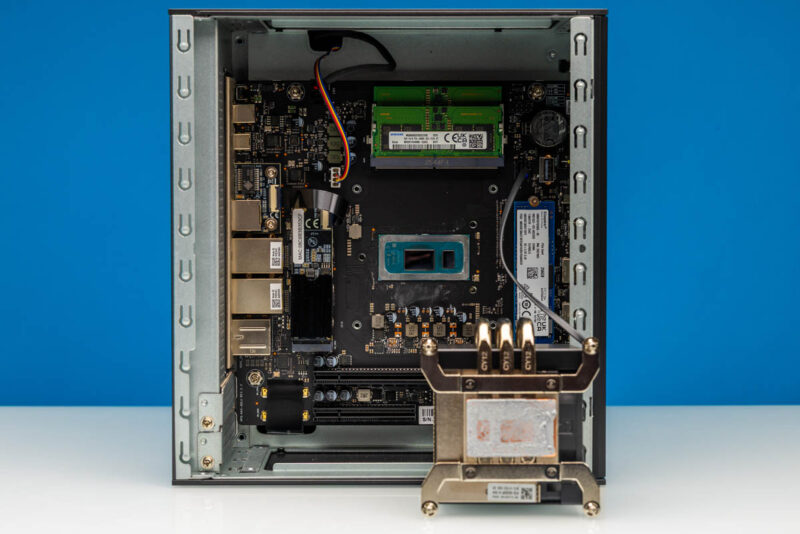
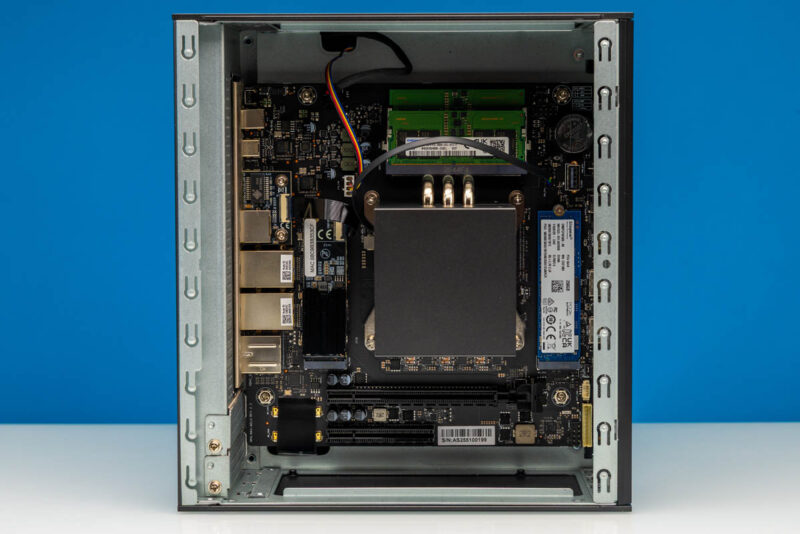
Removing the lid of the Cube, we have ready access to a full Alder Lake-P-powered mini-PC. IceWhale has used a minimal amount of loose cabling here, so everything is relatively easy to get to, even without removing the heatsink-fan.
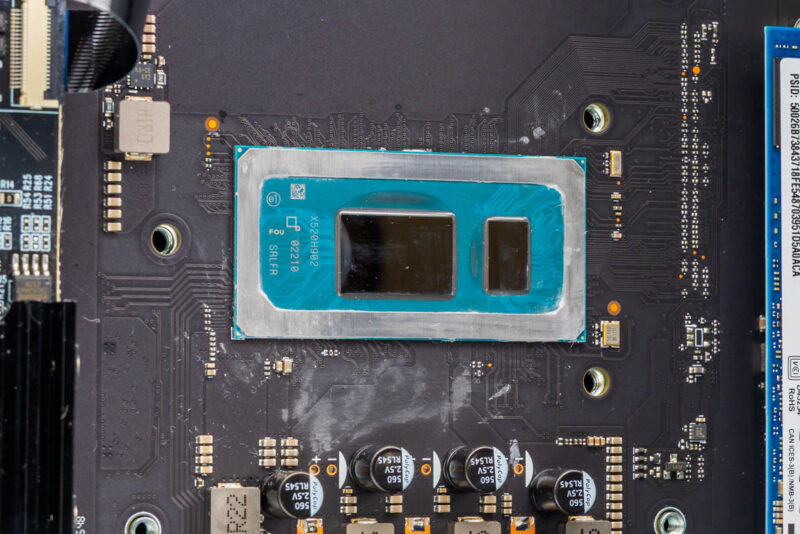
At the center of the system is the Intel Core i5-1235U chip. Since this is a mobile chip, it is soldered down and uncapped, with the compute die on the left and the PCH die on the right.
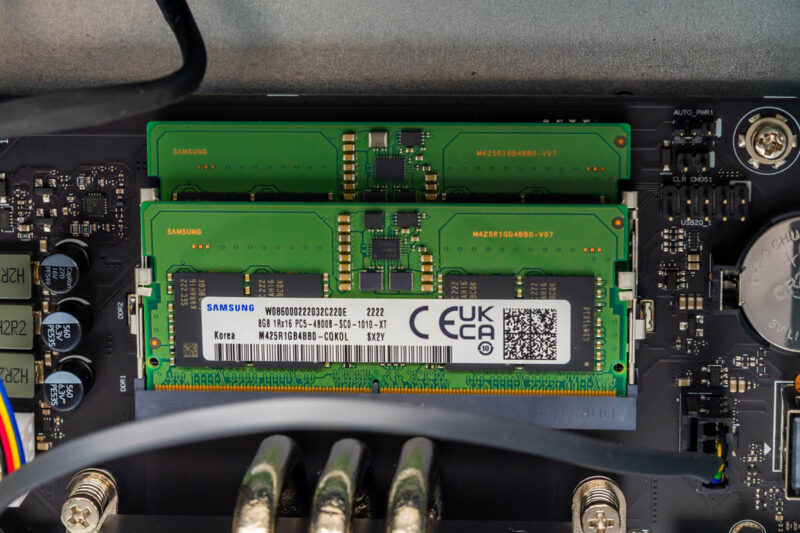
Up top, we have the system’s two SO-DIMM slots, which come pre-filled with 16GB of memory on the ZimaCube 2 Pro. As a first-generation DDR5 system mobile Alder Lake does not support high memory speeds, but the DDR5-4800 is more than sufficient. Unfortunately, current memory pricing is not doing IceWhale any favors, and the resulting 16GB of RAM in a “Pro” configuration is not especially spacious. For those with deeper pockets, the system can be expanded to 64GB of RAM.
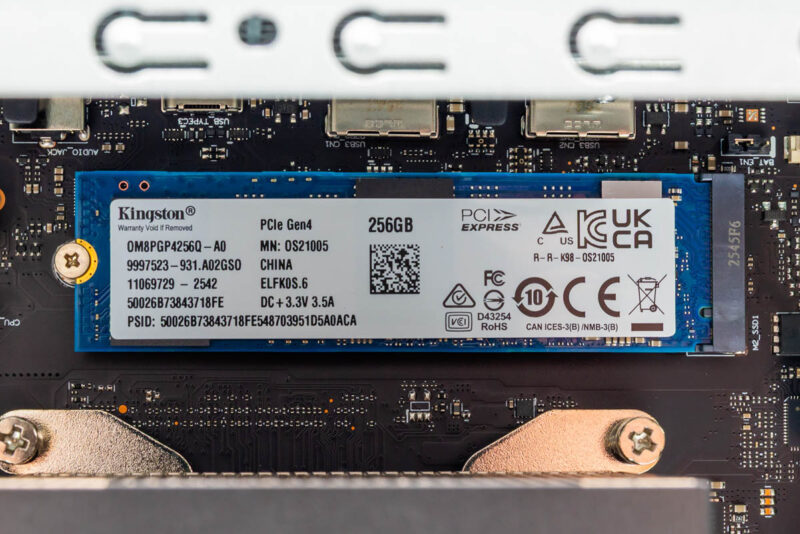
On the right side of the processor is the system’s sole internal M.2 storage slot, intended for the OS SSD. IceWhale keeps things pretty light here with just a 256GB drive (our sample came with a Kingston drive), but it is a PCIe Gen4 x4 drive and matching M.2 slot, so the system does have access to a fast M.2 SSD if needed. For boot drives, 256GB is generous, but if you just want higher capacity storage, then this is a candidate to swap out.
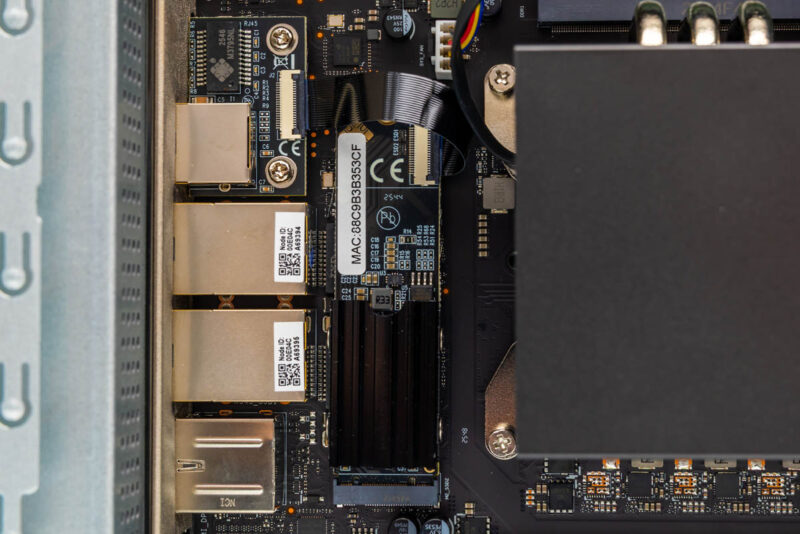
And on the opposite side of the CPU, we have our final M.2 slot. But this one is not being used for storage. Instead, IceWhale has taken an interesting step by filling the M.2 slot with the AQC113 10GbE controller, which is then attached to a small breakout board via a ribbon cable. Using the M.2 slot in this fashion allows IceWhale to offer ZimaCube 2s with or without the 10GbE adapter, rather than having to make multiple motherboard designs with it soldered down (as is the case with the 2.5GbE i226 controllers).
Finally, at the bottom of the compute bay, we have the system’s two PCIe slots.
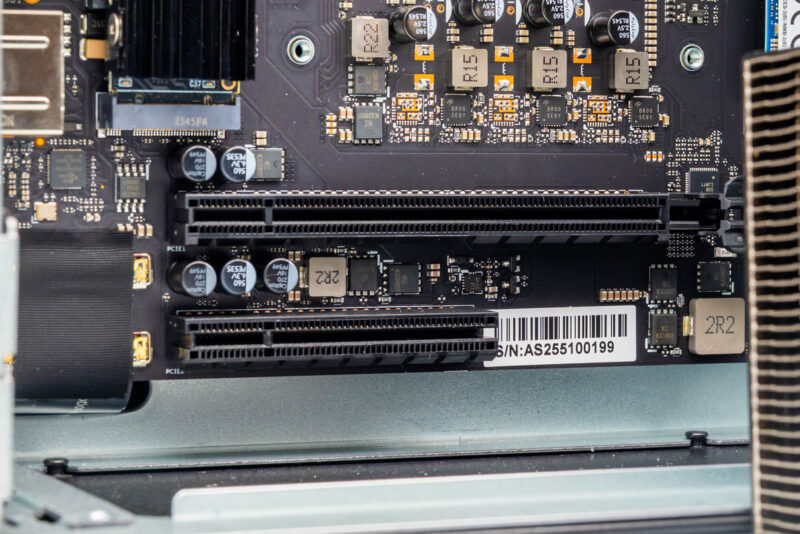
The top slot is a full-size PCIe x16 slot, electrically wired as a PCIe Gen4 x4 slot that hangs off the CPU. Below that is a PCIe x8 slot, which is wired up as a PCIe Gen3 x2 slot and hangs off the PCH.
This configuration allows the ZimaCube 2 to house either a pair of single-slot cards or a single double-slot card. Given that this is a relatively small and low-power device, the ZimaCube’s expandability is somewhat constrained. The compute bay offers only enough clearance for low-profile cards, and the small power supply is not enough to support an external PCIe power plug. All of which means that the compatibility expansion card options here are somewhat limited, primarily to low-profile video cards such as the RTX PRO 2000, networking cards, and the like. Still, this is a great deal more than most other NASes offer, as PCIe slots are not a common feature. One big tip we have is that if you are venturing into a higher-power card, ensure it has active cooling, since there is no other fan blowing over this area. An NVIDIA T4 or L4 might seem attractive, but they will not have enough cooling.
Electronics aside, the compute bay is rounded out by the pre-installed HSF covering the Alder Lake-P chip. The heat-piped cooler is unremarkable for a desktop cooler, but is quite good for a NAS as it is more than capable of cooling the low-power mobile SoC. However, it should be noted that the fan on this HSF is the only source of airflow/active cooling for the compute bay, so nothing else provides active airflow.
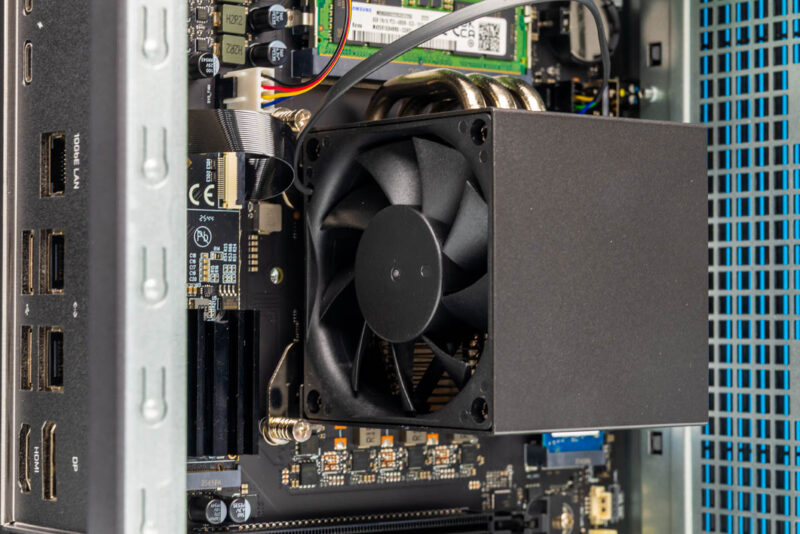
This is not a problem for the SSD or the 10Gb NIC, both of which are laid out in-line with the HSF. It means that the PCIe slots are effectively without cooling, so any kind of mid-powered PCIe card will need to come with its own cooling.
And that is the hardware tour of the ZimaCube 2 Pro. Now, let us take a quick look at the included software.

Too bad it doesn’t seem to support ECC RAM like the Minisforum N5 Pro does.
I have a hard time understanding anyone being willing to run these branded Linux OSes. What they all have in common is small companies supporting them, with unknown or uncertain security track records.
It’s hard enough staying updated in the face of the torrent of vulnerabilities using a well-supported distro (Ubuntu, Fedora, whatever); depending on some unknown small company for this seems foolhardy.
Of course this hardware supports other OSes, so you might well still want it for that, assuming the pricing is sensible.
No SAS HDD support? Another off shoot custom Linux? Not for me.
For what this offers, putting one together yourself with off the shelf parts just as easy, cheaper, better parts and self-satisfaction of doing it open source.
Off topic, this what I expected STH to be reviewing, not the big corp stuff costing tens of thousands of moolah, site has lost it’s way !
what’s up with the ESP32 soldered to the NVME expansion card? What is it good for?
Tubz is right
@Tete There is some RGB lighting in the SSD bay. The ESP32 is what controls it.
The branding makes me think I should be able to get this from the liquor store for $10.
StH needs to include a Nessus scan and the OS build info if you’re going to keep reviewing these no name one off imports.
“Thanks to the low-power Intel SoC… ”
Intel Core i5-1235U consumes 45W and the 13. generation Intel Core i5-1235U only 15W !
Edit: 13. generation Intel Core i5-1335U
Both the i5-1235U and i5-1335U have the same base TDP of 15 Watts. This being standard for the U-series SKUs of that era.
I’d liked to have seen the i3 with 10GbE. The 800$ would be quite fine.
Also support for ECC (DDR5) would have be nice.
But everything come with a cost.
Unfortunately while IceWhale and their Zima series of products look good on paper, my experience with their Zimaboard PCs left me unimpressed. I managed to crowbar the first one I purchased by inadvertently trying to plug a USB-C cable into the Displayport. OK, my bad but that shouldn’t have taken out the power supply. I bought a replacement because it did fit my needs. However, the new one managed to take out the USB ports on a keyboard and mouse I plugged in (these were a Microsoft keyboard and Logitech mouse, not cheap stuff).
I have come to the conclusion that IceWhale is a young company with good basic designs but needs to up their game when designing robust products.