
The Dell PowerEdge R770AP is a 2U air-cooled, dual-socket server known for its high core density. It supports up to two Intel Xeon 6980P processors, each with 128 cores, for 256 installed cores total. Given the current Diamond Rapids schedule, this is set to be the major Intel platform for some time. We had been hoping to try this with Intel’s Xeon 6+ Clearwater Forest but Intel could not get us chips. The -AP stands for “Advanced Performance,” at least for the Intel ecosystem. Dell made a really sweet Intel Xeon server built around flexible I/O and storage. We wanted to get this review up with our newer AgentSTH V7 benchmarks, so let us get to it.
Dell PowerEdge R770AP External Hardware Overview
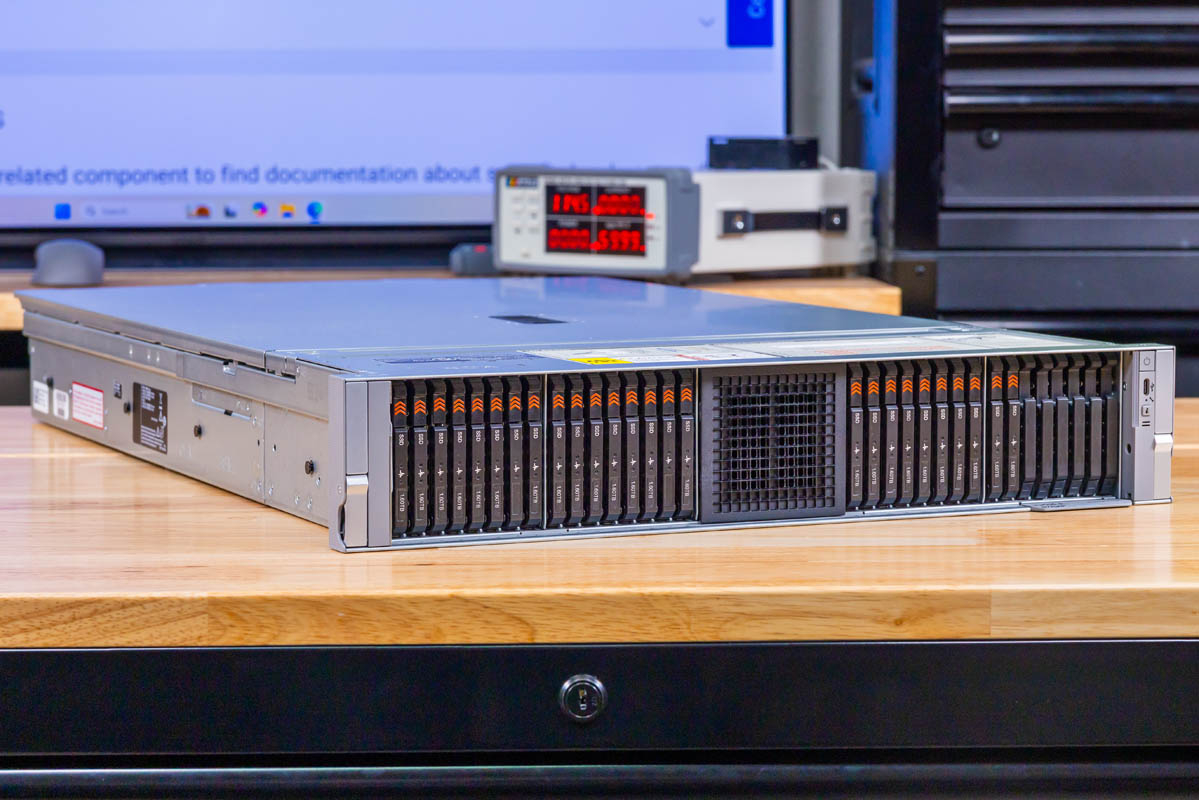
Starting from the outside, the R770AP presents as a standard 2U rack chassis with an 801mm rear I/O depth without bezel per Dell’s current technical specifications. The front of the system is dominated by storage, but not in the way you might expect from previous generations.
Before we go too far, note that we have one configuration, but Dell offers many options for storage and expansion. So please take this more as an example configuration, but you can spend a lot of time in Dell’s configurator customizing these.
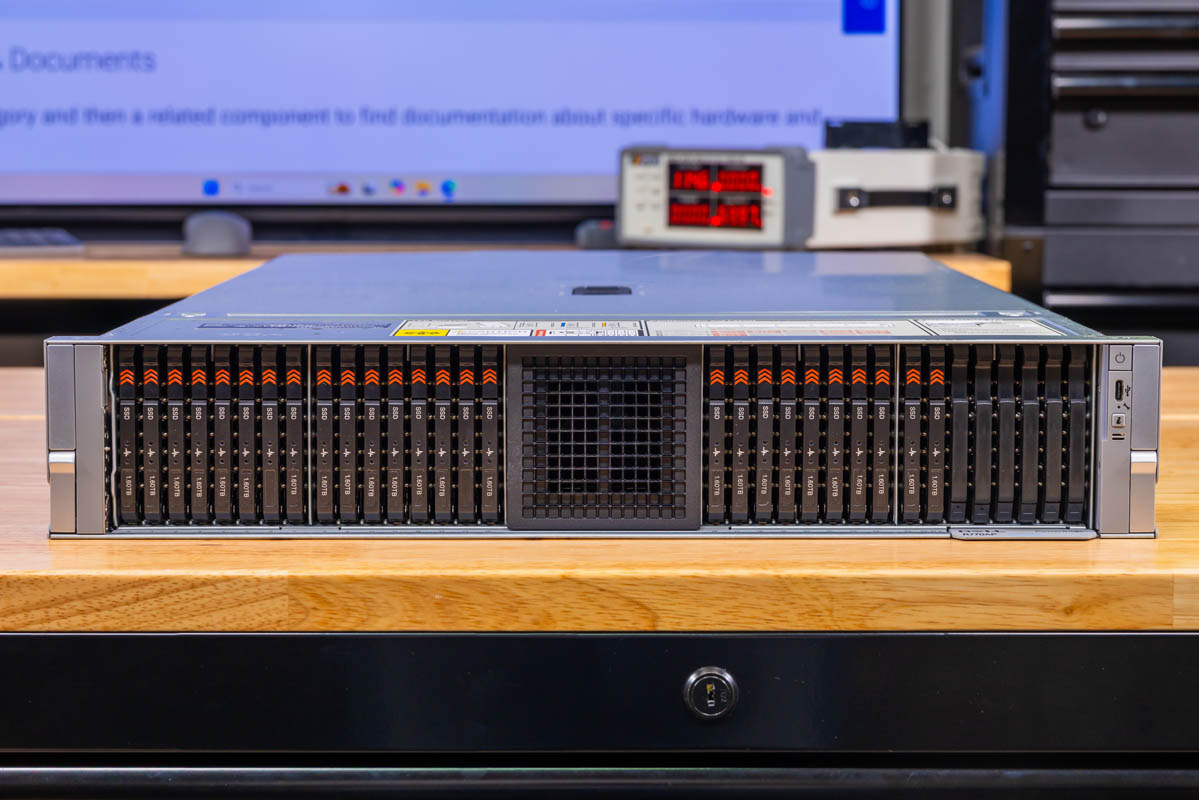
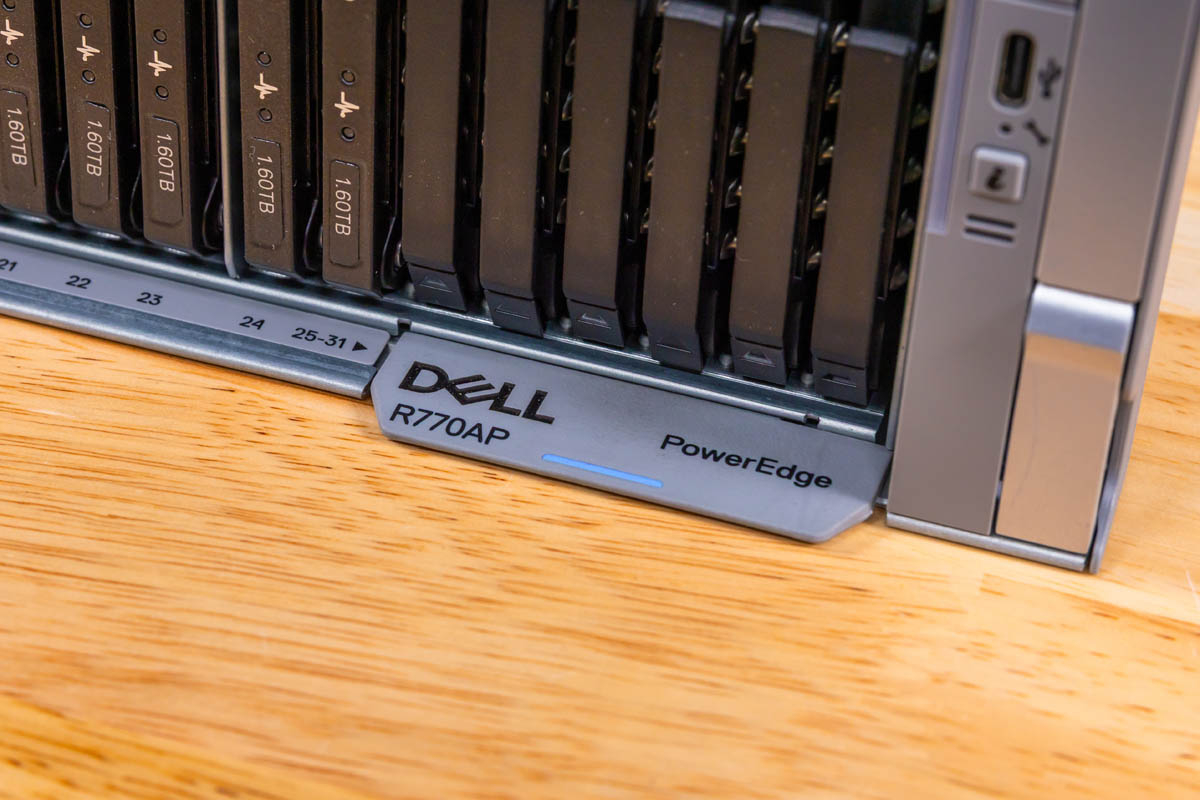
On the front lower edge, we get the Dell R770AP model markings and the service tag. You would be surprised by how many server models out there actually do not have the model number printed and visible from the front. One small impact is that the drive bays are labeled 25-31 with an arrow because the service tag replaces the area where the drive numbering would normally be printed.
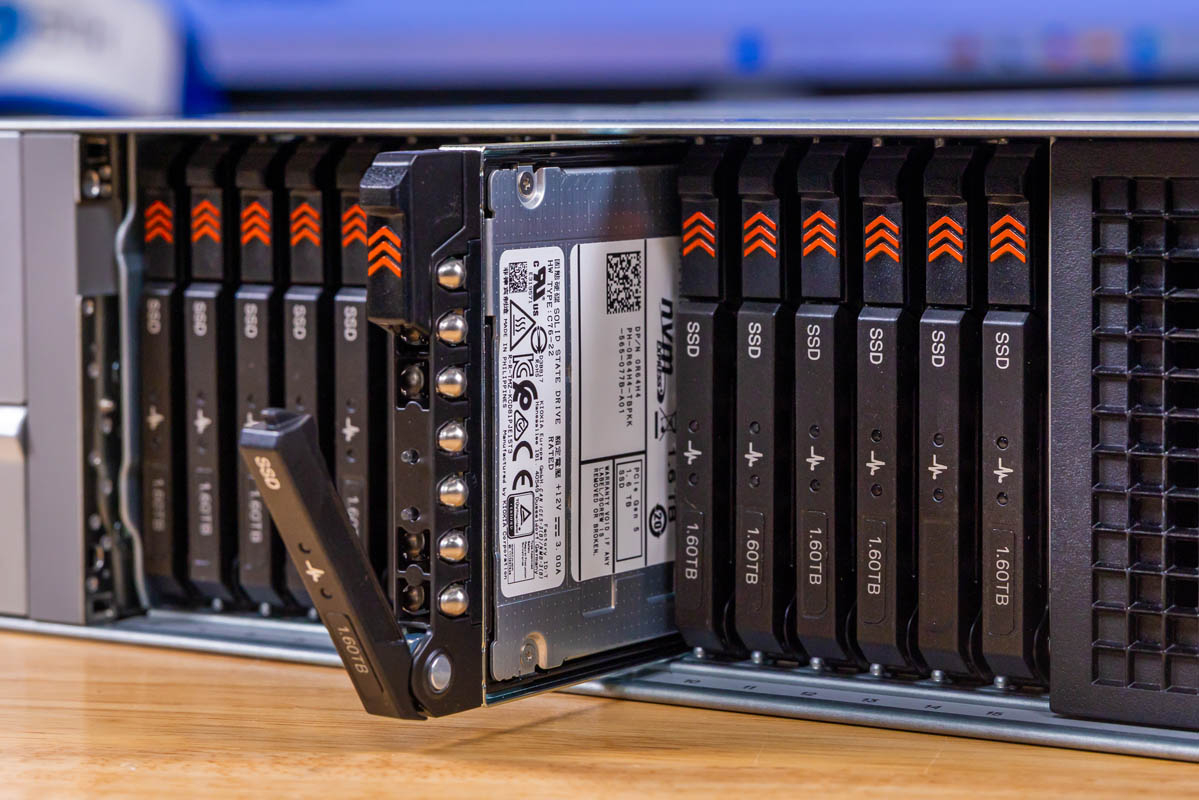
The front panel splits into two banks of E3.S carriers that are separated by a central ventilation section. The left and right banks each hold vertically oriented E3.S carriers with orange release markings that make individual drives easy to identify and remove.
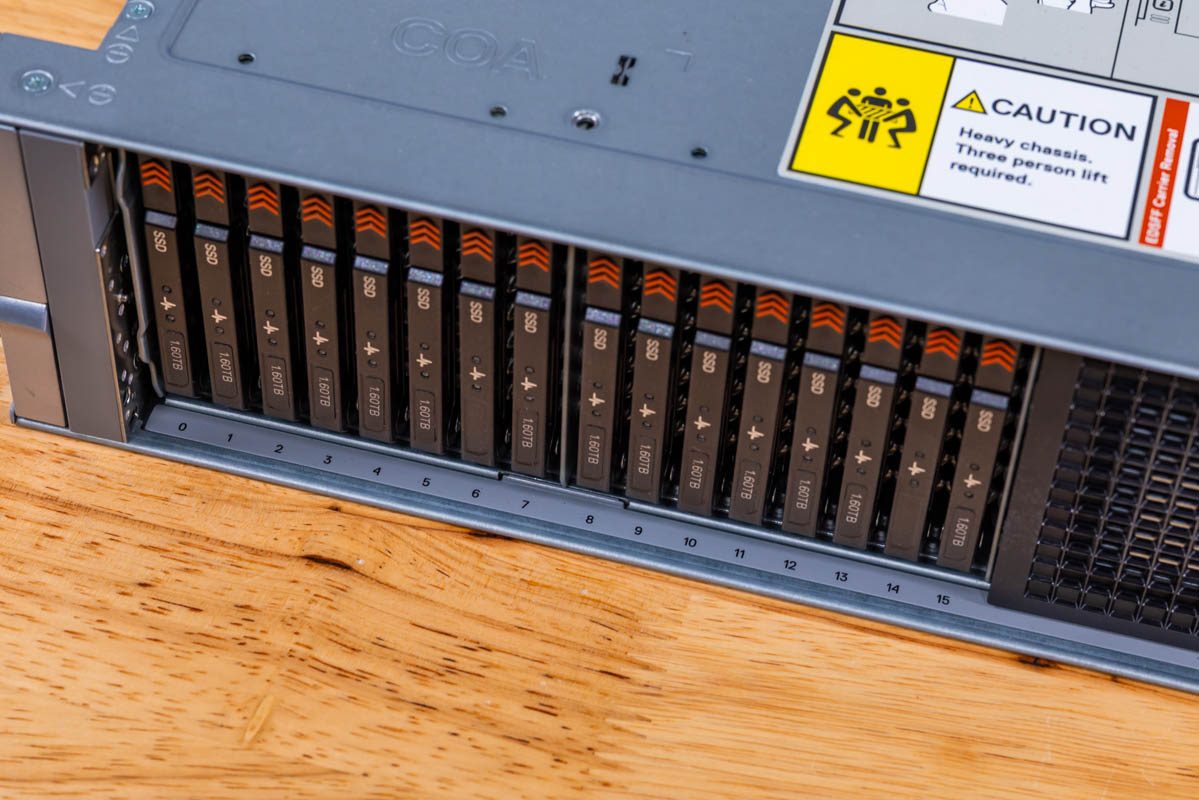
Having the center area dedicated for airflow on previous-generation 2.5″ drive bay servers meant you would usually have fewer than 24 possible U.2 drive bays up front. With E3.S, you get both a direct air channel in the center, as well as 32x E3.S drive bays with 16x on either side.
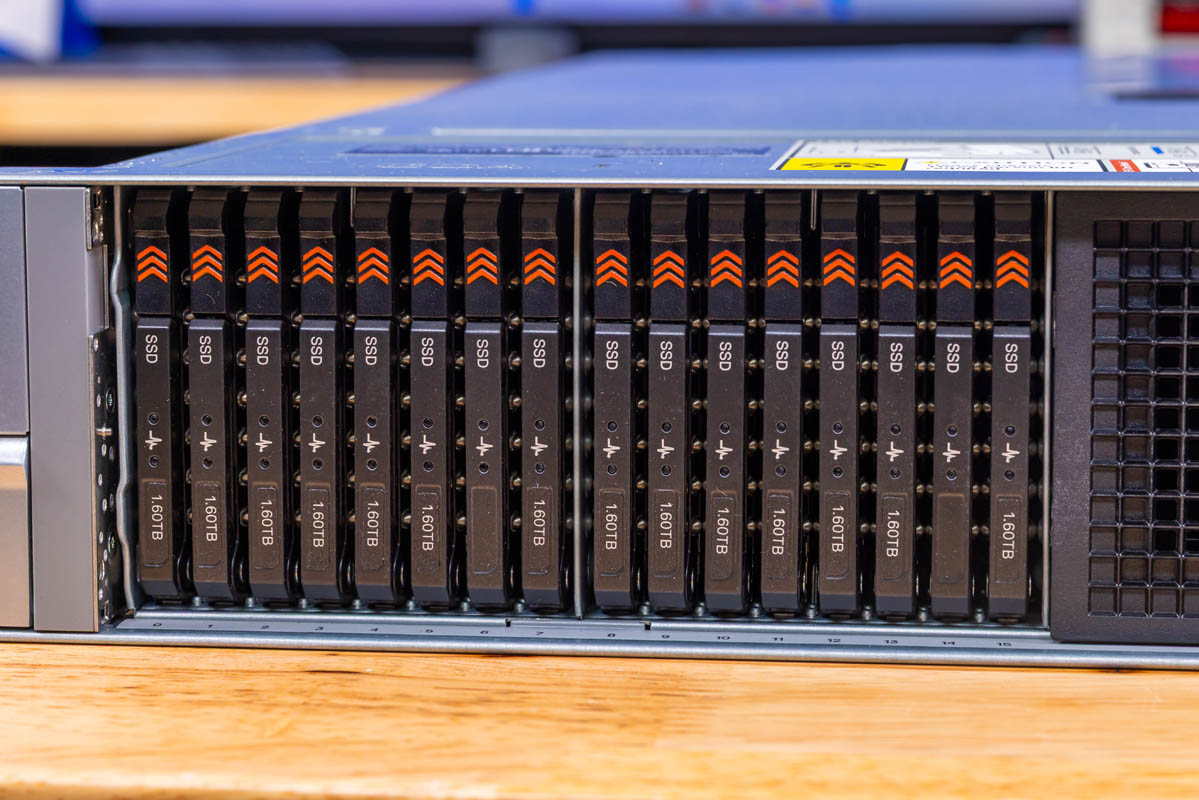
Our configuration uses four Dell DC NVMe CD8P E3.S MU 1.6TB SSDs. Dell’s current product specifications list front storage options including up to 32x EDSFF E3.S Gen5 NVMe drives, an alternative with up to 16x 2.5-inch U.2 Gen5 x4 or x2 NVMe SSDs, and a no-backplane option. The E3.S form factor allows more devices per chassis than the 2.5-inch option. You can see the Kioxia CD8 1.6TB E3.S SSD here.
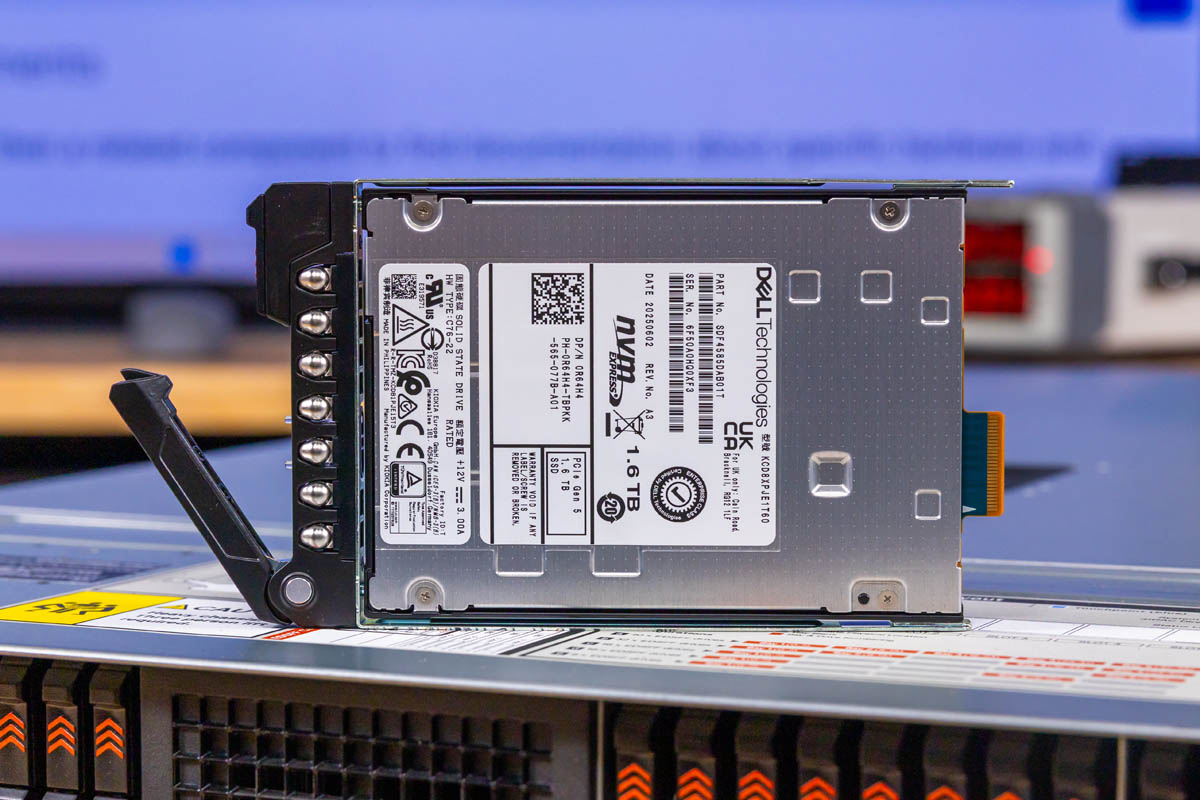
An E3.S carrier is smaller than a U.2 carrier, which helps with density but makes the latches slimmer.
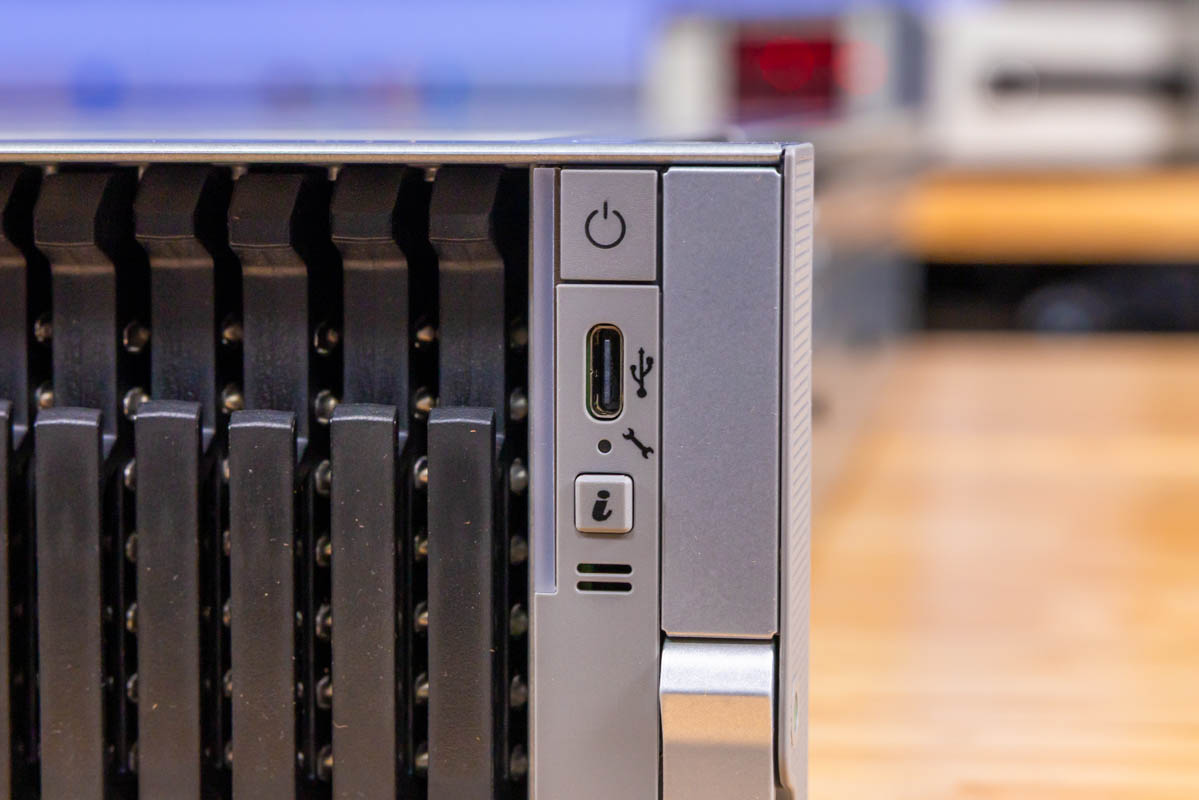
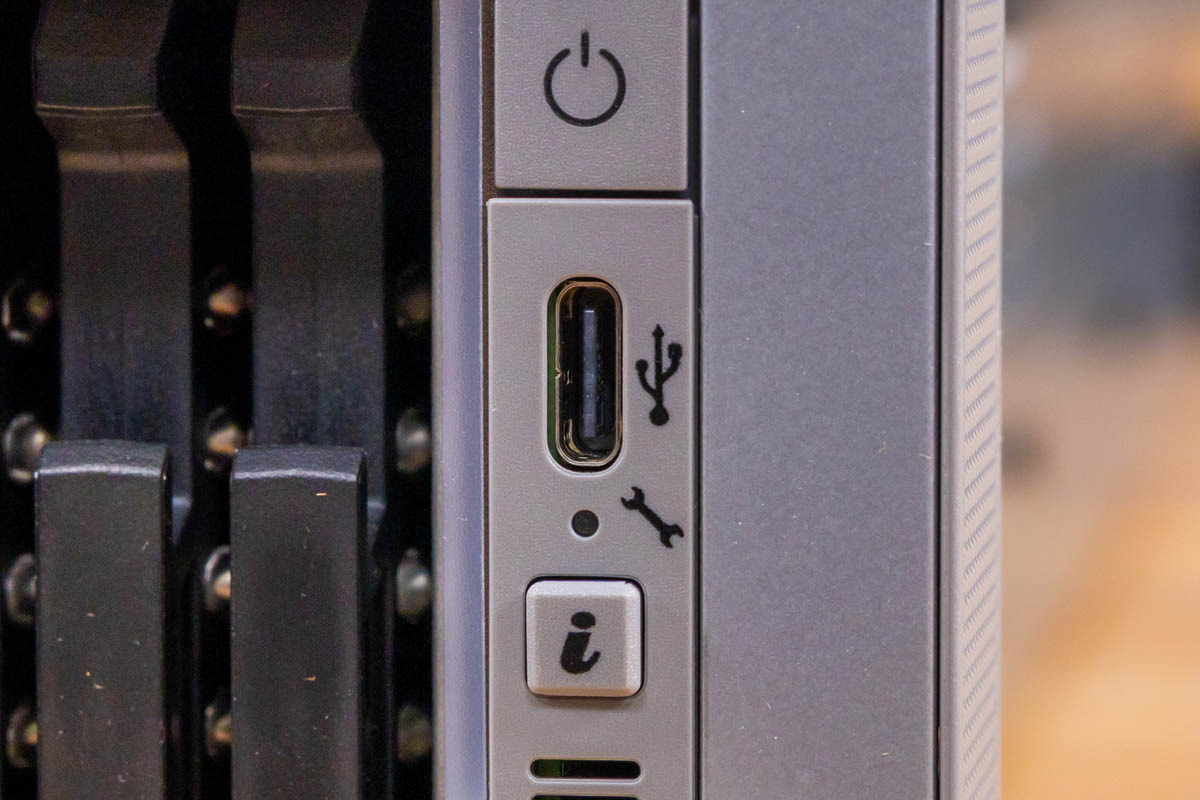
The right front ear houses a power button, information status control, and a USB Type-C socket.
Dell specifies this connector as USB 2.0 Type-C, so do not get too excited about a Thunderbolt-capable Type-C port on a server. We have a few servers now, however, that are using Type-C for data and video as their local KVM I/O, so perhaps that will be where that goes one day, but this is more of a service port.
On the top, we get a normal Dell latching top which is smooth, but also expected since it is a dell.
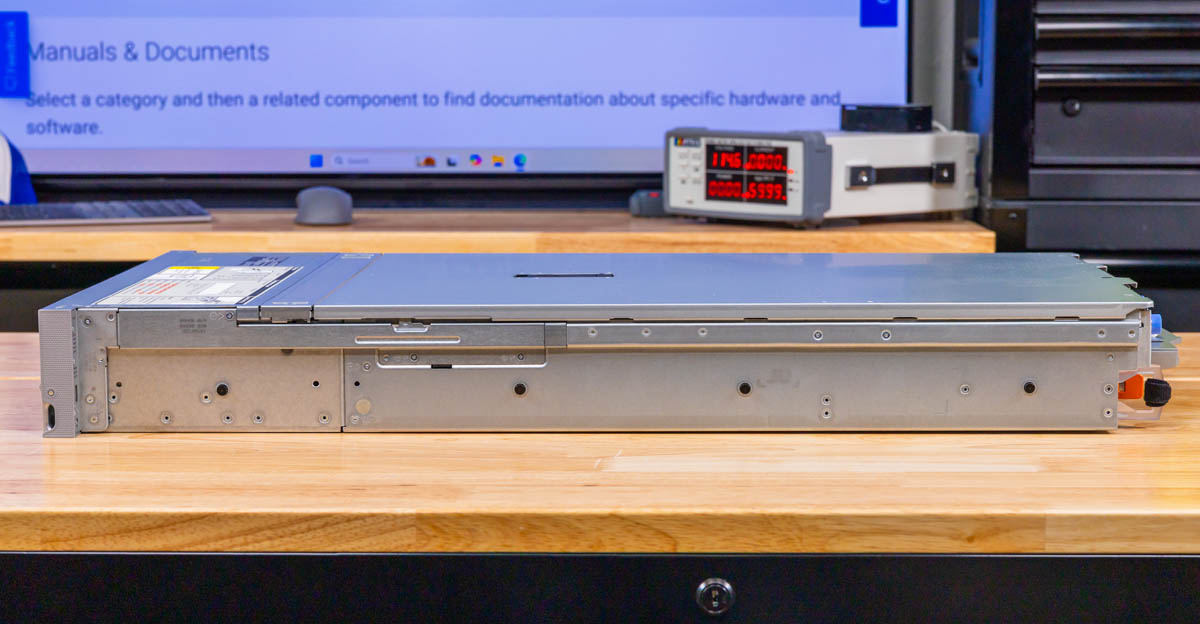
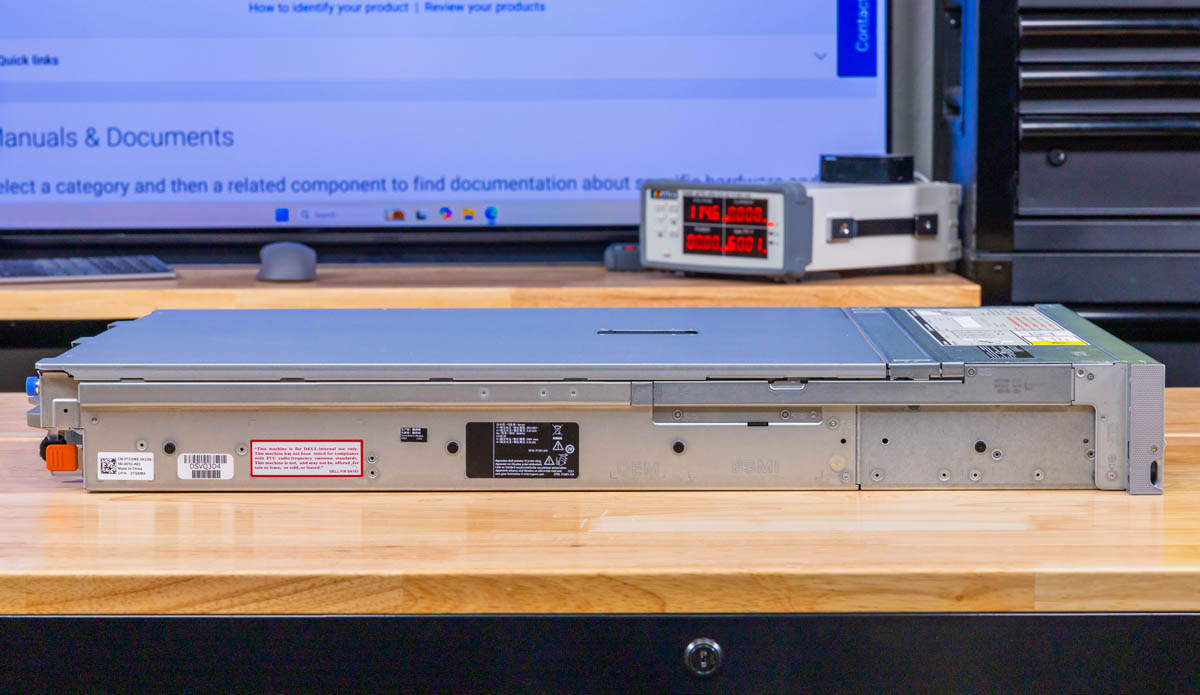
On the sides, we get sheet metal since this is meant to connect to rails.
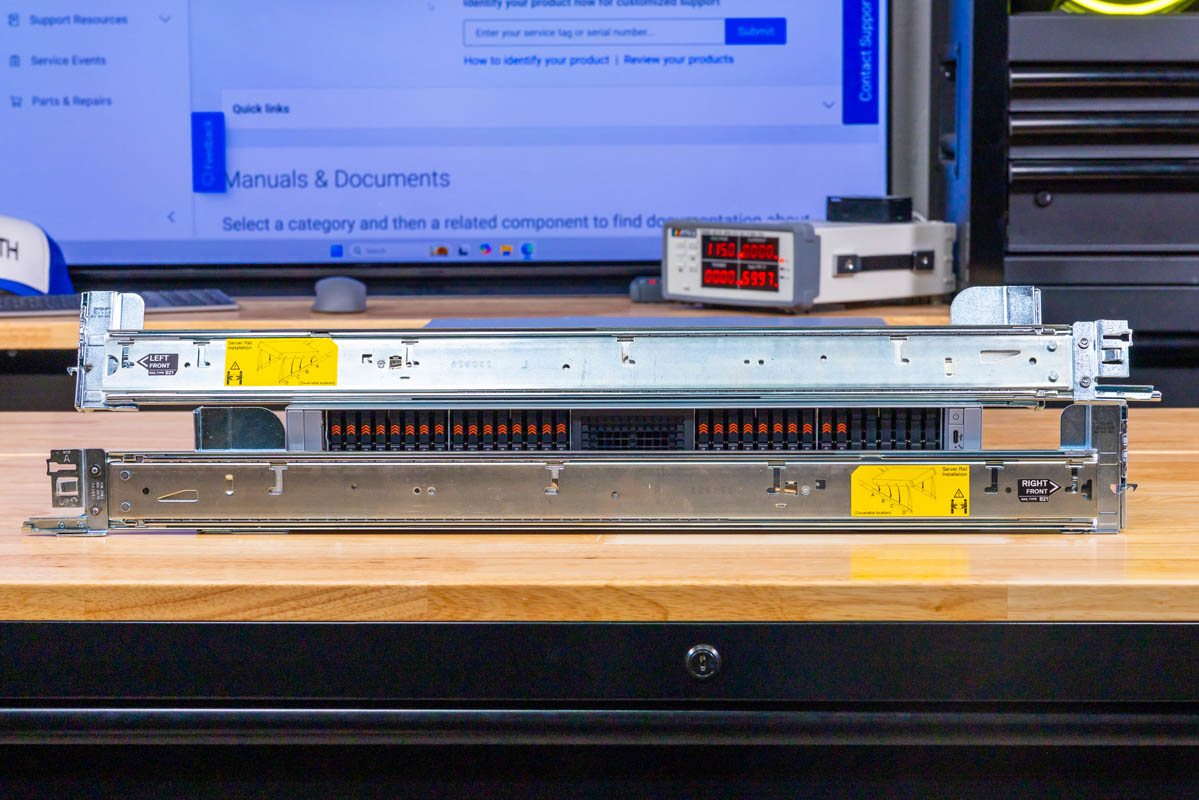
Dell’s rails for this are also super easy to install.
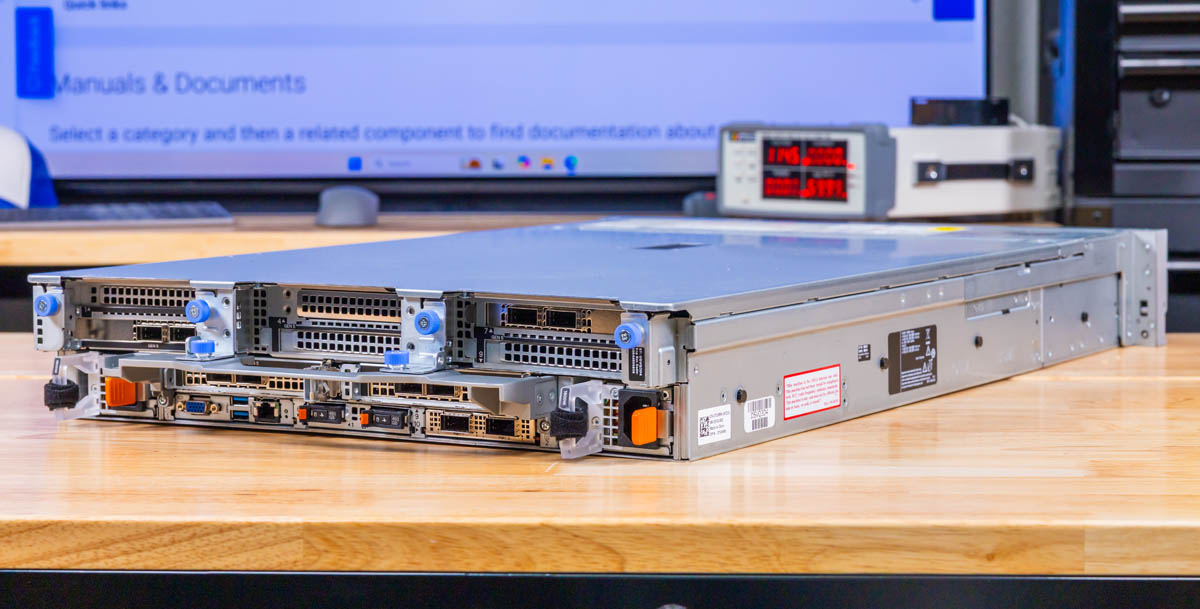
The rear panel layout places riser modules across the top and power supplies at the lower sides. A modular boot network group and management ports occupy the central space between these.
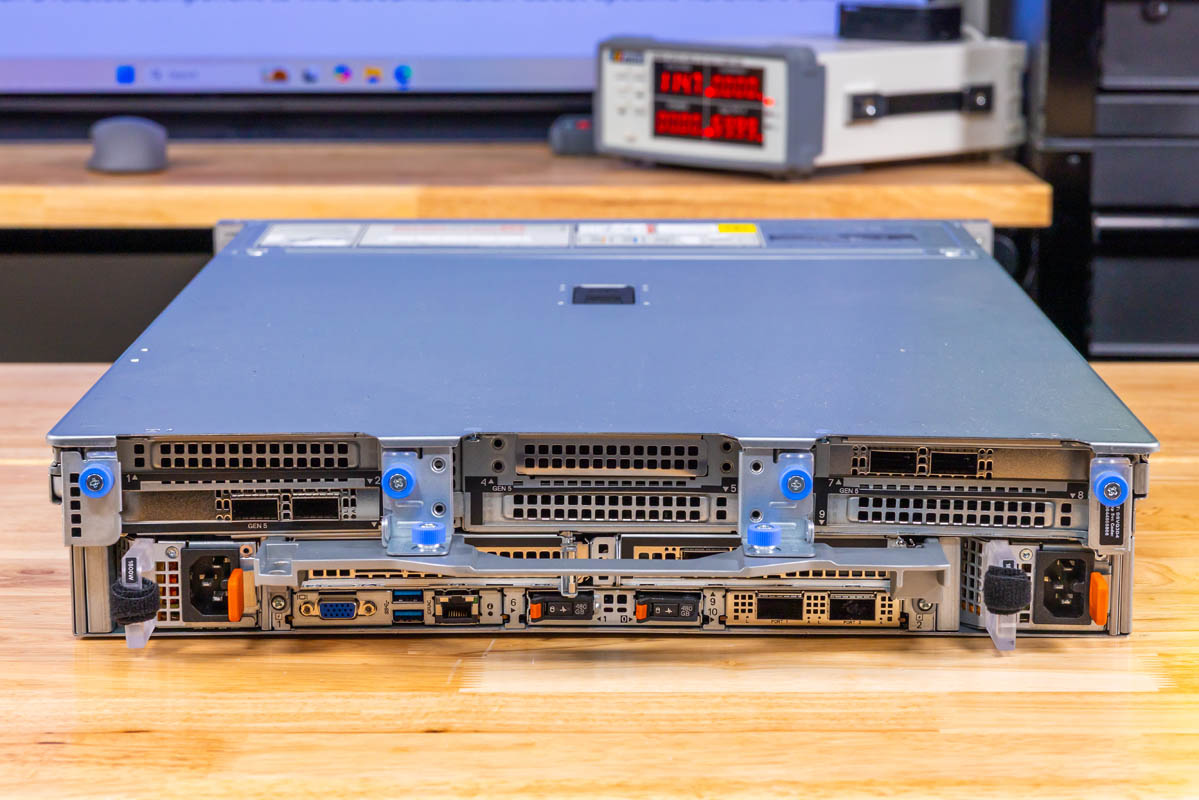
You might be wondering about that big metal bit sticking out. That is a handle that Dell has been offering for generations. As the servers get bigger and heavier, the handle becomes more useful.
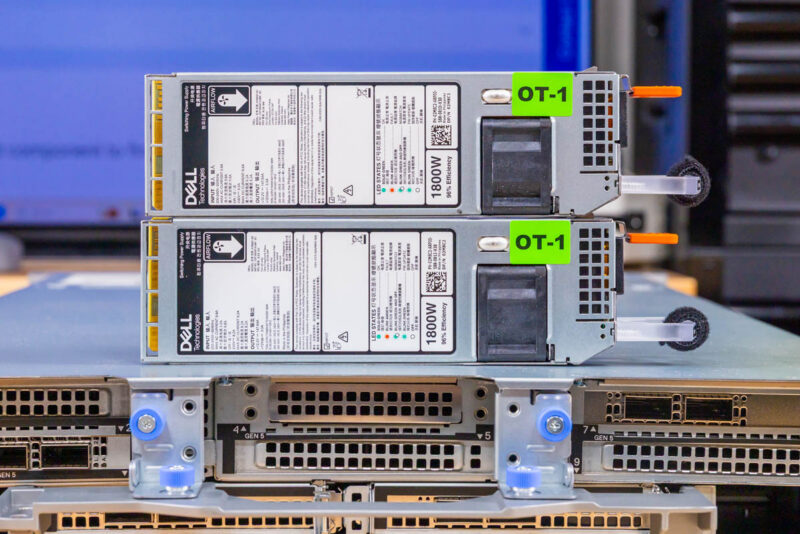
The power supplies here are redundant 1.8kW units. Dell has many different power supply options, so this is just what we are using for this server.
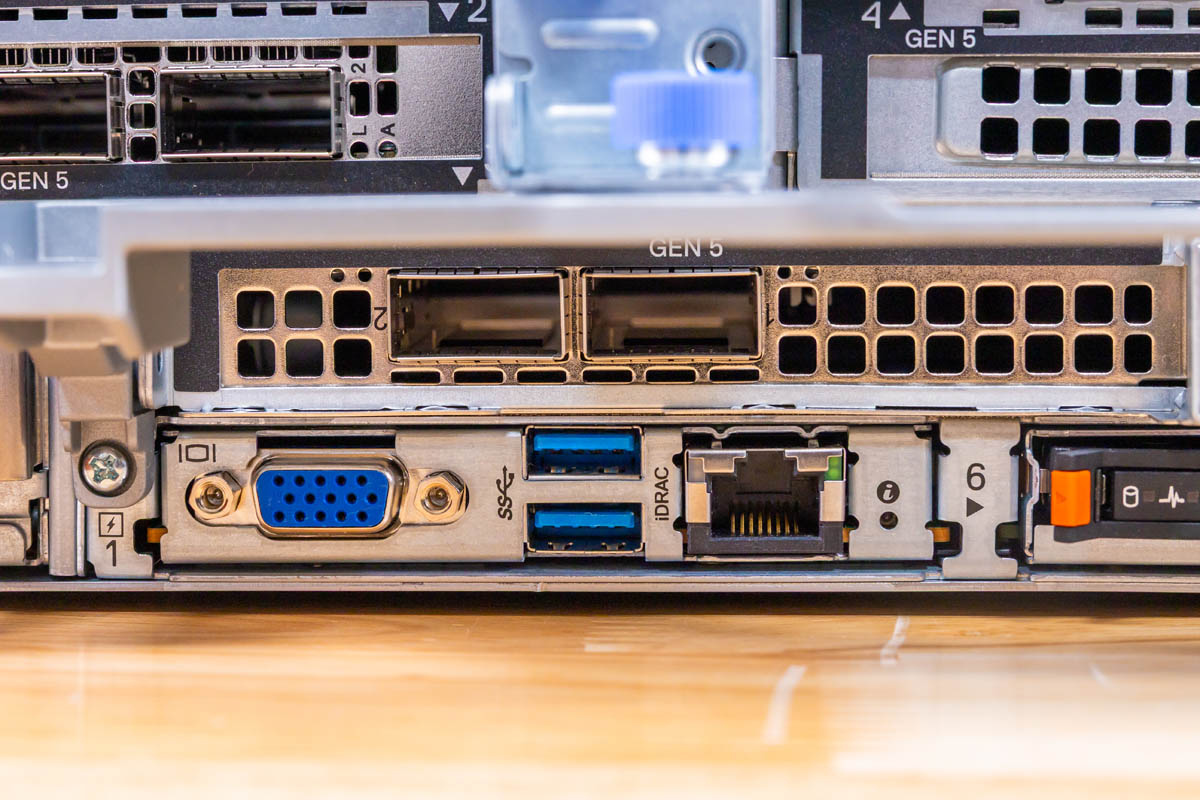
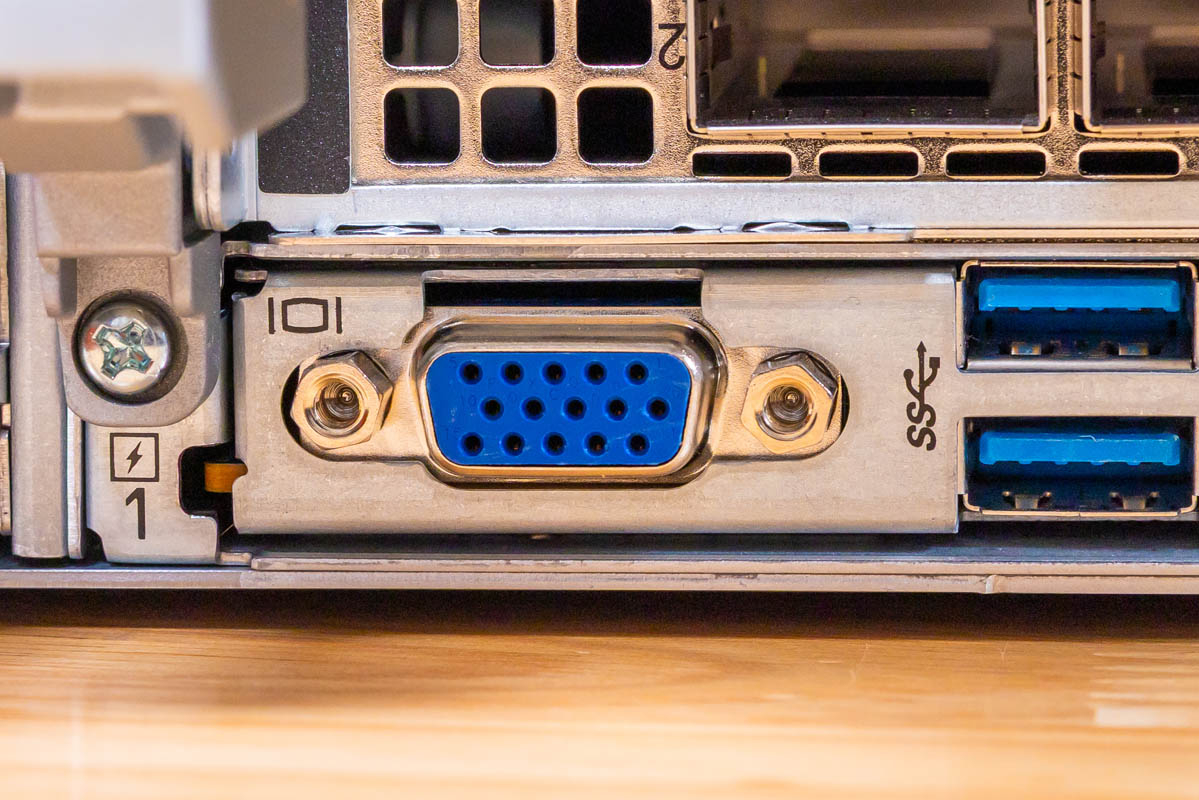
Below the risers, Dell groups the fixed rear I/O in an arrangement that has become familiar across recent PowerEdge generations. You get VGA for local console access, two USB Type-A ports that Dell specifies as USB 3.1, and a dedicated iDRAC Ethernet port for out-of-band management.
A dedicated iDRAC Ethernet RJ45 socket sits next to the rear USB and VGA ports. This provides a separate physical connection for out-of-band management access, distinct from standard data networking interfaces. This iDRAC interface has been around for so long that it is one of the names people use for all out-of-band management solutions.
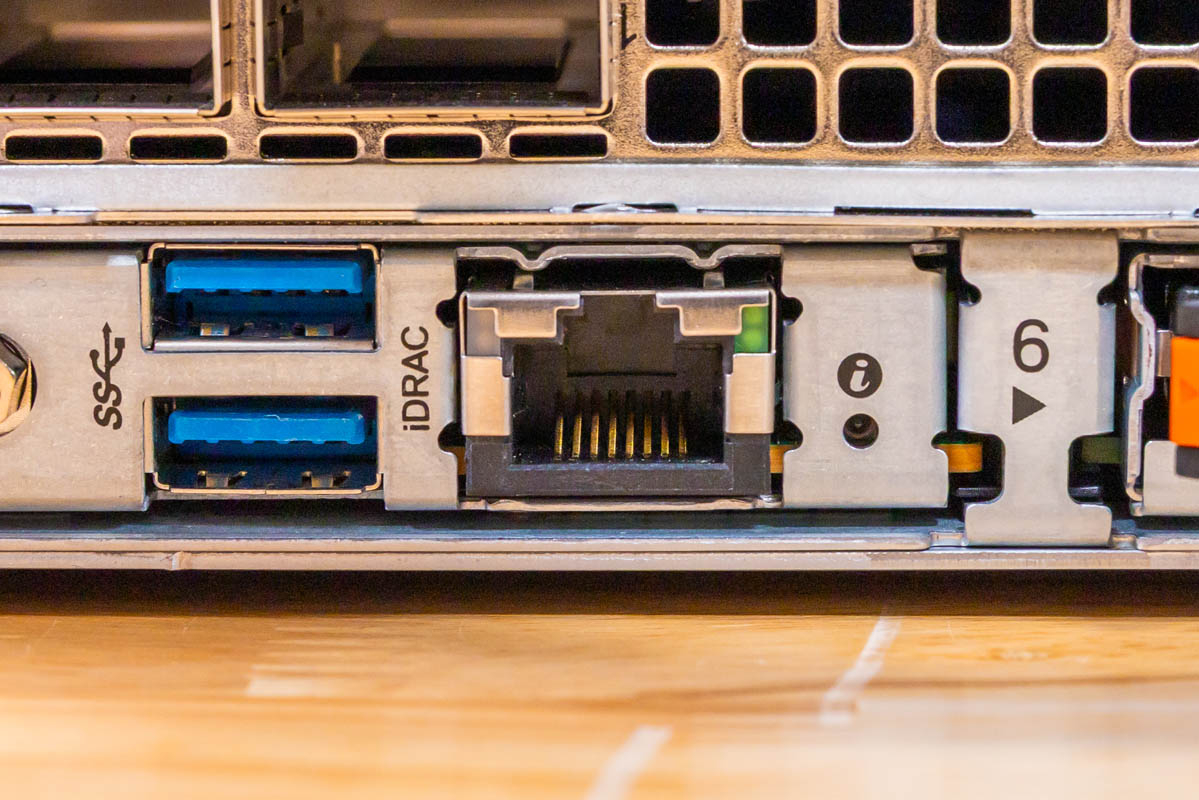
We also get two rear USB 3.1 ports for local keyboards, mice, and USB storage.
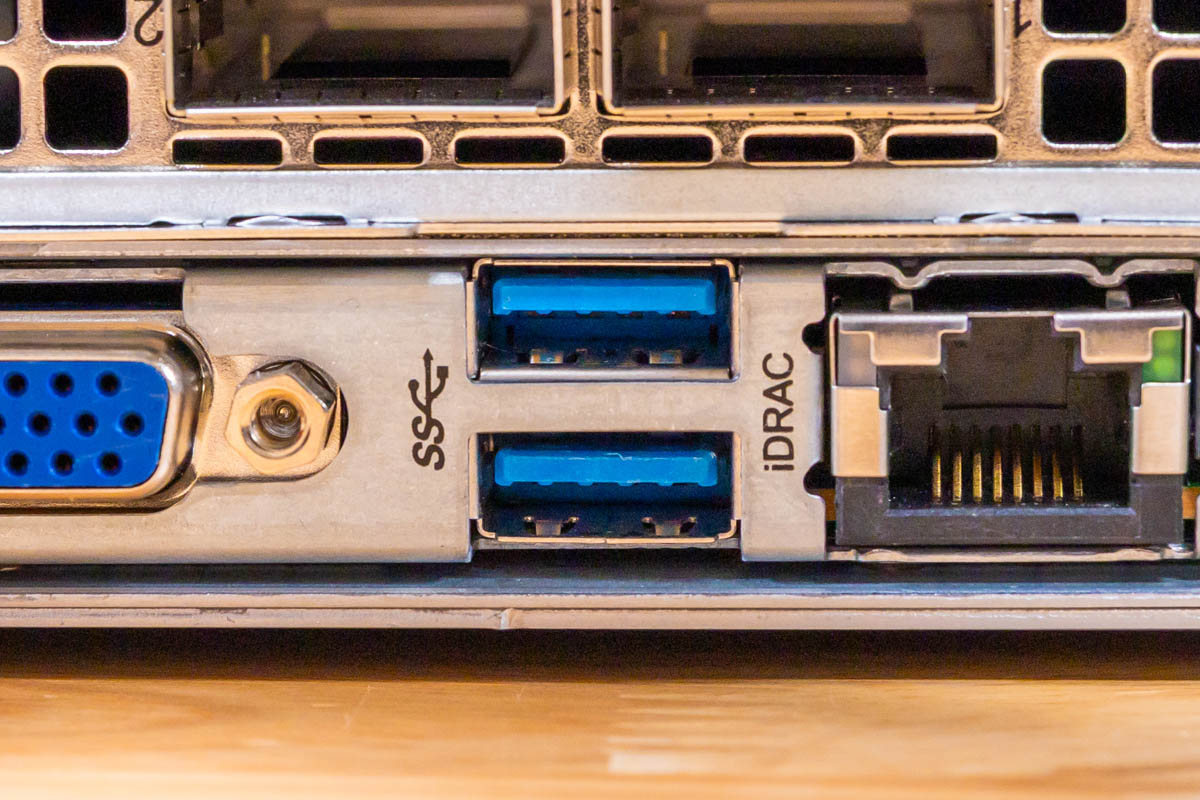
The VGA connector provides the analog console path that many data center operators still rely on for initial bring-up or emergency access. Many data centers use VGA carts. That is funny, since we have servers now well into the five-figure range for a dual-socket server, yet shared $200 monitors on data center carts keep us using this analog technology.
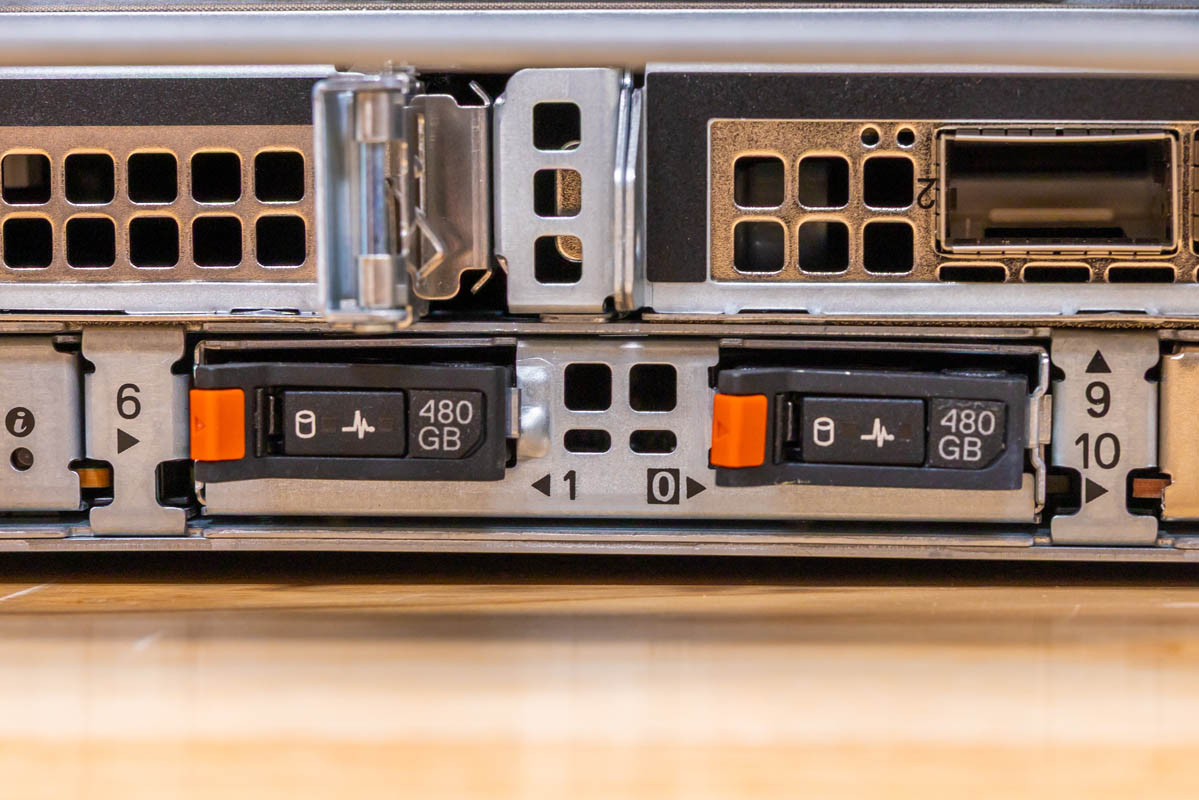
The Dell BOSS-N1 DC-MHS boot solution sits at the rear. Our unit carries two 480GB M.2 NVMe drives behind little orange release levers. Aside from BOSS being a cool brand name, it also provides a RAID 1 OS solution for those who are using OSes like VMware or Windows Server, where you may need some sort of non-software RAID for a boot volume. Here, Dell also saves two of the front bays by using the BOSS option in the back.
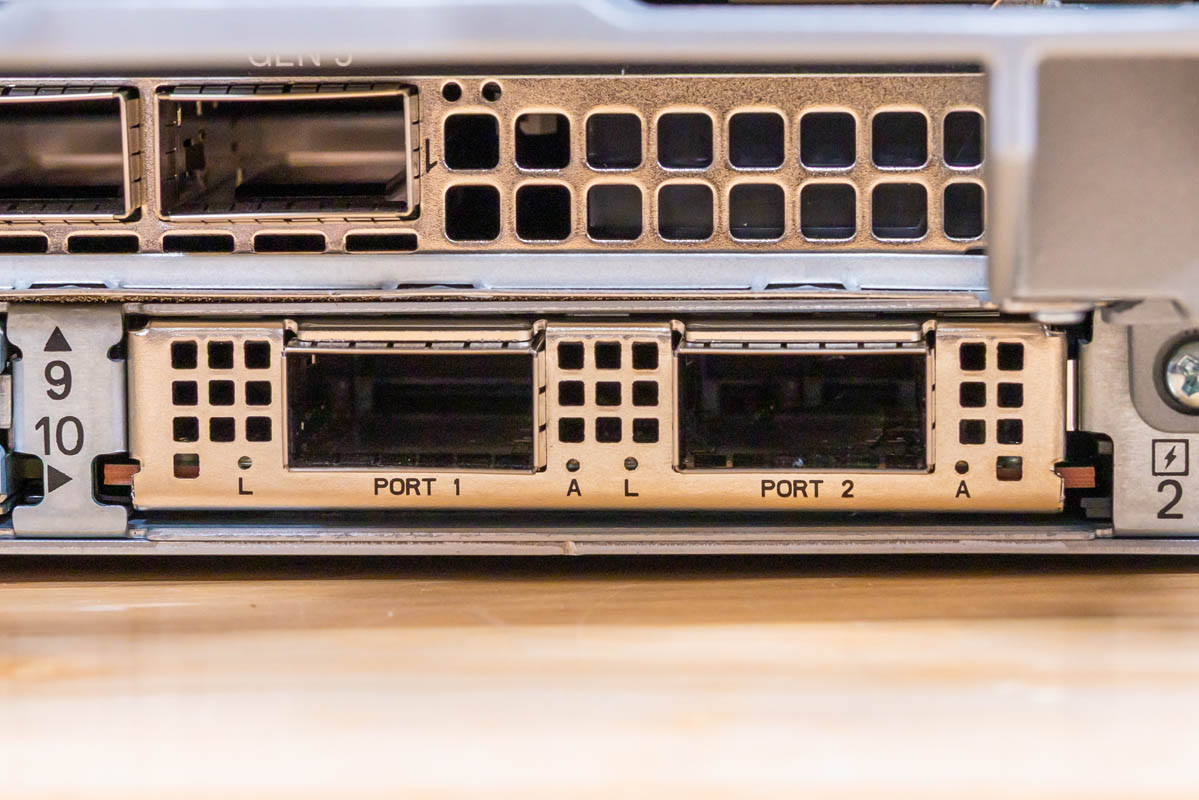
Dell uses OCP NIC 3.0 cards for primary networking in the back so you can get low-speed RJ45 networking or high-speed 200Gbps+ ports. This system configuration has both Broadcom BCM57608 and ConnectX-6 Dx controllers installed.
On the rear, Dell has many riser configurations, so it is more of a pick-your-own adventure in terms of full-height, low-profile, and other configurations. In server designs, fitting today’s higher-power NICs, DPUs, GPUs, and more in the rear requires significant thermal design effort because the SSDs, CPUs, and memory heat the air before it reaches the rear risers.
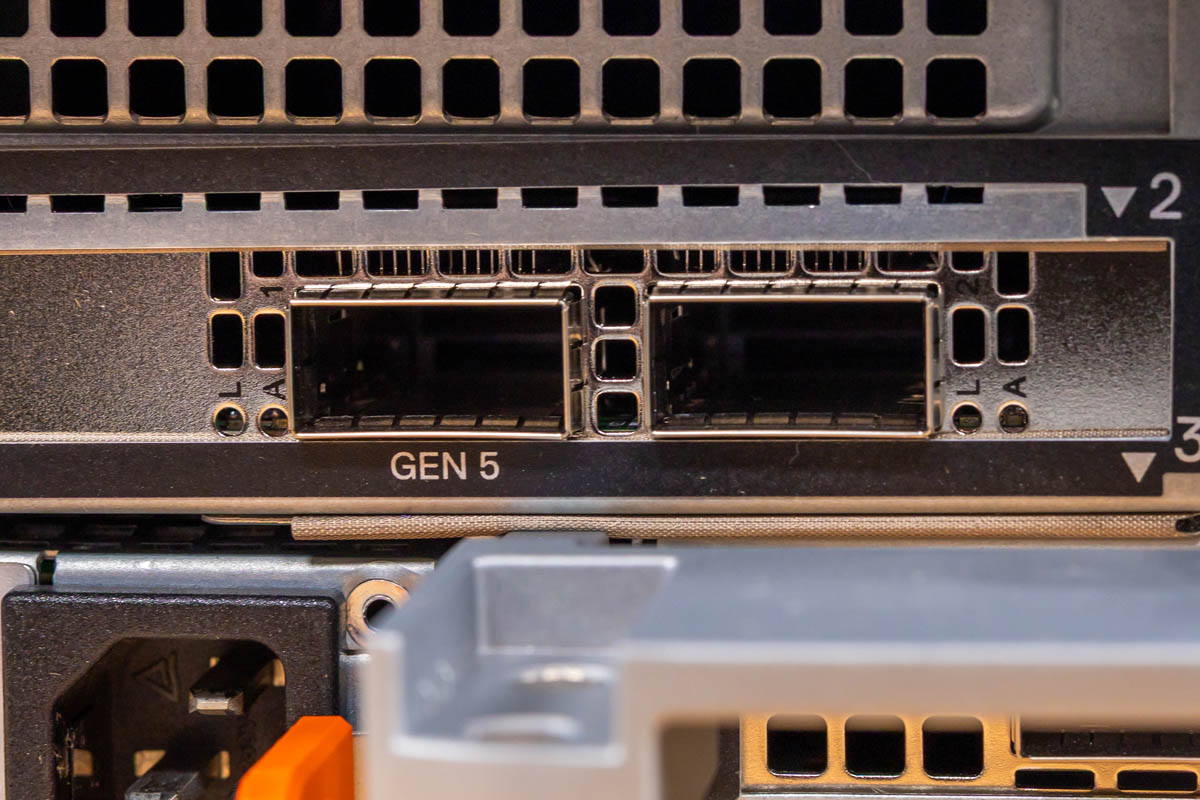
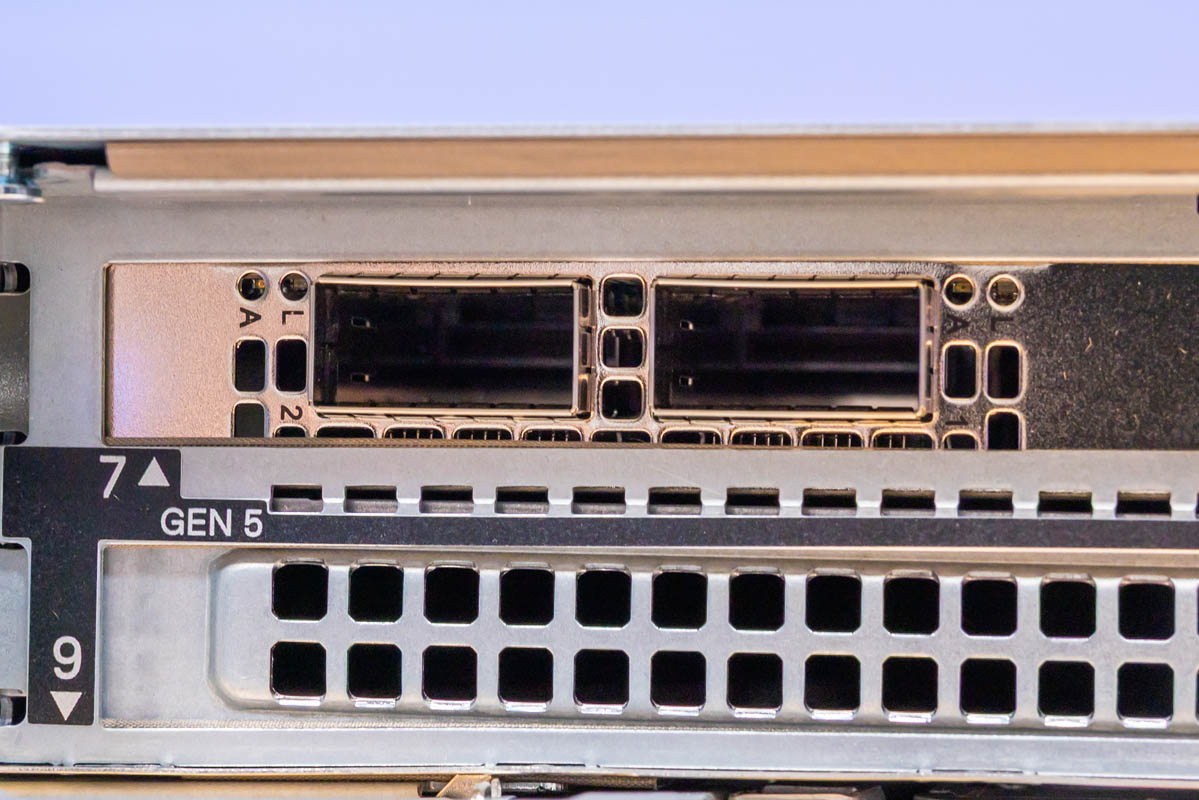
In this generation, many will use lower-speed 10G and 25G networking. We have QSFP56 networking here for 200Gbps ports. With this generation of Xeon 6, you can easily run 400Gbps NICs (1x 400G or 2x 200G). If your network infrastructure supports it, faster networking helps feed the high-end processors in these AP platforms. NICs have not risen in cost as much as memory and storage, so upgrading networking in new clusters is becoming a more popular way to increase overall cluster performance.
Next, let us get inside the system to see how it works.