
Dell PowerEdge R770AP Topology
We did not have a block diagram for this one, but here is the lstopo output showing that each Xeon 6980P package has 128 cores, with 2MiB of L2 cache per core and 504MiB of L3 cache shared across the package.
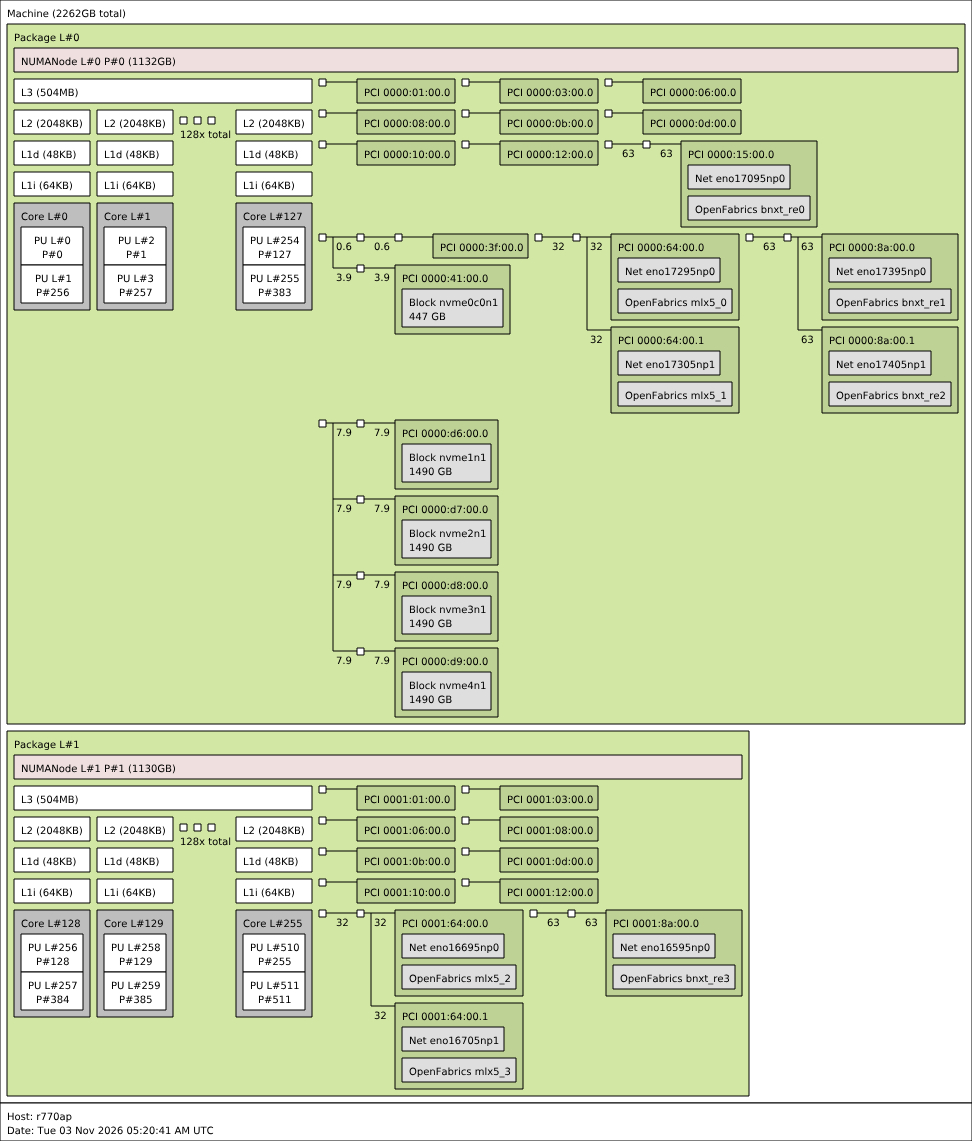
The system presents two CPU packages and two NUMA nodes, meaning memory access is divided into two local domains aligned with each socket. We have reviewed the Xeon 6980P before, so this topology looks very standard.
In our PCIe topology map, all four CD8P NVMe SSDs plugged in during the survey and the BOSS-N1 controller appear under NUMA0, while both NUMA nodes include network controllers. This device placement means that storage devices sit on one socket’s I/O domain, which can affect data paths depending on where CPU cores and memory buffers are located.
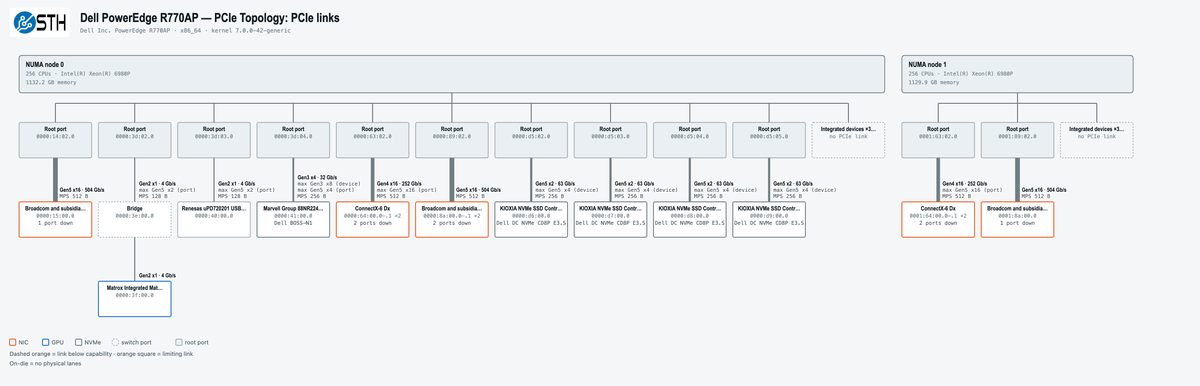
The Kioxia CD8P NVMe SSDs only have PCIe Gen5 x2 links, even though each drive is Gen5 x4 capable. That is a trick often used for E3.S systems, since 32 drives at x4 each would use 128 PCIe lanes. PCIe Gen5 x2 still provides solid bandwidth, more akin to a Gen4 x4 drive, but allows more drives alongside NICs, storage, and other components.
Dell PowerEdge R770AP iDRAC Management
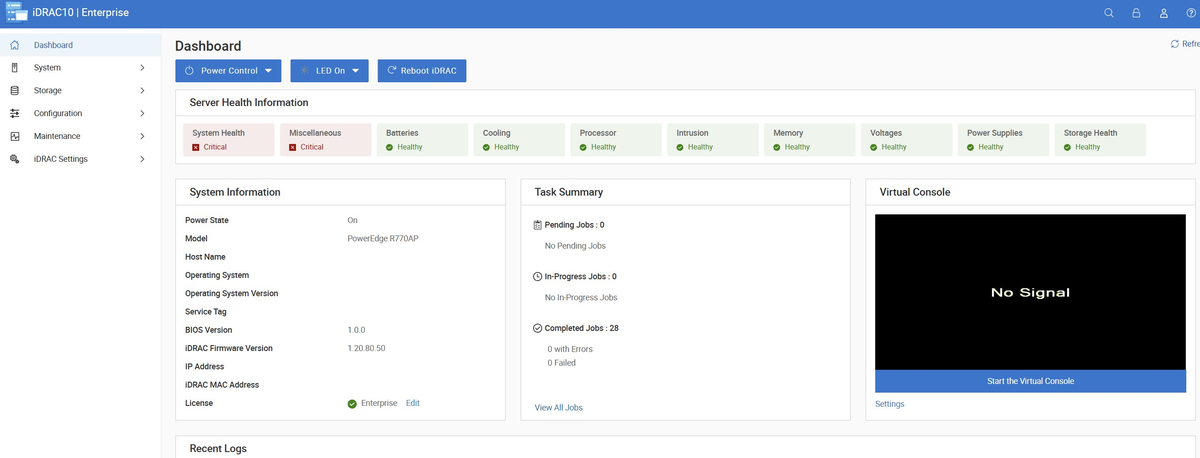
The iDRAC dashboard opens with a health summary that groups components into categories, alongside System Information, recent jobs, and a launch button for the HTML5 console. This is the landing page you see when you first connect to the management interface and log in, and it gives an immediate overview of whether anything needs attention.
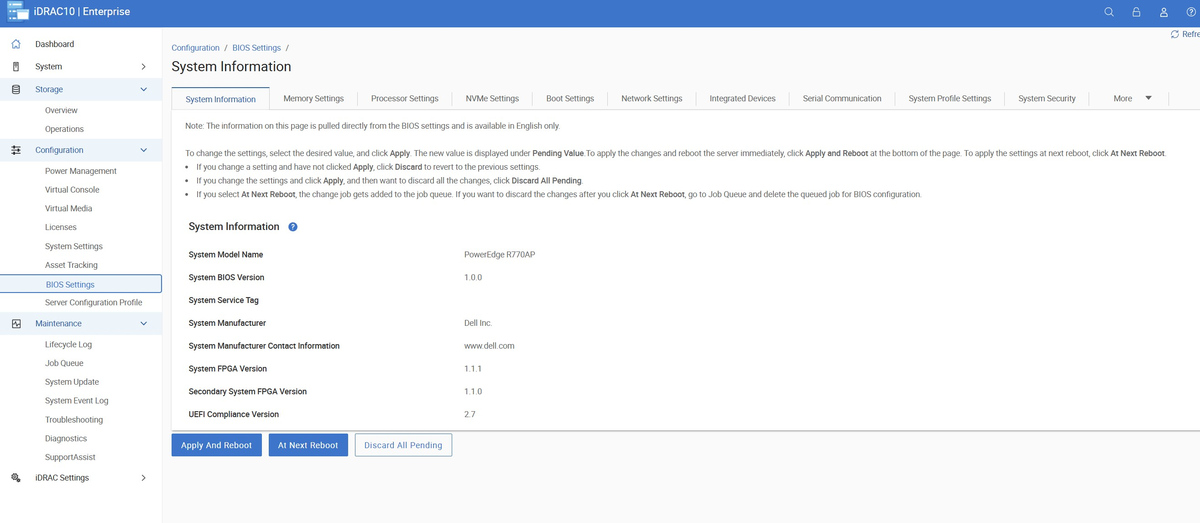
The BIOS Settings screen organizes system configuration into tabs for Memory, Processor, NVMe, Boot, Network, and Integrated Devices. The Apply And Reboot, At Next Reboot, and Discard All Pending options give you control over when changes take effect, which matters in production where an immediate reboot is not always acceptable. My favorite part, that we have talked about before, is how much Dell has done with iDRAC 10 to make it so you do not have the experience of rebooting a server and having to press a keyboard function key or Del to get into BIOS.
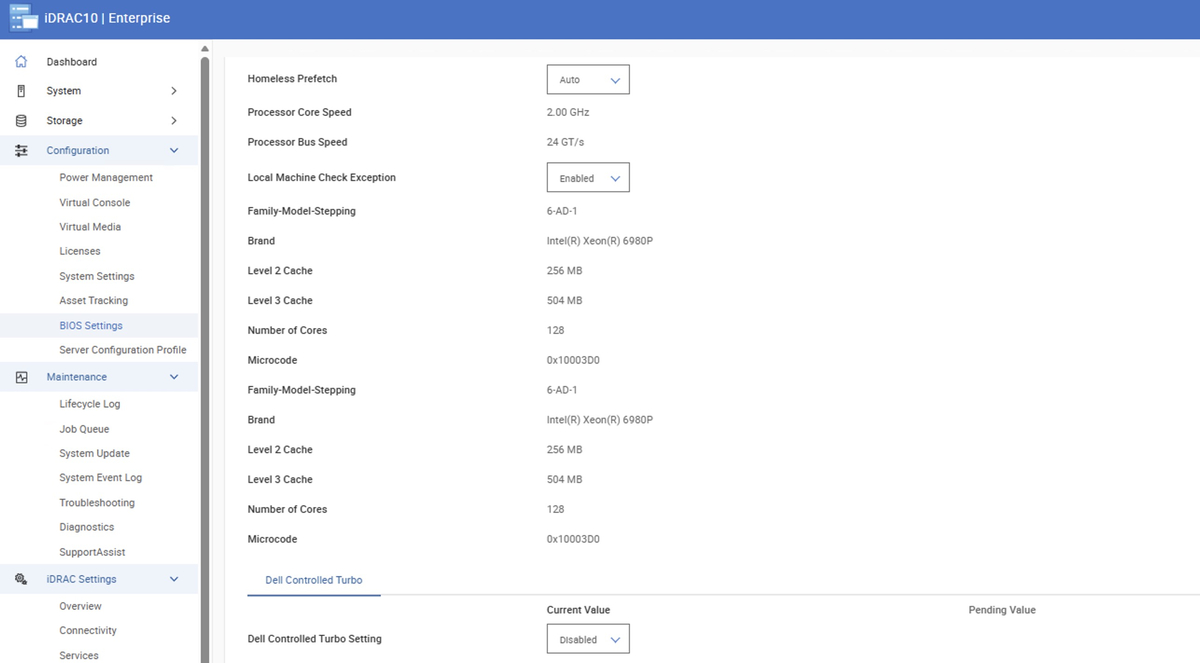
The BIOS Processors screen lists two Xeon 6980P processors with 128 cores each, a 2.00GHz base frequency, 256MB L2 cache, and 504MB L3 cache per CPU. This inventory view lets administrators verify core specifications without going into the BIOS via iKVM.
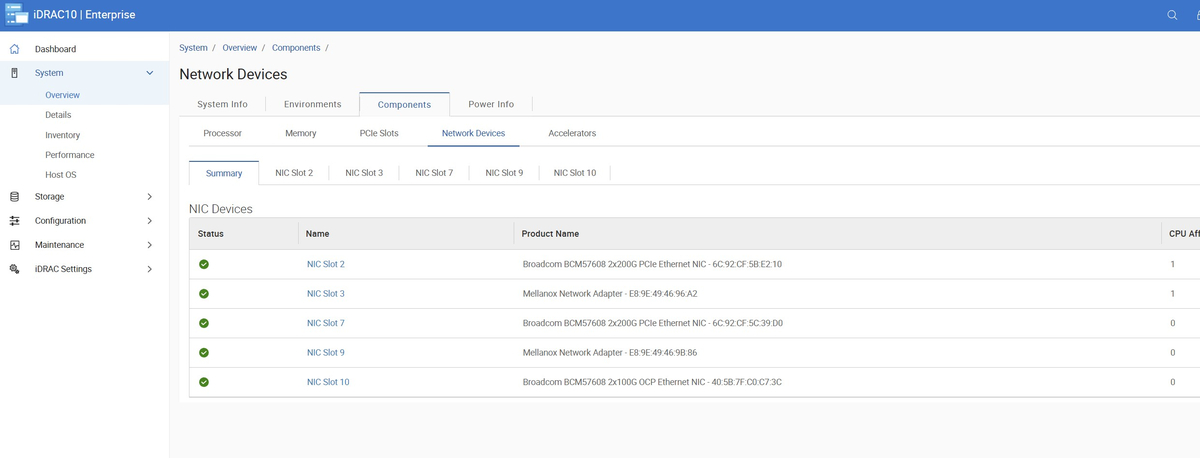
The Network Devices inventory lists NIC slots. This gives you a consolidated view of every network interface the system knows about, which helps confirm that all installed adapters are present and recognized before you start configuring them.
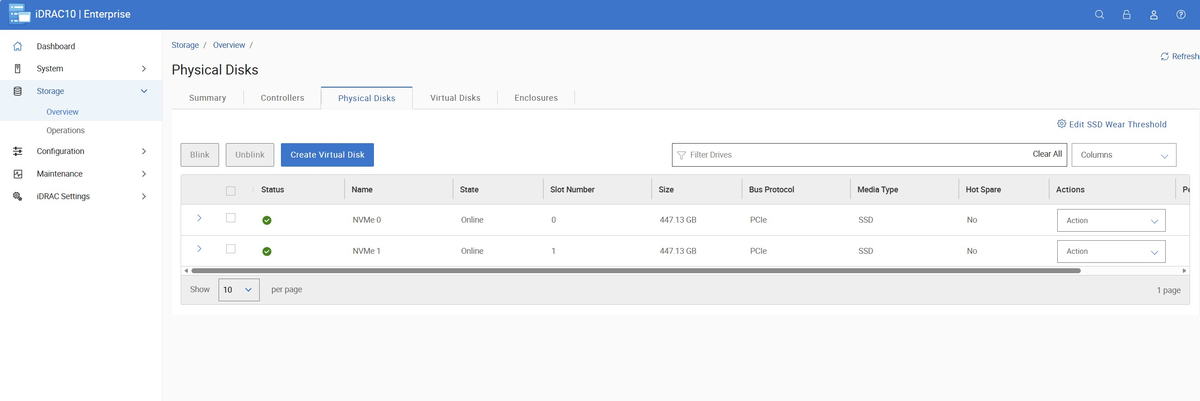
The Physical Disks inventory shows the Dell BOSS 480GB capacity SSDs. These rear boot drives appear as a separate configuration from the four front data SSDs.
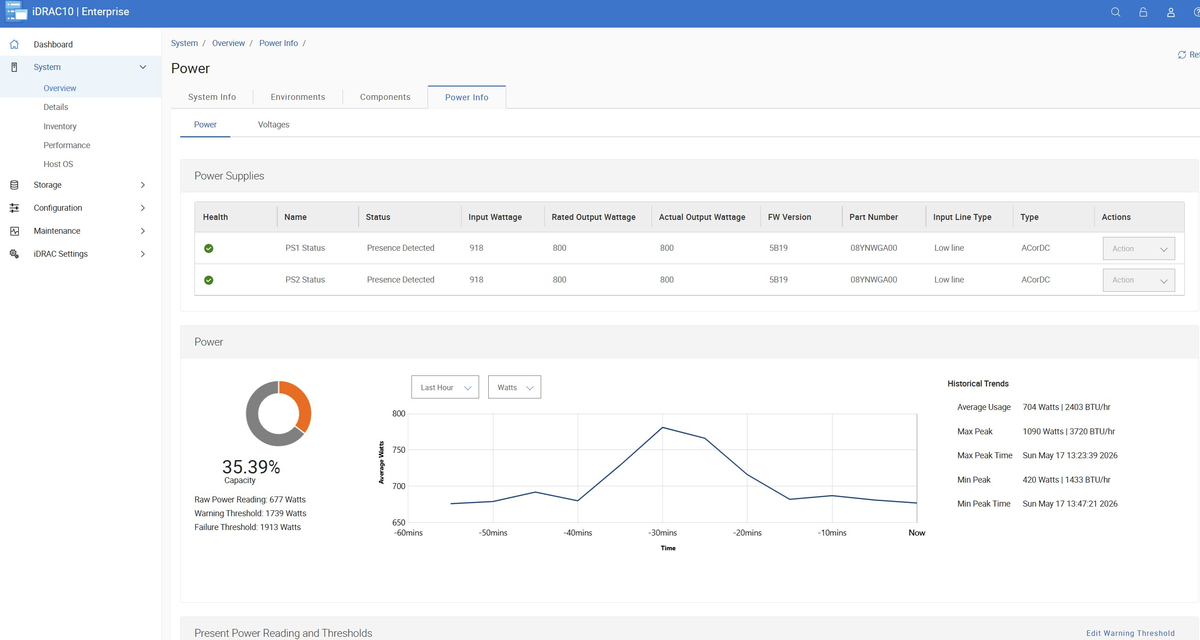
The iDRAC power dashboard displays power-supply tables and history graphs. This management feature provides visibility into system power metrics through the interface’s dedicated monitoring section.
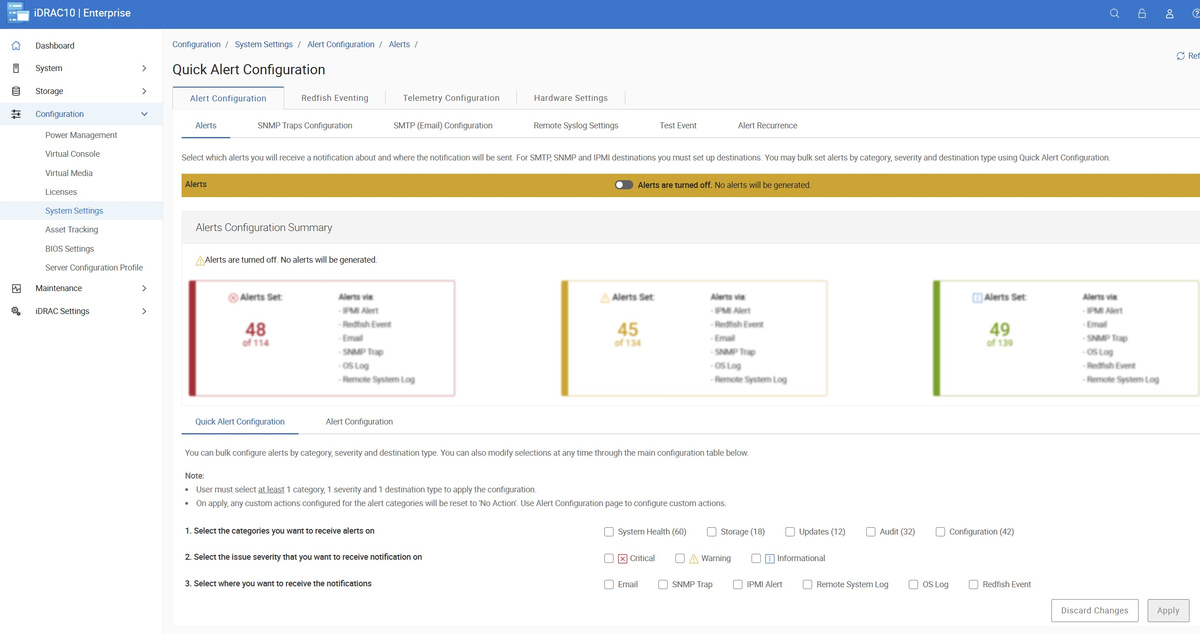
The Quick Alert Configuration screen organizes alerts into critical, warning, and informational categories and lets you configure delivery options. This is where you set up email or other notification paths so that hardware events reach administrators without requiring them to poll the dashboard continuously.
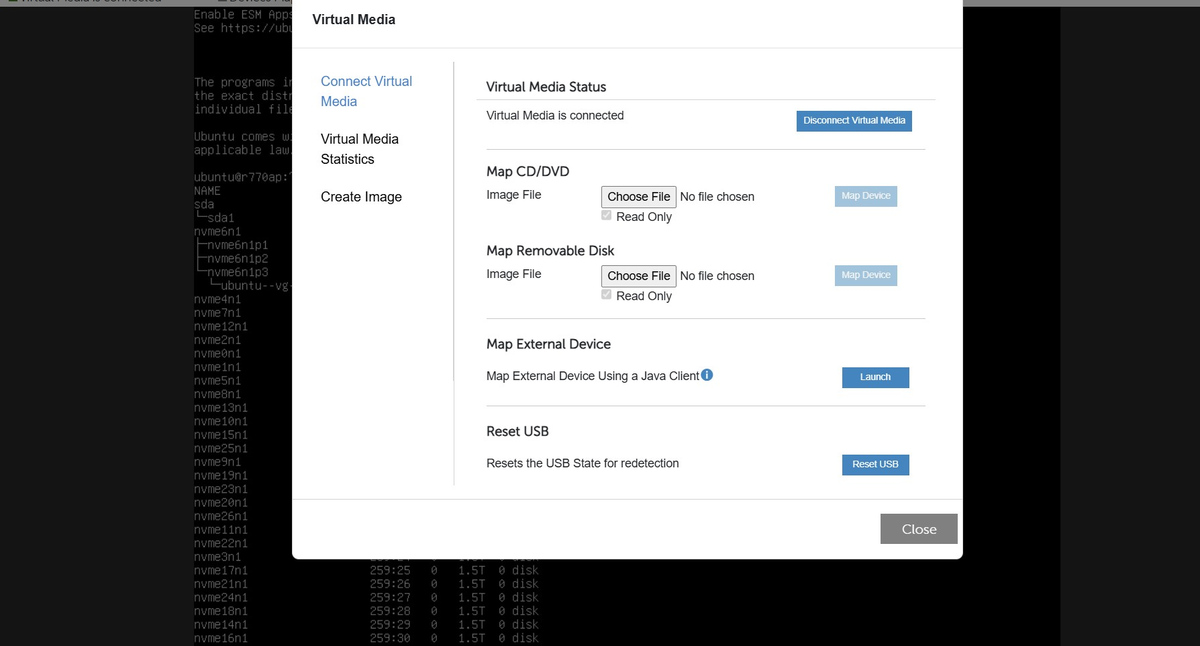
Dell’s HTML5 iKVM console includes a Virtual Media dialog for CD/DVD images and removable media redirection. This capability enables remote media access through the management connectivity interface.
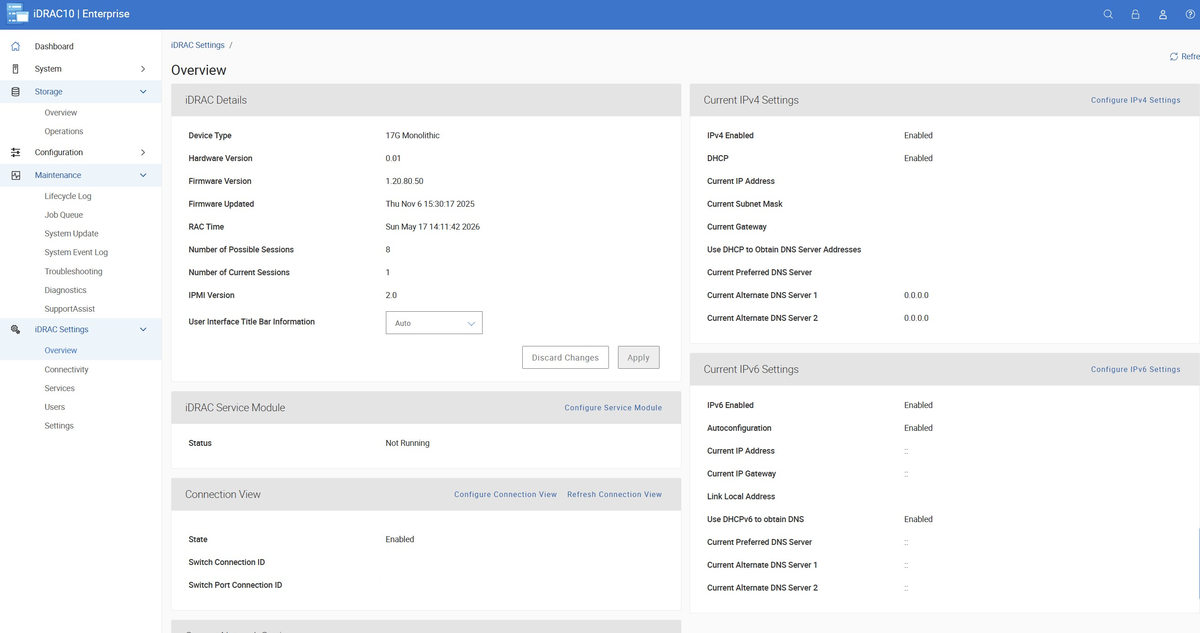
And of course, there is the Dell iDRAC settings page, which we will show briefly. One of Dell’s big value propositions is having the ability to manage fleets of PowerEdge devices centrally, so the APIs behind pages like this become more important.
That is enough of that. Now, let us get to the performance.