

Lenovo ThinkPad X1 Carbon Gen 14 Internal Hardware Overview
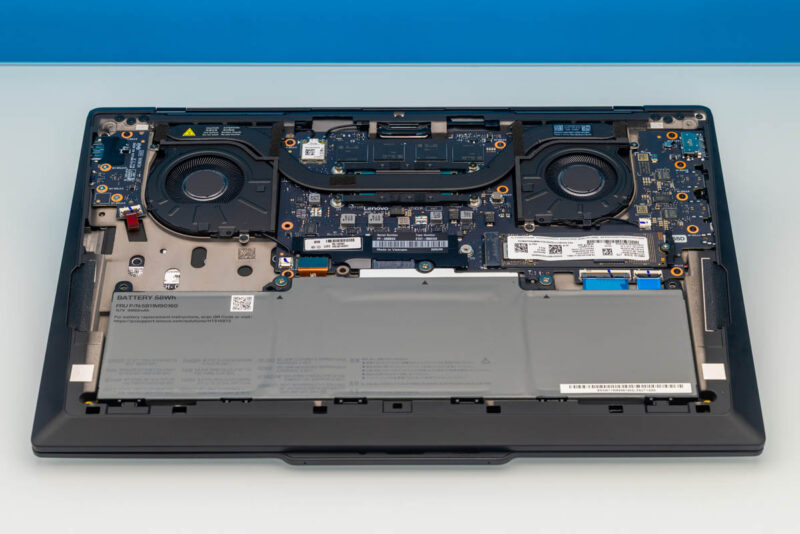
We were able to access the internal hardware of the Lenovo ThinkPad X1 Carbon Gen 14 by removing several screws on the bottom of the chassis. There are not many customer-replaceable parts inside the laptop. The bulk of the components in the laptop, such as the LPDDR5X memory, are soldered down. There is only one M.2 storage slot. So the common user has little need or ability to access the laptop and upgrade.
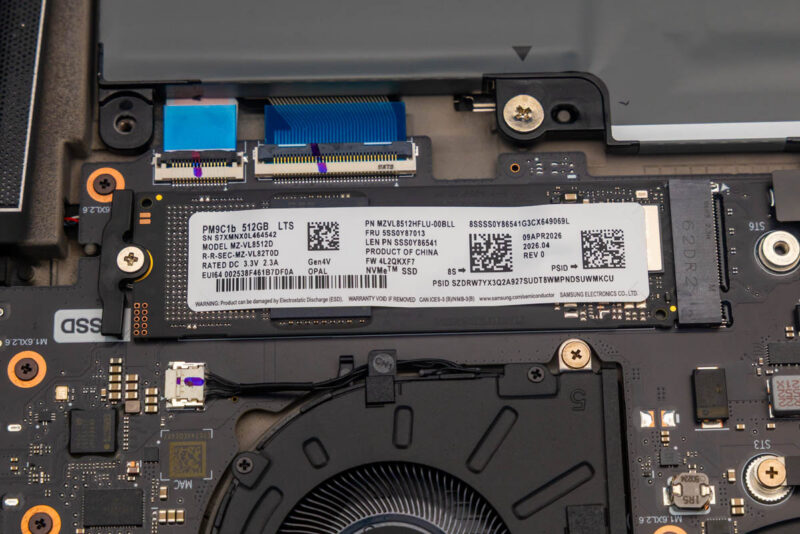
First, we take a look at the M.2 2280 slot. The Lenovo ThinkPad Carbon Gen 14 can take up to 1TB of storage. Here we have a Samsung PM9C1b 512GB SSD.
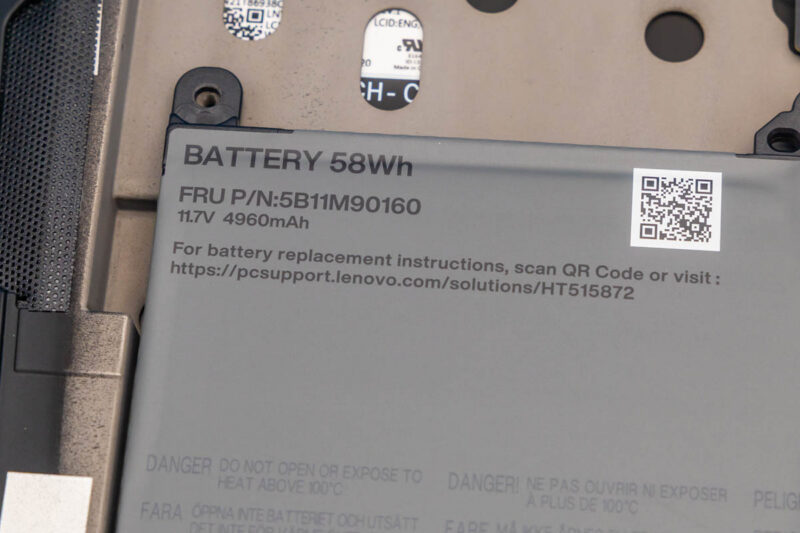
Next, let us look at the 58Wh battery installed. The battery is held in place by a few screws, making it easy to install if you need to replace it.
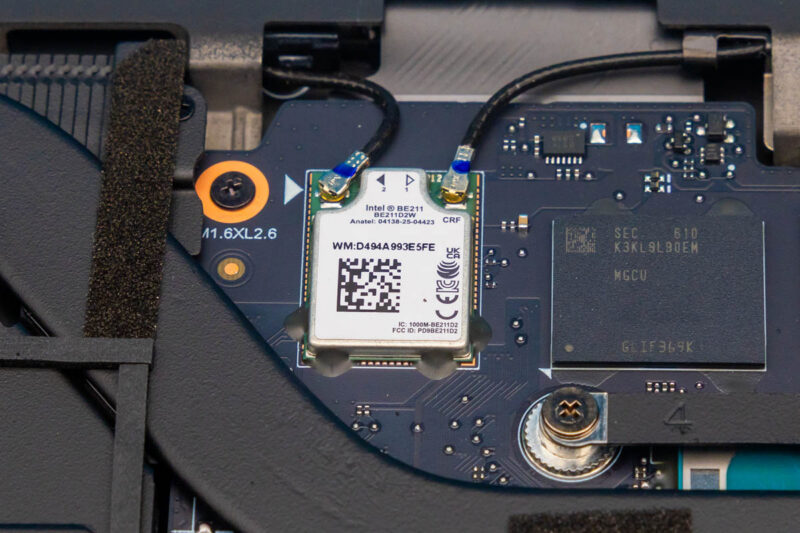
At the top of the interior, you find the Intel BE211 WiFi 7 as well as a Bluetooth 5.5 adapter for wireless connectivity. This is soldered, so it is not like many larger systems where that solution might be on an M.2 card.
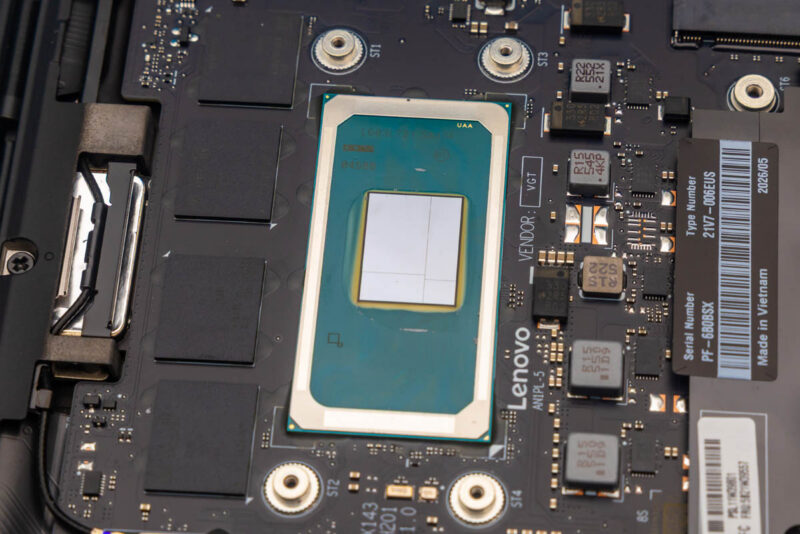
Lastly, under the heat sink attached to the internal cooling fans, you find the Intel Core Ultra 7 355 Processor found in the model we are looking at here. You can access this by removing eight screws. Lenovo offers three different processors for this model, topping out at the Intel Core Ultra 7 365 Processor with vPro. To the left in the photo below, you see the 32GB of LPDDR5X memory (up to 64GB), which is soldered down.
With the chassis and design settled, we turn to the platform inside and how it performs in our benchmarks.
Lenovo ThinkPad X1 Carbon Gen 14 Test Configuration
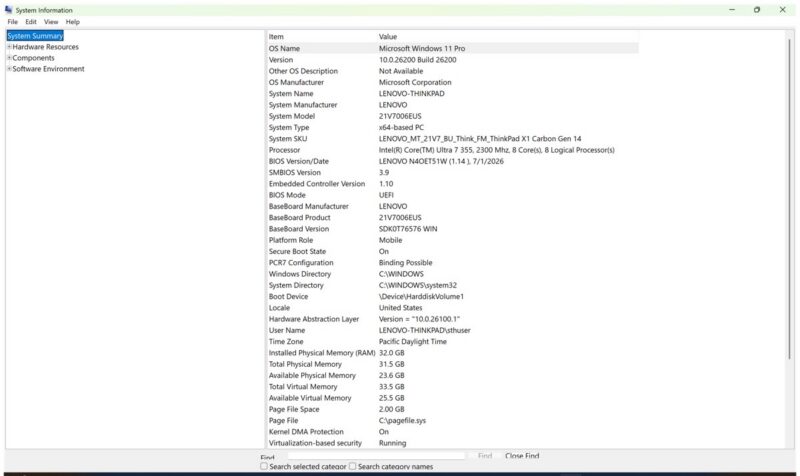
Windows System Information confirms the model as 21V7006EUS running Windows 11 Pro on the Intel Core Ultra 7 355 with 31.5GB of installed memory.
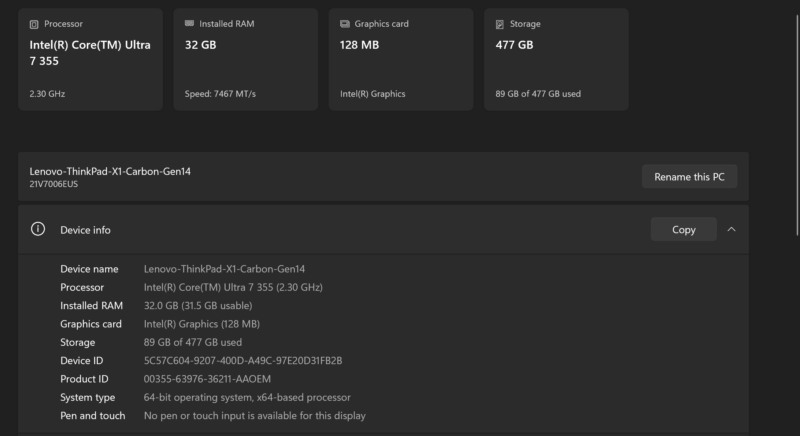
That memory figure matters more than usual because the RAM is soldered to the system board with no SODIMM slots and cannot be upgraded later. Family options range from 16GB to 64GB, so capacity is a pre-order decision made before the laptop ships.
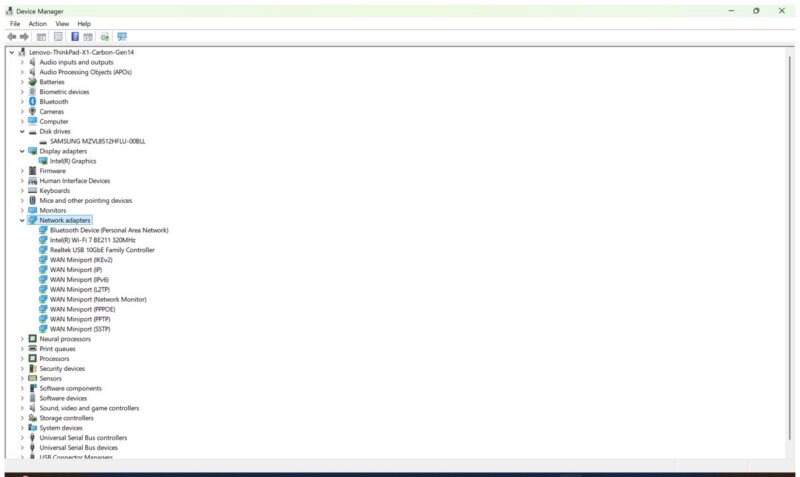
Where memory is fixed, storage keeps more flexibility. An installed-component view identifies a Samsung SSD alongside Intel graphics and the integrated Wi-Fi adapter. A single M.2 2280 slot wired for PCIe 5.0 supports drives up to 2TB, so the installed SSD can be replaced, just not supplemented with a second internal drive.
Single-slot storage and soldered RAM together make the X1 Carbon more of a pick-once platform than an upgrade platform. External port selection offsets some of that rigidity, with USB Type-A, HDMI, and a headset jack sitting alongside three Thunderbolt 4 connections. Still, make sure you order the amount of memory you need.
With the platform laid out, the next question is how the tested processor compares with the two larger Dell systems in our benchmark results.
Lenovo ThinkPad X1 Carbon Gen 14 Performance
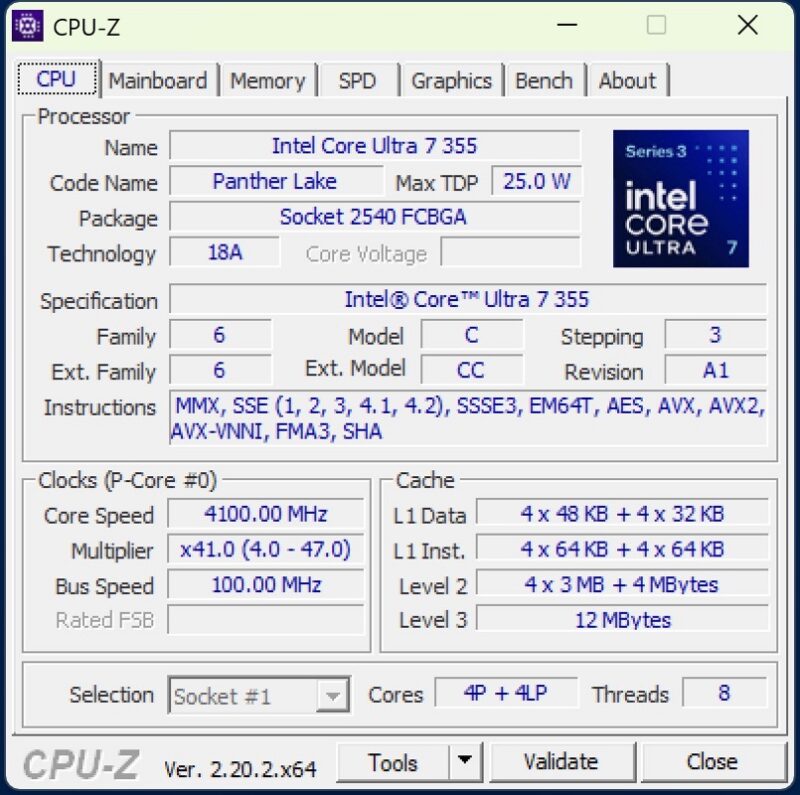
The tested X1 Carbon uses an Intel Core Ultra 7 355. CPU-Z identifies the processor and its eight-core, eight-thread configuration before the benchmark comparisons that follow.
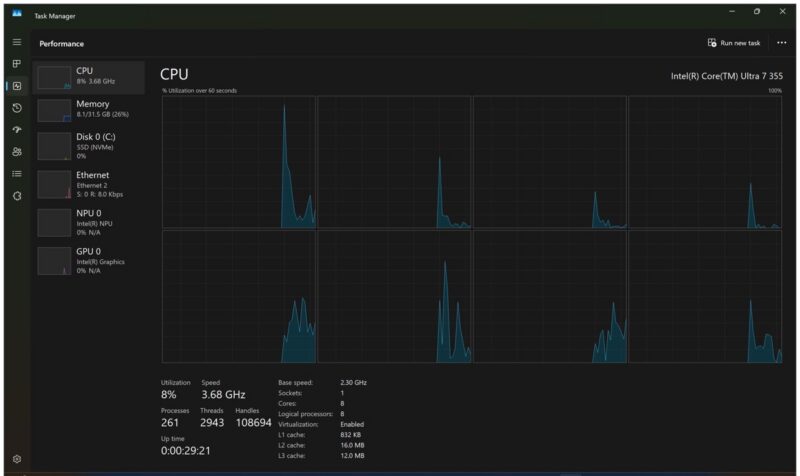
Windows Task Manager provides the second platform check, reporting the eight logical processors presented to the operating system. That count gives useful context for reading the single-core and multi-core results as separate measurements.
Let us start with the Geekbench results.
Geekbench 5, Geekbench 6, and Geekbench 7
We start the CPU comparison with Geekbench 5. We have two other Dell notebooks that we are reviewing at the same time, so we are just going to use the three as comparison sets, but there are plenty of Geekbench results out there that you can compare these to. Geekbench 5’s CPU test is still the best of the series for testing multi-core throughput.
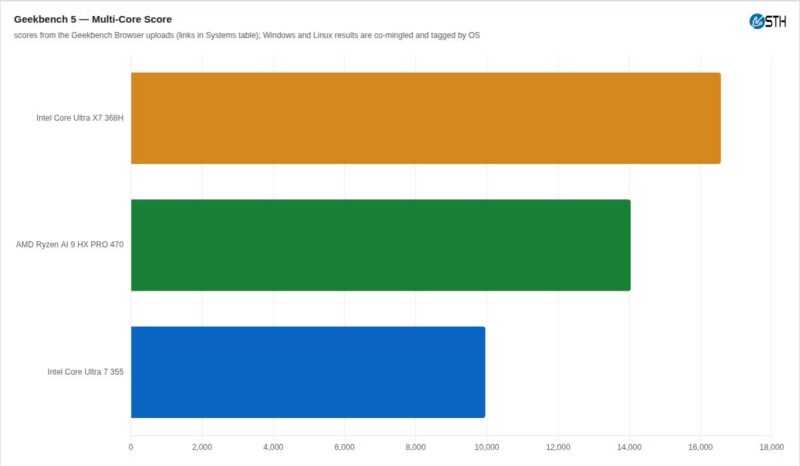
The two Dell systems are larger and have more power and cooling. Still, at around 10K multi-core score, this is a very capable system.
In Geekbench 6 multi-core we see a similar pattern.
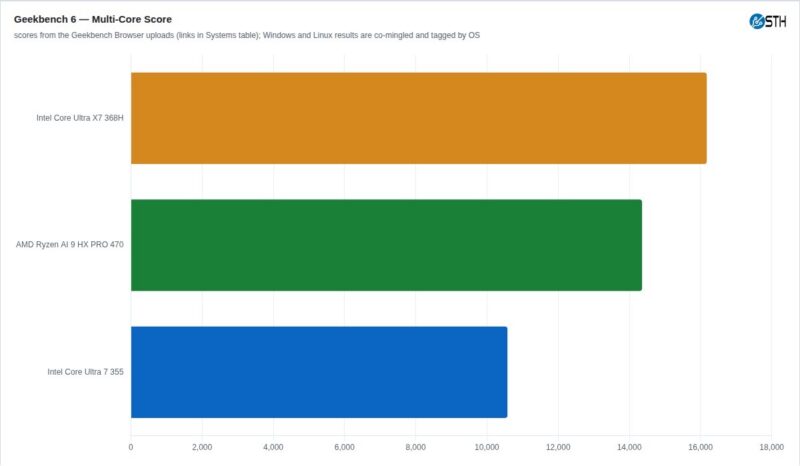
Here again, the results favor the larger and higher power systems, but you can see that you are getting a lot of portability for some performance loss, which makes sense for a lot of people.
With the platform settled, we ran Geekbench 7, lining up two larger current Dell Pro notebooks as a same-generation context rather than universal rivals. Here are the new benchmark’s single-core results.
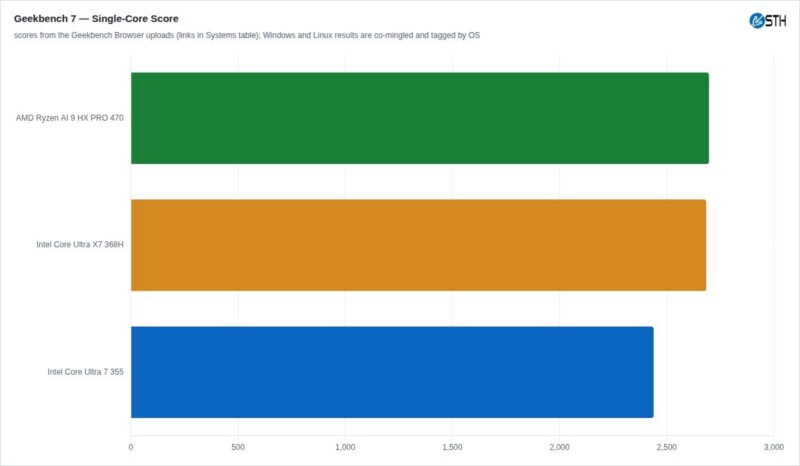
For many desktop workloads today, single-core performance is what users feel, and on that one, the platforms are relatively close.
Geekbench 7’s multi-core comparison opens a much larger gap.
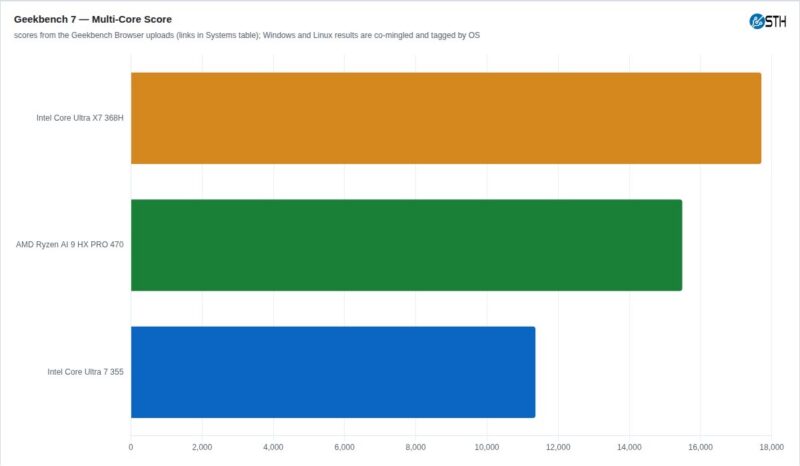
Our X1 Carbon returned 11,363, while the Dell Pro 5 16 reached 15,486, and the Dell Pro 5 14 climbed to 17,709. Measured from the Dell scores, the X1 Carbon is 26.6 percent below the 16-inch result and 35.8 percent below the 14-inch result. That is the largest CPU separation in this three-system comparison.
The Geekbench 7 compute tests add a different ordering. OpenCL and Vulkan produce distinct comparisons, so the two APIs need to be read side by side instead of folded into one graphics number.
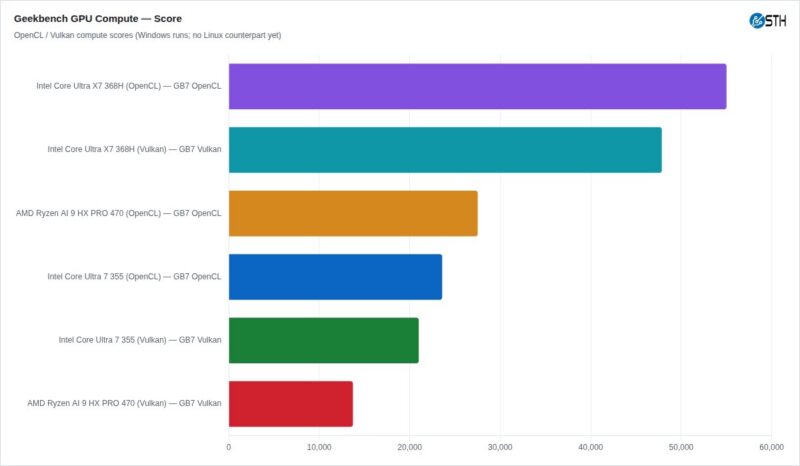
The performance here is between the AMD Ryzen AI 9 HX Pro 470, which is a good result for an Intel iGPU.
Geekbench AI
We ran Geekbench AI on all of the numerous compute elements in this system. Here are the results including ONNX CPU vs ONNX DirectML:
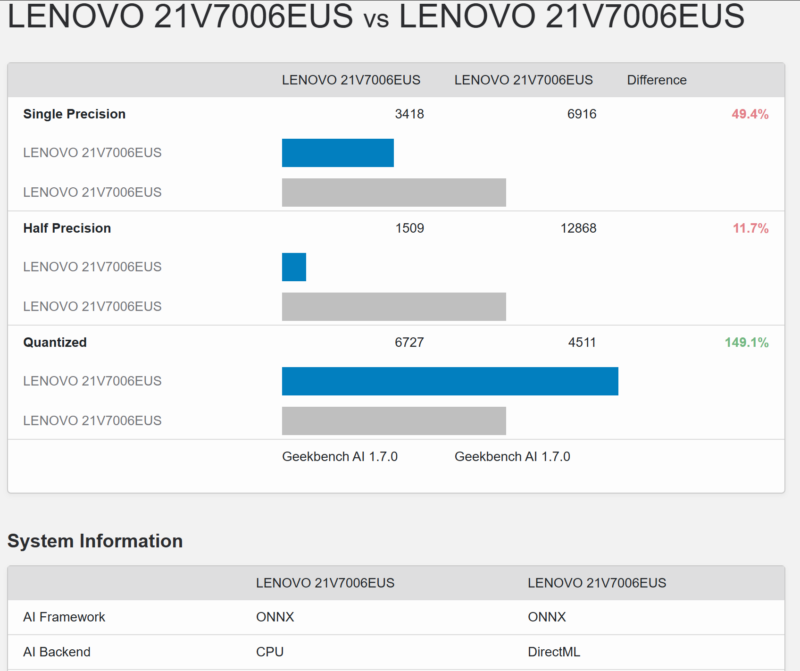
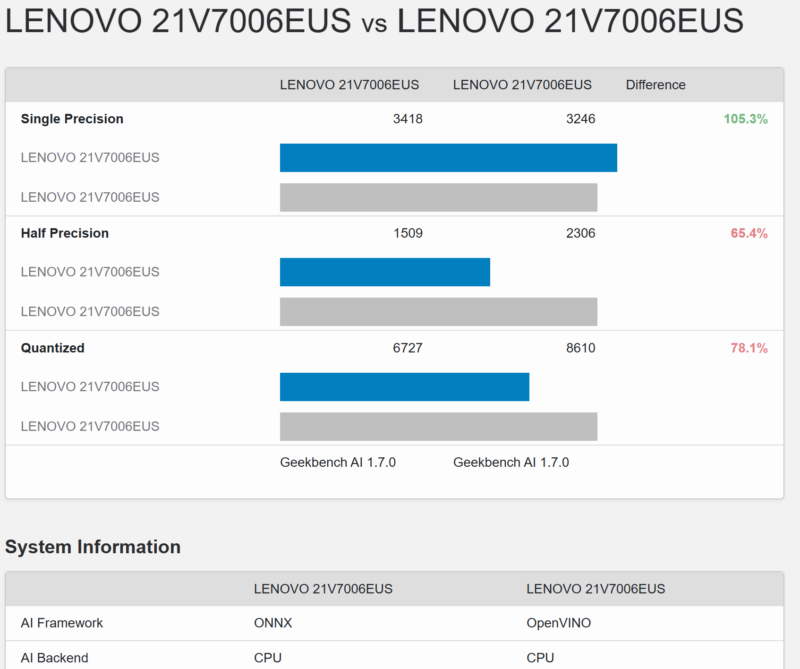
ONNX CPU vs OpenVINO CPU:
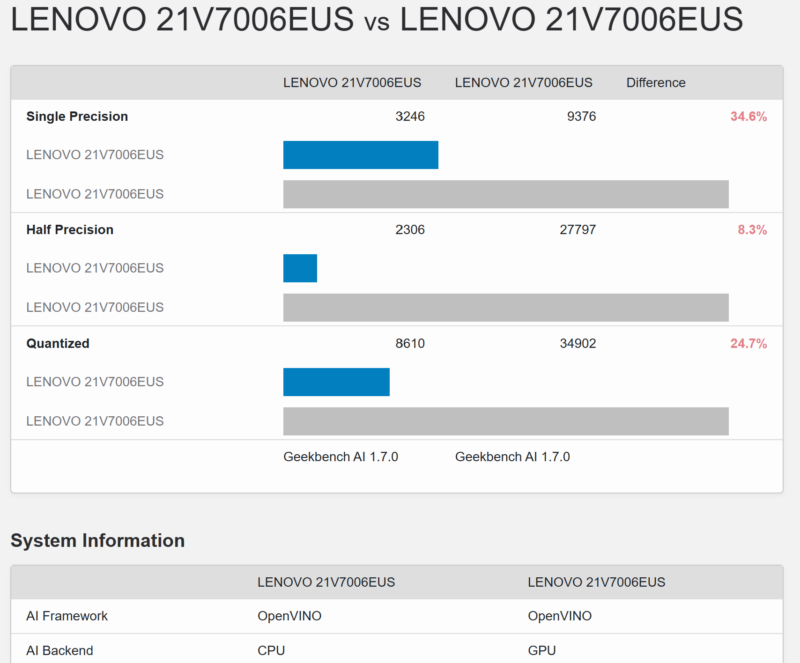
OpenVINO CPU vs OpenVINO GPU:
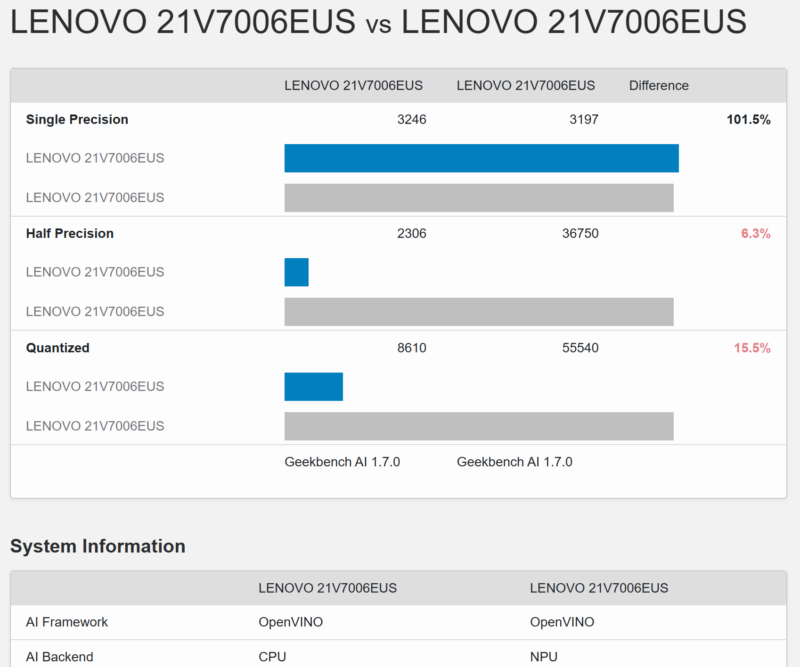
OpenVINO CPU vs OpenVINO NPU
Lastly, OpenVINO GPU vs OpenVINO NPU
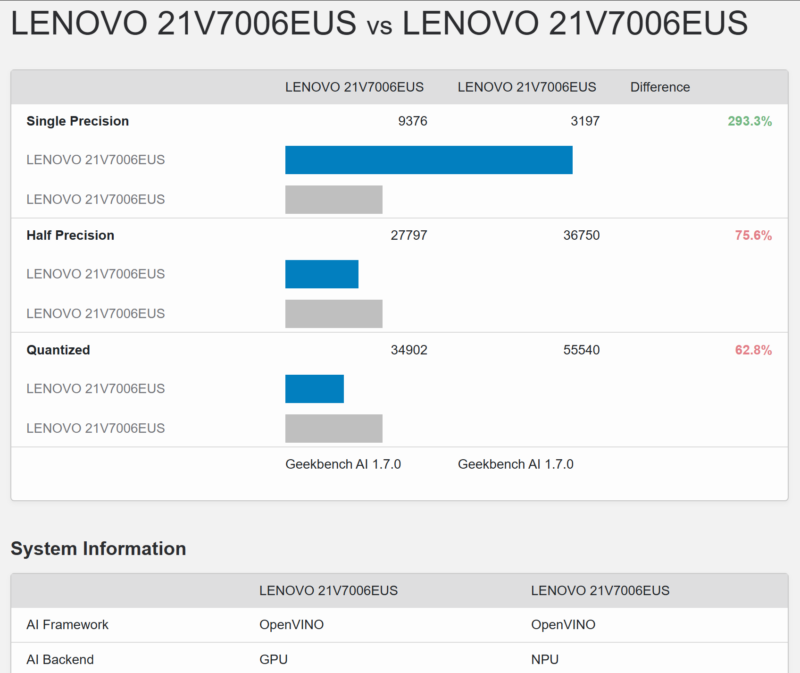
Those give you some numbers that you can compare to other systems in the Geekbench AI browser. Intel’s support of OpenVINO means the platform tends to do very well here.
MLPerf Client 1.6.1
MLPerf Client changes the scope from cross-system CPU comparison to packaged AI execution paths inside this X1 Carbon. Overall token throughput spans four model families and several GPU or NPU providers. The highest figure is 35.7 tokens per second for Phi-3.5 on the GPU through Native OpenVINO, while the Phi-4 configurations cluster between 11.2 and 11.7 tokens per second. Since the model and runtime change between bars, the chart is most useful for comparing paths within the same model family rather than treating every bar as one universal ranking.
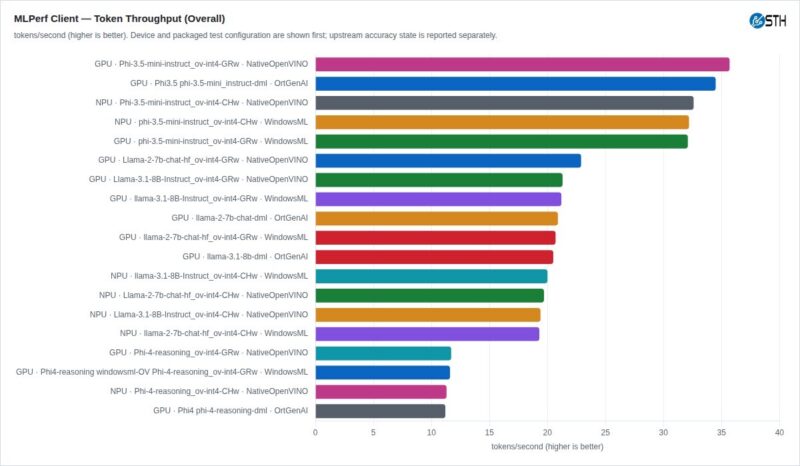
Within those model groups, the provider spread is visible without changing the prompt category. Native OpenVINO on the GPU reaches 22.9 tokens per second for Llama 2, 21.3 for Llama 3.1, 35.7 for Phi-3.5, and 11.7 for Phi-4. The corresponding OrtGenAI GPU paths score 20.9, 20.5, 34.5, and 11.2 tokens per second. Time to first token adds the latency side of the same MLPerf Client runs.
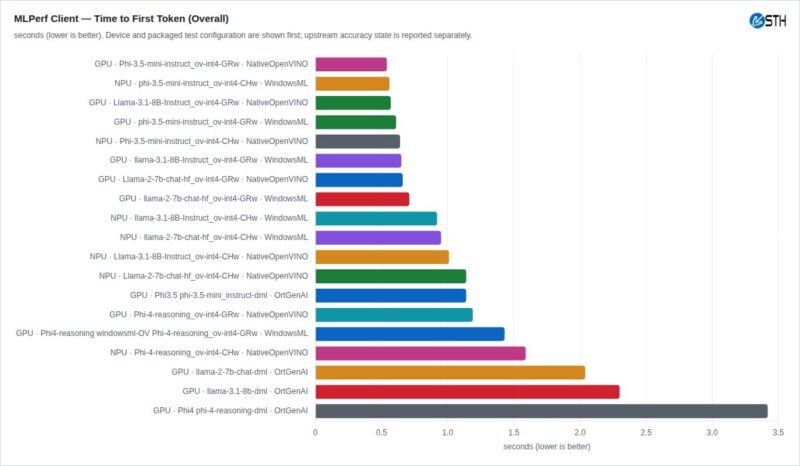
Lower is better in the latency chart. Native OpenVINO on the GPU records the lowest time to first token in each of the four model groups, ranging from 0.54 seconds for Phi-3.5 to 1.19 seconds for Phi-4. The OrtGenAI GPU paths are slower in these runs at 2.04 seconds for Llama 2, 2.30 for Llama 3.1, 1.14 for Phi-3.5, and 3.42 for Phi-4. These figures describe the packaged model, provider, and accelerator combinations tested on this notebook; they do not measure model-output quality.
From performance, we move to power and battery, where the notebook’s endurance story plays out.



Still feels like the biggest let-down here is the software – the PTSD inducing crapshoot that Microslop has put together and we know as windows11. I would love to see some tests done on latest Ubuntu.
Looking at reddit – reports on this machine – not working still: Camera, Mic, headphone jack
I don’t understand why Lenovo sends review units with 7 355, LCD, Gen 4 nvme across all tech reviewer.
My X1 Carbon has X7 358H, 64GB, OLED(touch), crappy Chinese Gen4 nvme which I’m trying to replace with WD_Black SN8100 2TB, but can not lift the magnesium bottom cover because of the middle clip, and no one shared the trick on the internet yet. Lenovo service couldn’t help they don’t even know there is a difference between the OLED magnesium and LCD aluminium.
It runs Fedora 44 KDE, everything including camera work out of the box.
Kernel driver in use : intel_ipu7
Kernel modules: intel_ipu7
imx471 [libcamera]
Driver vers: 7.1.5