
Microsoft Surface Laptop Ultra Internal Hardware Overview
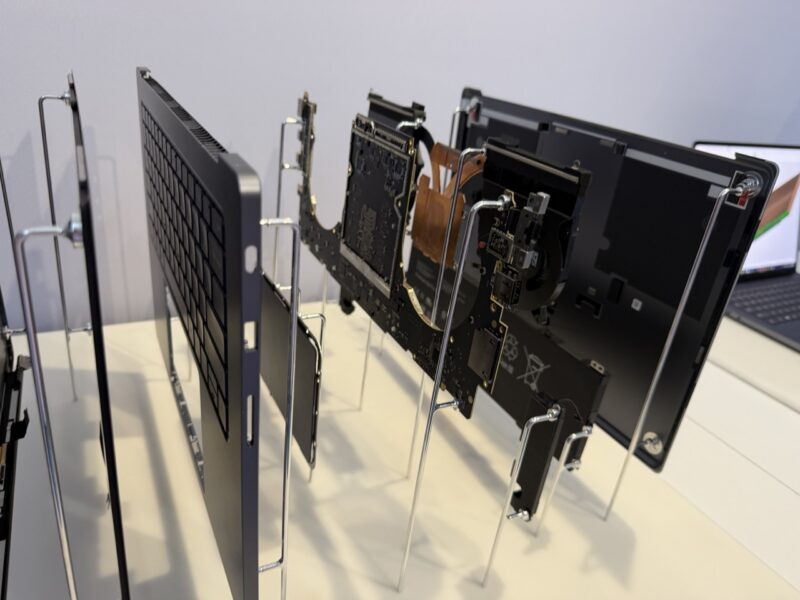
This is a highly modular laptop design, with almost every part replaceable if you have the time and skills. Ideally, Microsoft would prefer a professional service it, but it is entirely possible to do it yourself if you know what you are doing, and Microsoft has already posted an extensive disassembly and assembly guide for the brand-new laptop.
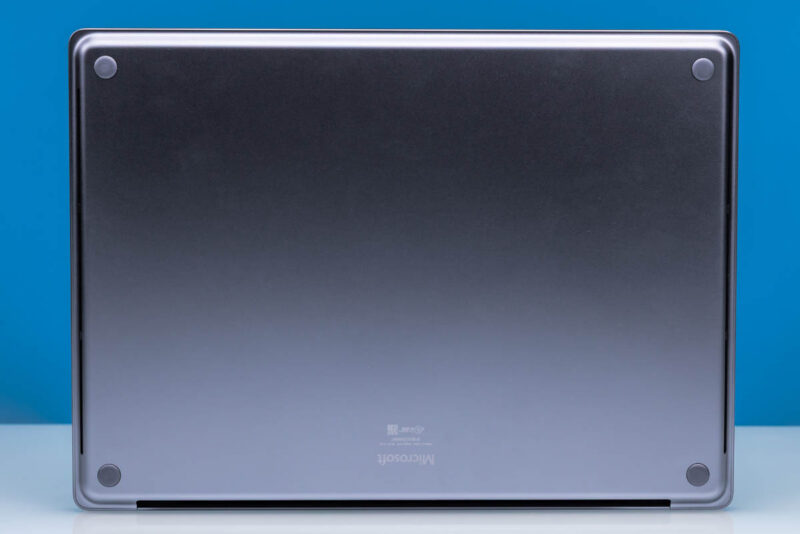
As noted earlier, there are no visible screws on the bottom of the laptop. Like earlier Surface laptop designs, Microsoft has placed the screws underneath the feet of the laptop. Thankfully, since this is a premium laptop, the feet are not merely adhered in place, and instead snap in.
Ultimately, you can access the screws (and therefore the laptop’s internals) by using a spudger or similar tool to release the feet.
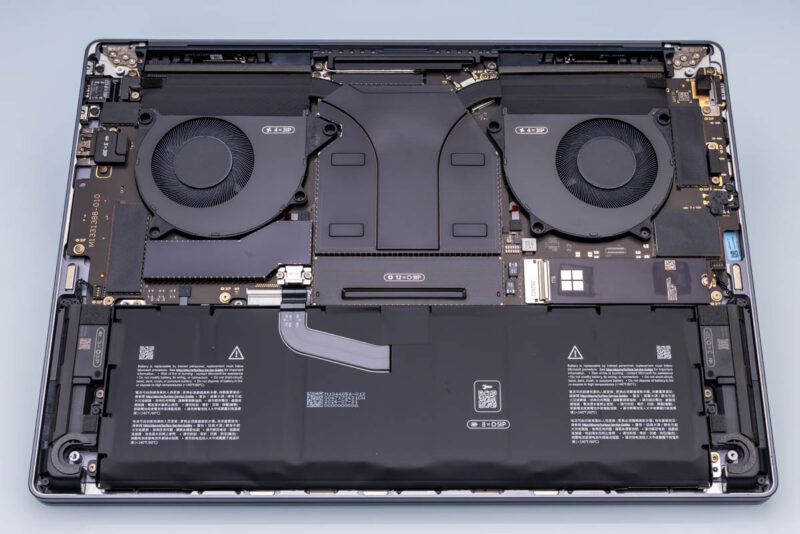
Once inside, we find a very clean, meticulously labeled laptop. Microsoft has been pretty good about labeling its previous Surface laptops, but the Ultra is even cleaner. Someone has clearly taken the time to color-coordinate as much as reasonably possible; even the heatsinks are black.
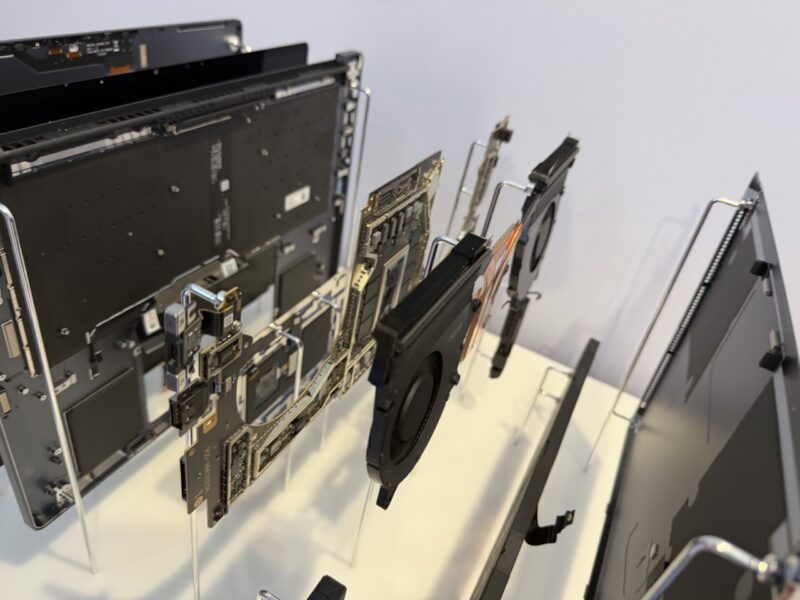
Microsoft has been using Torx Plus (IP) screws for a while here, and the Ultra is no different. So if you are aiming to open up the laptop, make sure you have a good set of drivers for this less common screw type.
Microsoft designed almost every part of the Surface Laptop Ultra to be serviceable. However, from an end-user perspective, you can really only replace two things: the SSD and the battery.
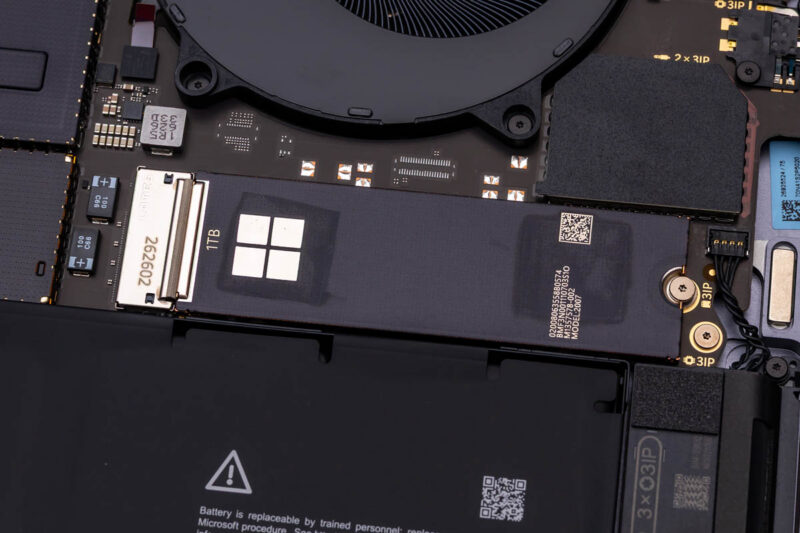
For SSDs, the Surface uses one of Microsoft’s removable SSD (rSSD) modules, which is just a standard M.2 dressed up in a Microsoft Surface-branded heatsink. In this case, Microsoft is using the M.2 2280 form factor as its base, which means the laptop is physically compatible with a wide range of SSDs. Despite the MacBook Pro comparisons, this is a key difference between the two laptops, as Microsoft is not using soldered-down or custom-form-factor storage.
As an aside, I appreciate how clear Microsoft’s labeling is. You do not need to decode a part number to figure out the drive capacity. Our review sample clearly labels it as 1TB.
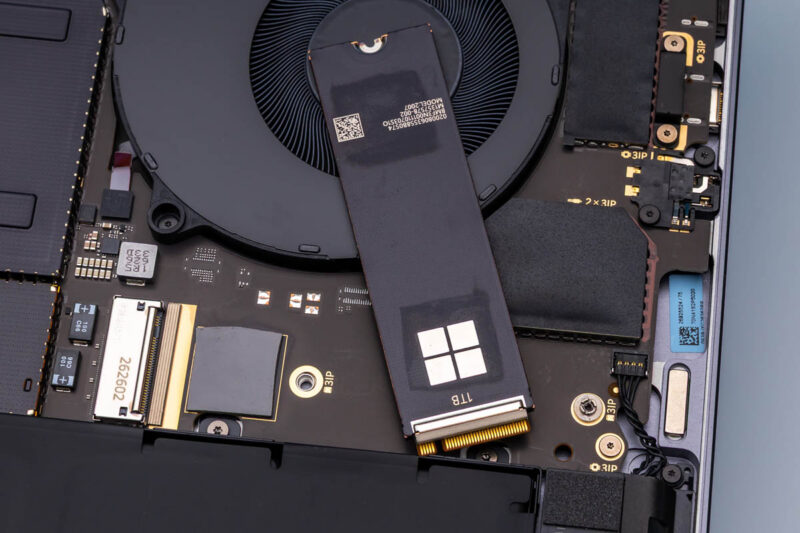
Briefly pulling out the SSD lets us see the M.2 connector and mounting holes, with both 2280 and 2230 mounting points available. We can also see a small thermal pad that Microsoft has placed beneath the SSD controller. Microsoft’s service guide suggests replacing this when replacing the SSD.
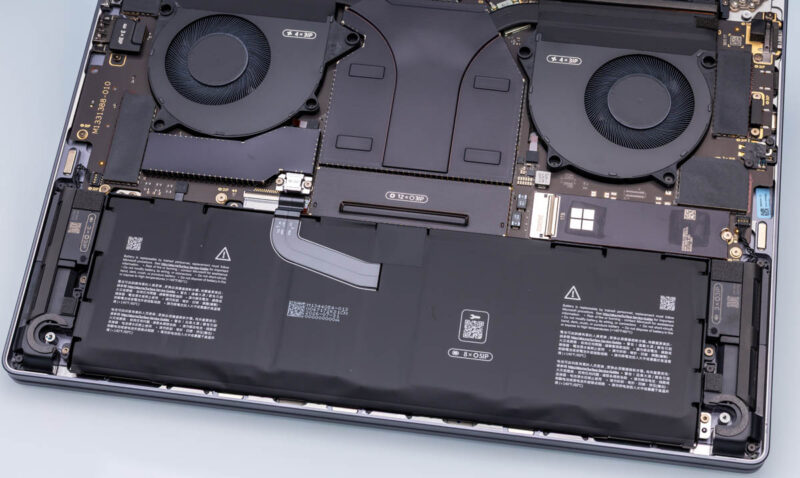
The other meaningfully replaceable component is the battery. The 92Wh battery is just a bit under the maximum capacity ceiling for a laptop battery and is said to give the Surface Laptop Ultra a 15-hour (video playback) runtime. There is no glue or snap-in fasteners, so you can remove the battery by removing the 8 screws holding it down and disconnecting it from the rest of the laptop. Do note, however, that Microsoft uses authenticated parts here that require running their Surface Repair Toolkit to check in with Microsoft and authenticate a replacement battery. Given that this is designed to be a high-performance laptop, it would be interesting to have a 99Wh battery to give travel days a little more runtime.
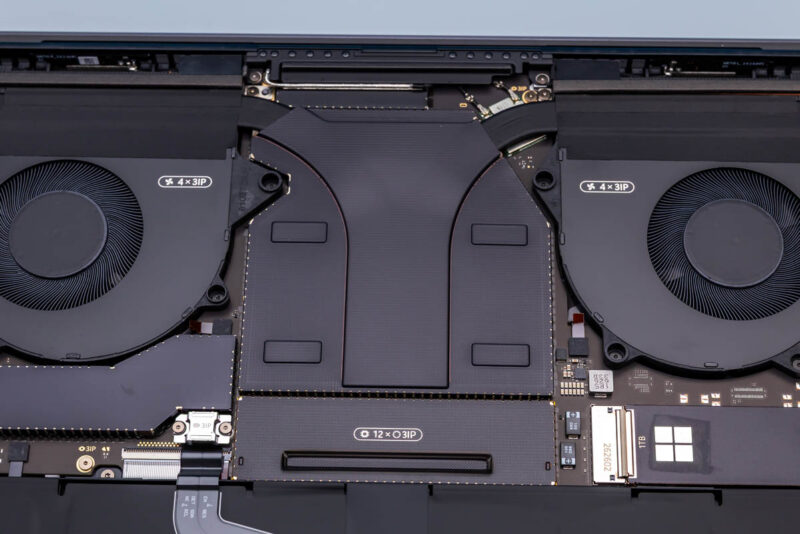
Beyond these parts, there is not much else to see inside the Surface Laptop Ultra without some hardcore disassembly. For example, the Wi-Fi 7 + Bluetooth 5.4 controller is securely tucked toward the top of the board, and it is soldered down and not replaceable. Since the LPDDR5X DRAM is soldered down (sorry, no LPCAMMs here), that too is neatly tucked away.
Meanwhile, as the system is driven by a single SoC with an integrated GPU, the cooling system is rather straightforward here. A large baseplate and heatpipe assembly cover the GB10 SoC and DRAM, pulling heat away and into the heatsinks just past the two blower fans.
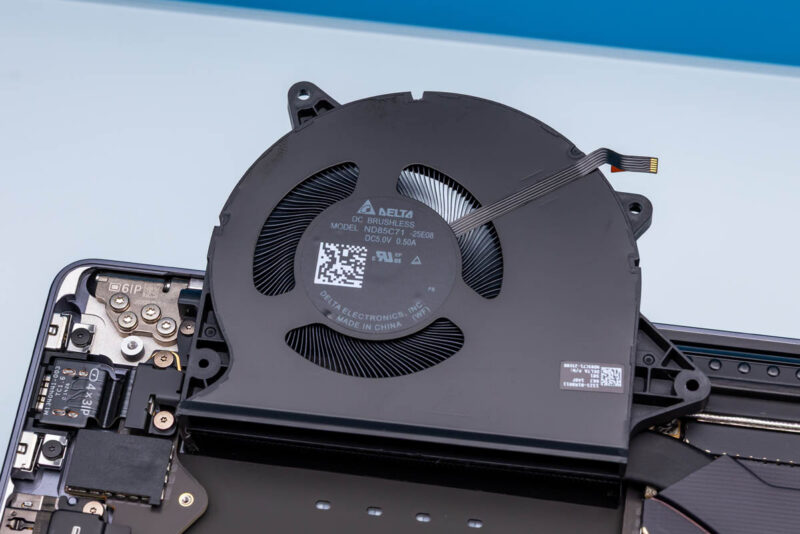
These are another serviceable component, held in place with 4 screws. Each blower uses a 2.5 Watt Delta fan.
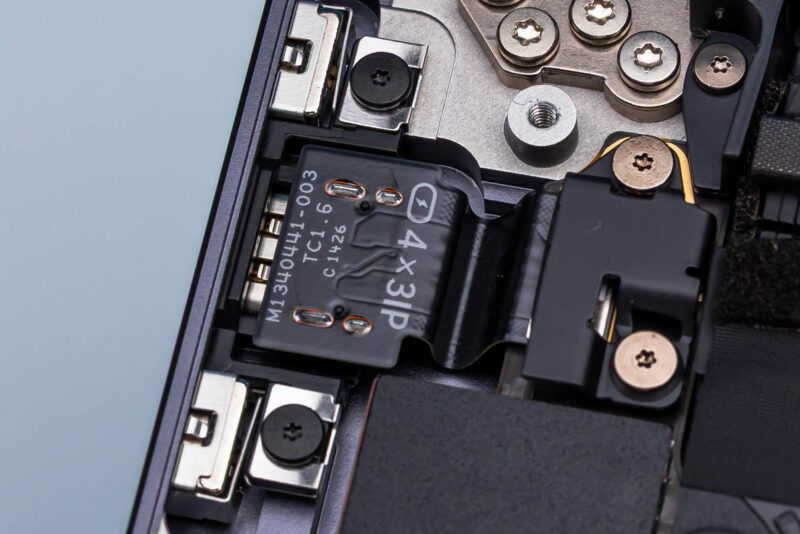
Finally, here is a brief look at what Microsoft’s Magnetic Connect port looks like from the inside. We can clearly see the two magnets on either side of the port, with the bigger-than-usual port at the center.
With our hardware tour complete, let us take a look at the user experience of the Surface Laptop Ultra, especially the performance of the RTX Spark SoC inside.