
Cisco Catalyst C1300-12XS Management
The Cisco CLI is well-known, so we are going to focus on the web management here just to give folks who do not want to go to the CLI, a view of what the management looks like. Cisco’s documentation on where to find the management interface often has the cisco / cisco default password, but we did not see the 192.168.1.254 default IP in some of the quick start materials.
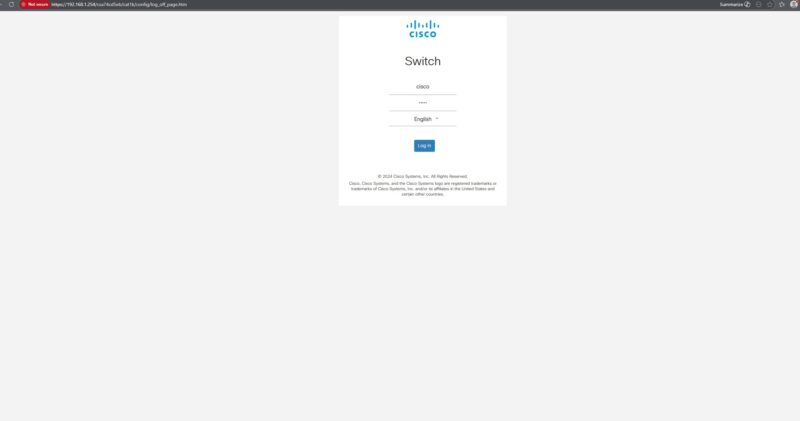
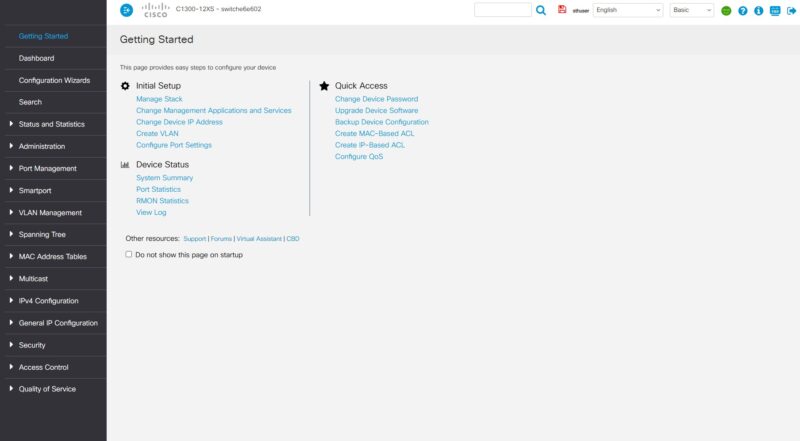
After setting a new login, Cisco does something different. In the industry, you typically log in and are taken to the dashboard. Cisco has a “Getting Started” page to get you up and running quickly (you can also choose not to go here in the future through a checkbox.)
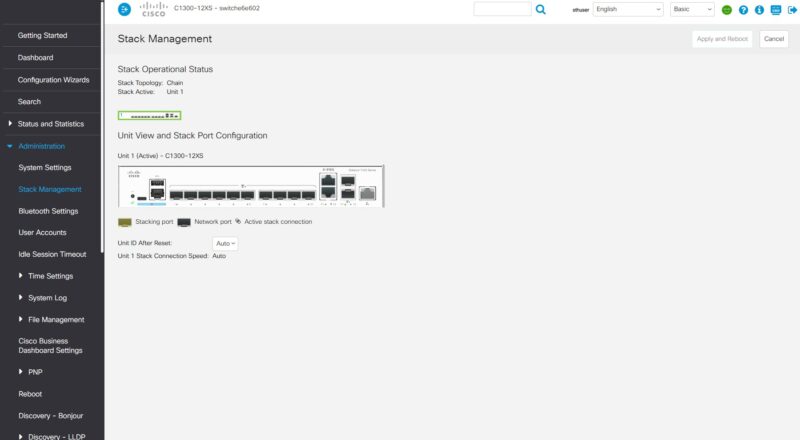
Cisco lets you stack switches using front-panel stacking. This is not common in lower-end switches.
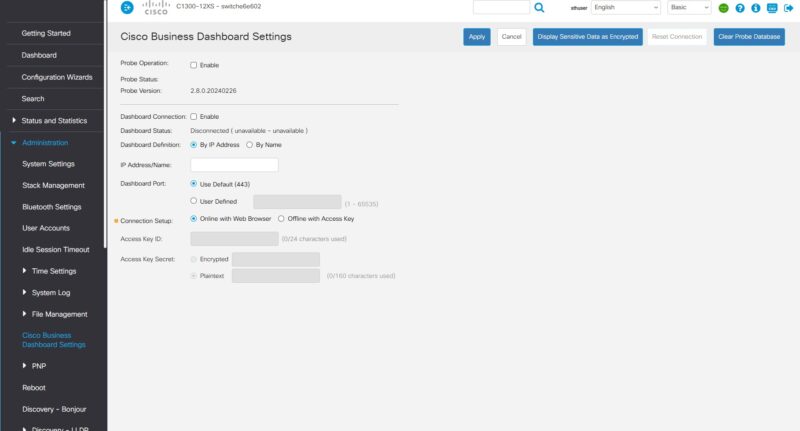
Cisco has the Business Dashboard. Hopefully, one day we get to show you this.
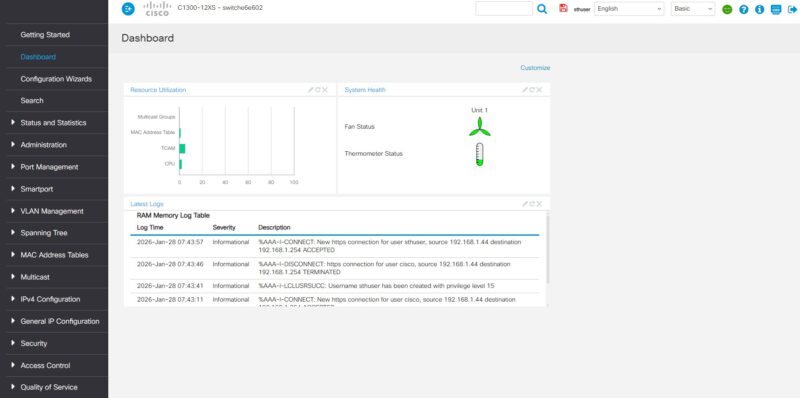
Here is the dashboard, which, admittedly, looks different from some of the other vendors as it focuses on logs and system status rather than ports.
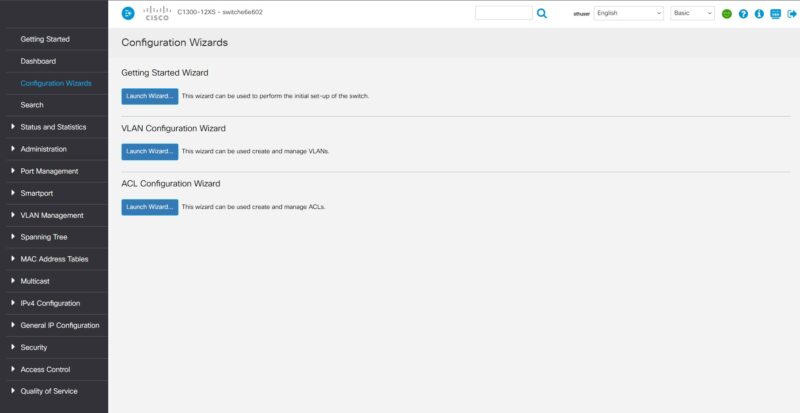
Another really neat feature that Cisco has is its configuration wizards. There is one for getting started, one for VLANs, and one for ACLs. This is just a great way to help those who are not Cisco-certified to get up and running on the switch.
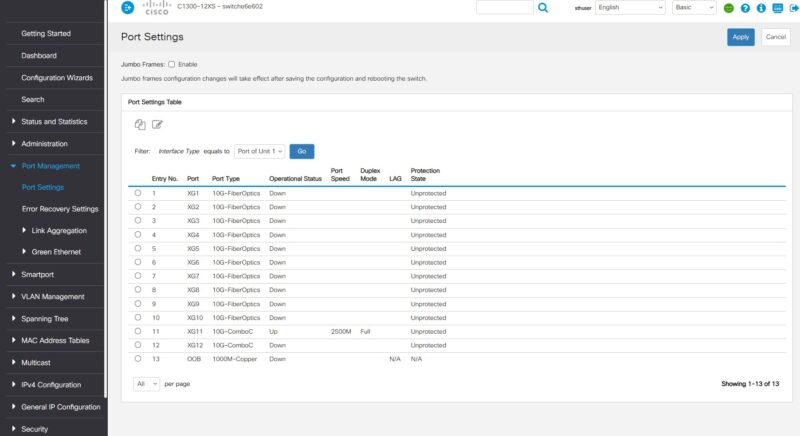
Of course, there are still port settings.
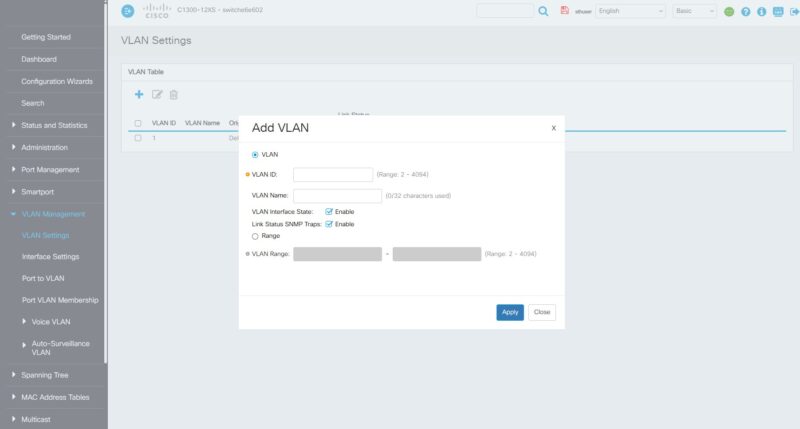
The ability to add and set VLAN configurations.
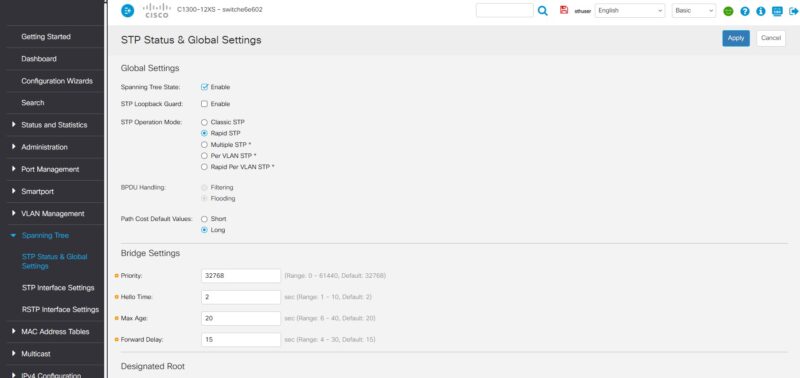
Cisco also has a fairly robust spanning tree setup compared to lower-end switches.
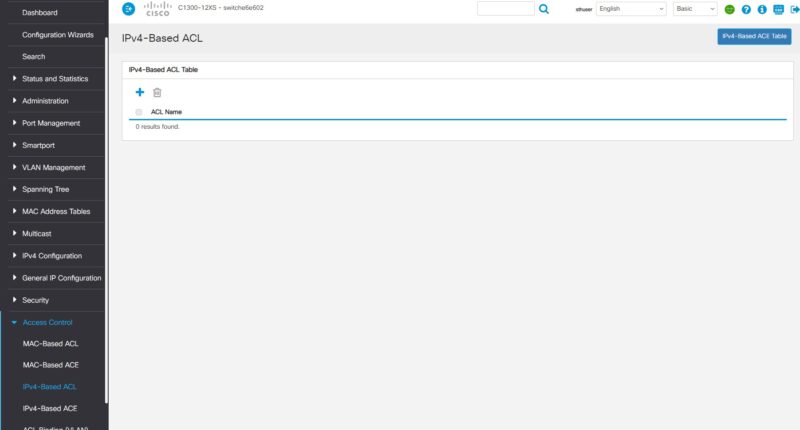
There are ACL settings that are also fairly robust.
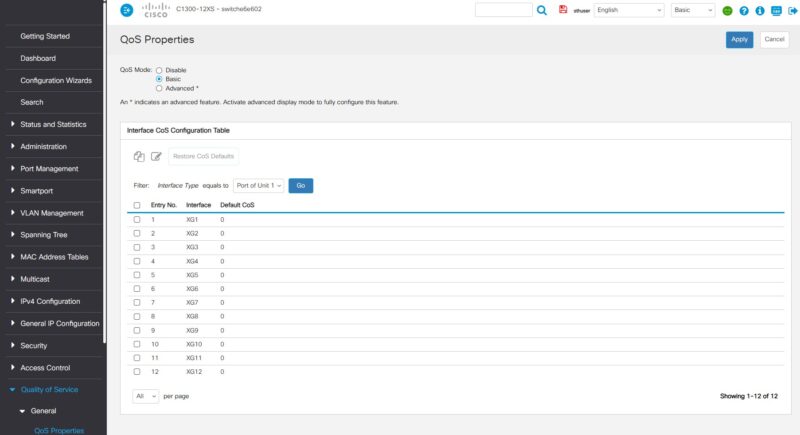
Cisco has Quality of Service settings.
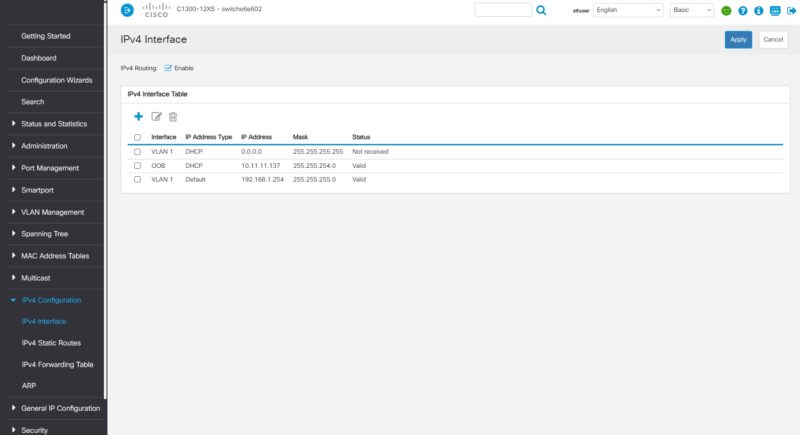
You can also set the IP settings to access the switch.
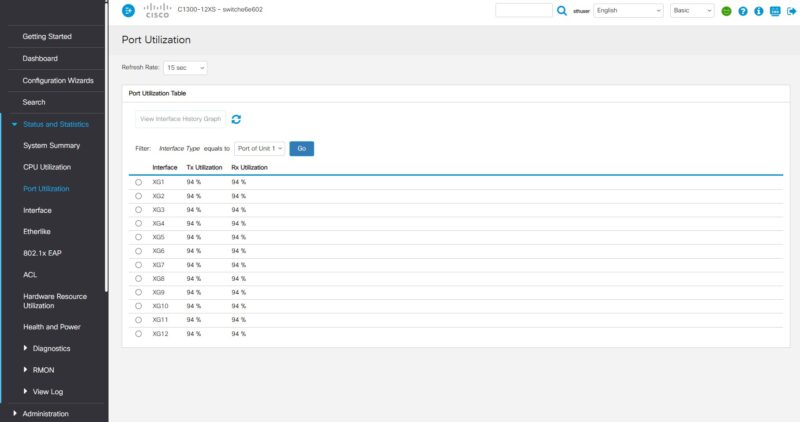
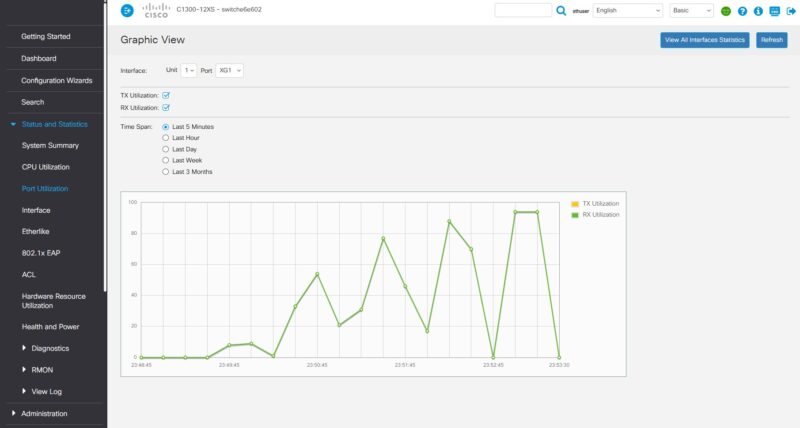
Cisco has a neat port utilization tab. Here you can see that all twelve ports are at 94%.
Here is another view of what it looks like putting test traffic through this switch on a chart.
On that note, let us hook this up to our high-end network testing setup to see how the switch performs.