

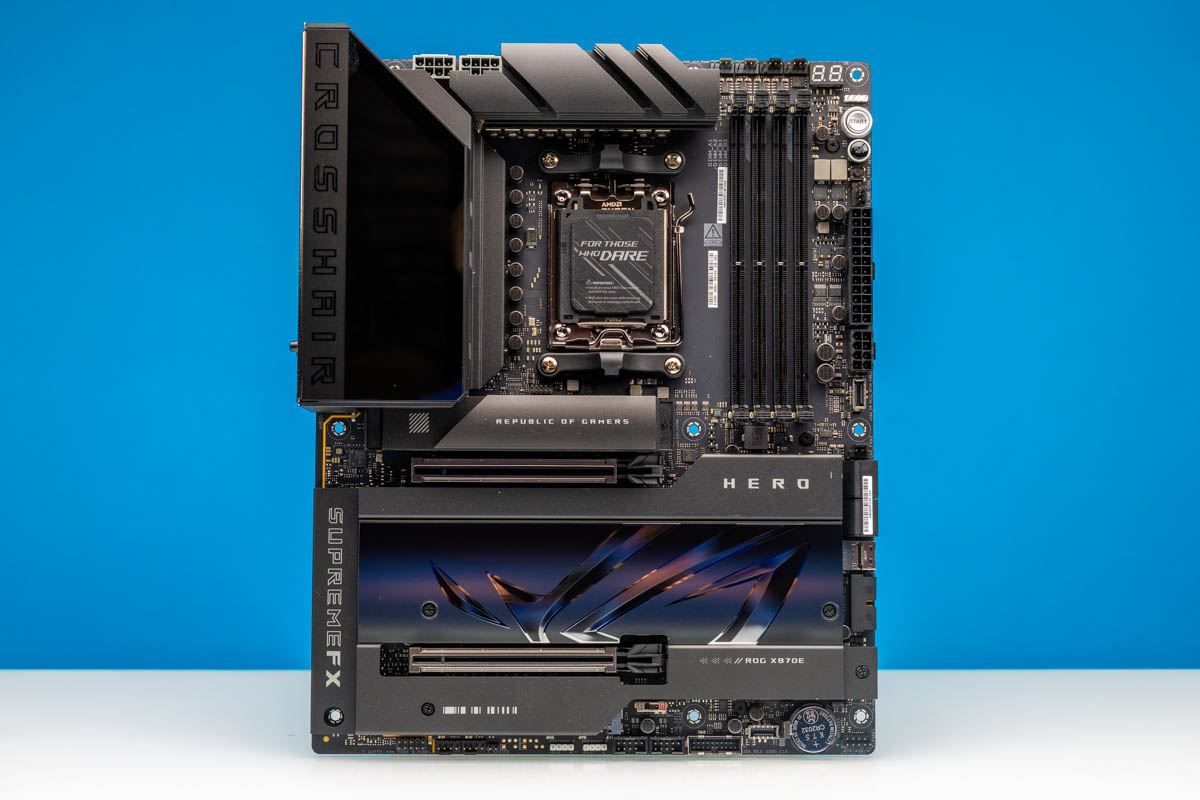
The ASUS ROG Crosshair X870E Hero is one of those motherboards that exists because high-end desktop platforms still have a place. This is not the least expensive AMD AM5 motherboard one can buy, but the point here is that ASUS is putting a lot of the platform’s features into a single ATX board: USB4, both 5GbE and 2.5GbE, WiFi 7, multiple PCIe Gen5 M.2 slots, and the ROG overclocking features that folks expect from the Crosshair line. We used this board as part of our AMD Ryzen 9 9950X3D2 work, so this is also a look at what the platform is like with a very high-end CPU installed.
If you want to purchase this unit, here is an Amazon affiliate link.
ASUS ROG Crosshair X870E Hero Overview
The overall layout is recognizably ROG. ASUS uses a mostly black board with large heatsinks around the VRM, a covered lower section for the M.2 area, and a pre-installed rear I/O shield. The result is a board that feels much more like a high-end workstation platform than a basic gaming motherboard, even if the branding is firmly on the gaming side.
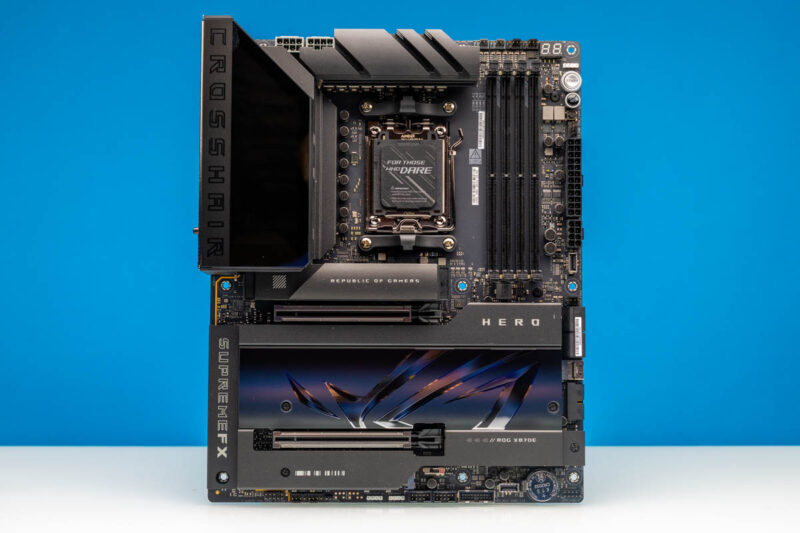
At the center of the board is AMD’s AM5 socket. The ROG Crosshair X870E Hero supports Ryzen 9000, 8000, and 7000 series desktop processors, although the exact PCIe lane layout changes depending on the CPU family. For most folks looking at this class of board, the natural pairing is a Ryzen 9000 or Ryzen 7000 CPU, so the PCIe Gen5 slots and storage layout can be fully utilized.
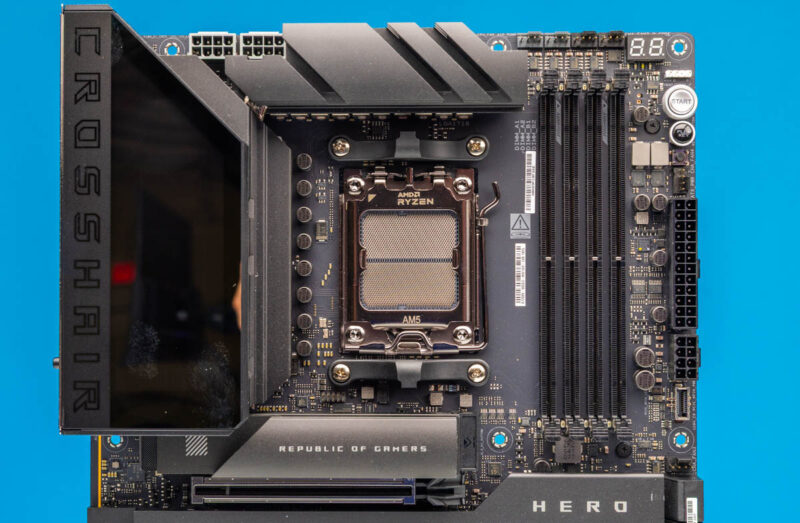
For our test platform, we used AMD’s Ryzen 9 9950X3D2 setup. That is an unusual CPU configuration, but it is also a useful way to stress the board because it puts a top-bin AM5 processor into the socket and then lets us see whether the motherboard, UEFI, and power delivery stay out of the way.
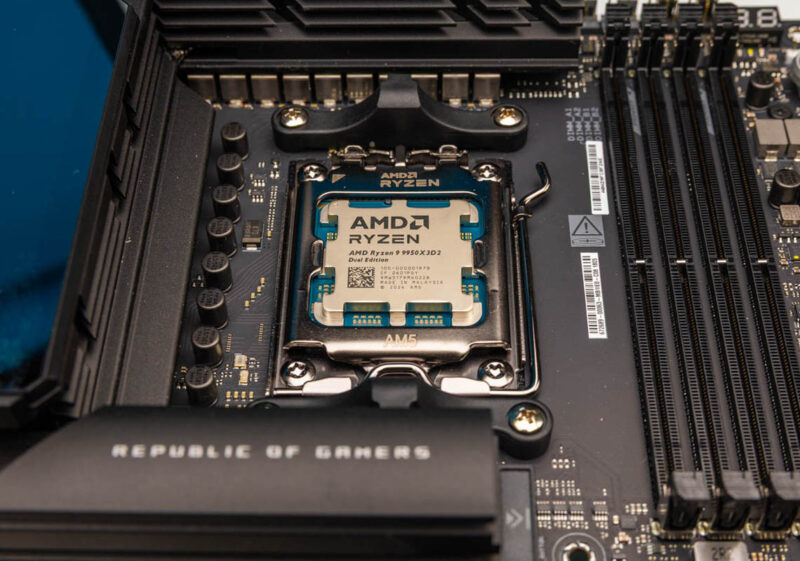
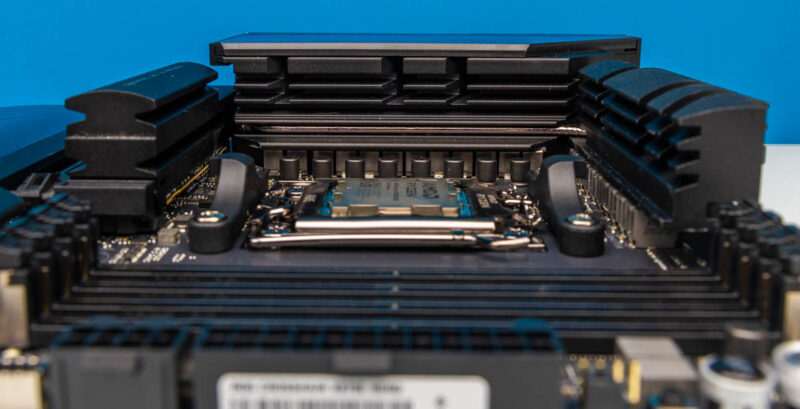
Around the AM5 socket, the first thing that stands out is how much metal ASUS uses for cooling. The VRM heatsinks are tall and tied into the rear I/O cover area, which is exactly what we expect on a motherboard designed for sustained high-power Ryzen CPUs and overclocking experiments. The clearance around the socket is still reasonable, but this is a board where cooler fitment should be checked if one is using a very large air cooler.
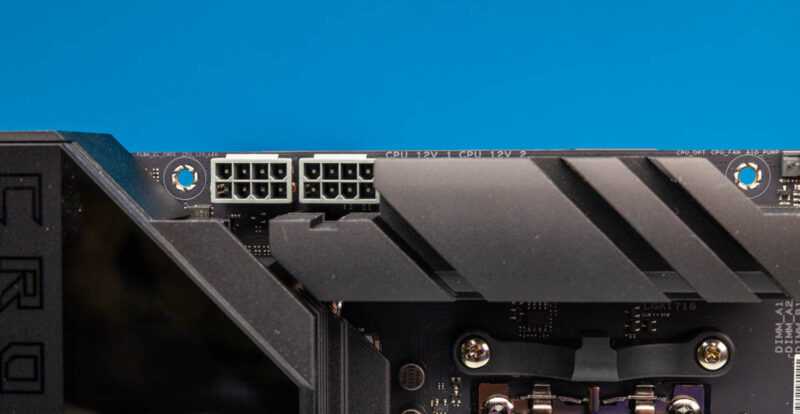
Power for the CPU comes from two 8-pin EPS connectors at the top edge of the motherboard. That is more than most stock AM5 systems need, but it gives the board headroom for high-end Ryzen processors, PBO tuning, and the type of bench work where folks are pushing voltage and current well beyond a normal desktop profile.
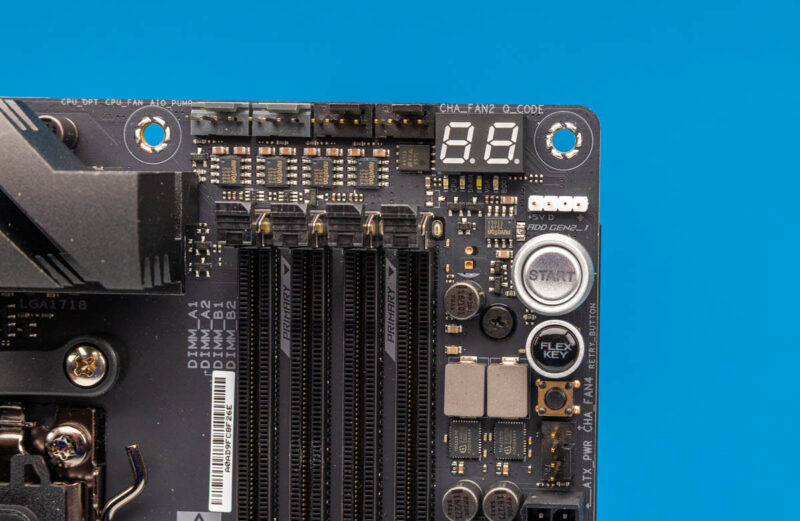
The upper-right corner is one of the areas that makes this board easier to work with outside of a finished chassis. ASUS includes onboard Start and Reset buttons, a Q-Code POST display, and several fan and pump headers in this area. For troubleshooting memory training, CPU swaps, or open-bench testing, having these controls on the motherboard saves a surprising amount of time.
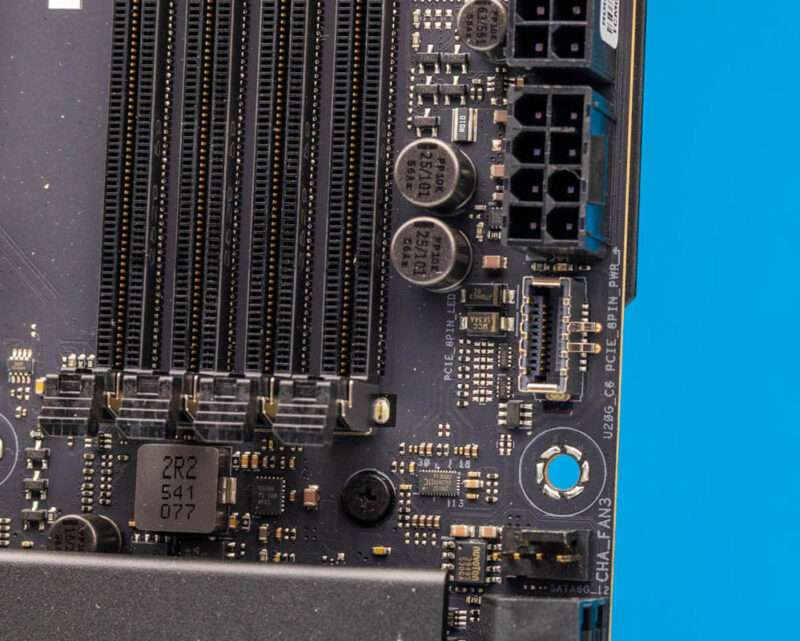
The memory side has four DDR5 DIMM slots with support for up to 256GB (if you can afford that these days!) ASUS lists very high overclocked memory speeds depending on CPU generation, but the more practical point is that this is a full four-DIMM AM5 board with EXPO support. Next to the DIMM slots, we also get the 24-pin ATX power connector and an additional 8-pin PCIe power input used for features such as higher-power front USB Type-C charging.
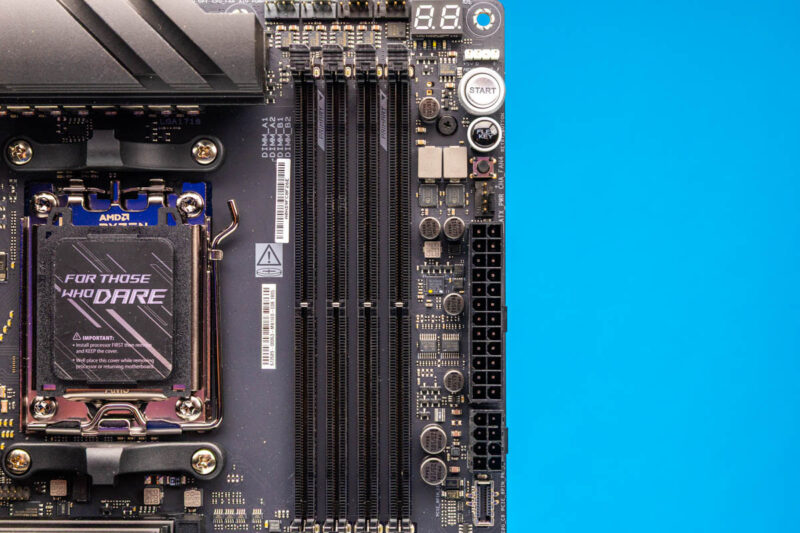
One of the more interesting internal headers is the front USB Type-C connector. ASUS supports front USB 20Gbps, and one of the internal Type-C headers can provide up to 60 W USB PD/Quick Charge 4+ support when the auxiliary PCIe power connector is populated. In a high-end chassis with a useful front Type-C port, that is a feature folks may actually use.
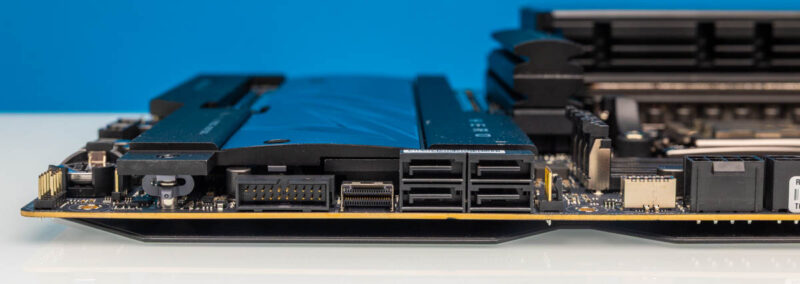
Along the right edge, ASUS keeps several of the cable-heavy connectors pointed sideways. We get the front-panel USB headers and storage connectivity in this area, including SATA ports and the SlimSAS connector that can be used for PCIe 4.0 x4 storage. Side-facing connectors can make cable management cleaner, although they do require a chassis with enough room beside the board tray.
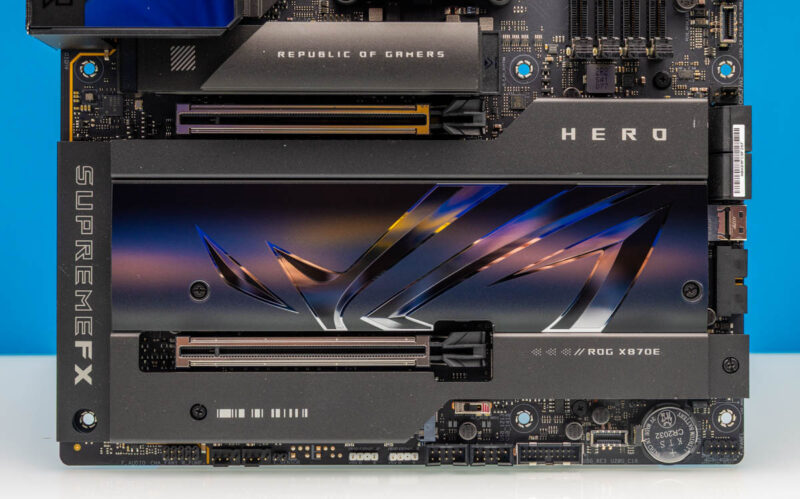
The lower half of the motherboard is dominated by PCIe and M.2 covers. The two reinforced physical x16 slots support PCIe 5.0 with Ryzen 9000 and 7000 processors, with x16, x8/x8, or shared modes depending on what is installed. ASUS also uses Q-Release Slim here, which is a small feature until the day one needs to remove a large GPU from a tightly packed system.
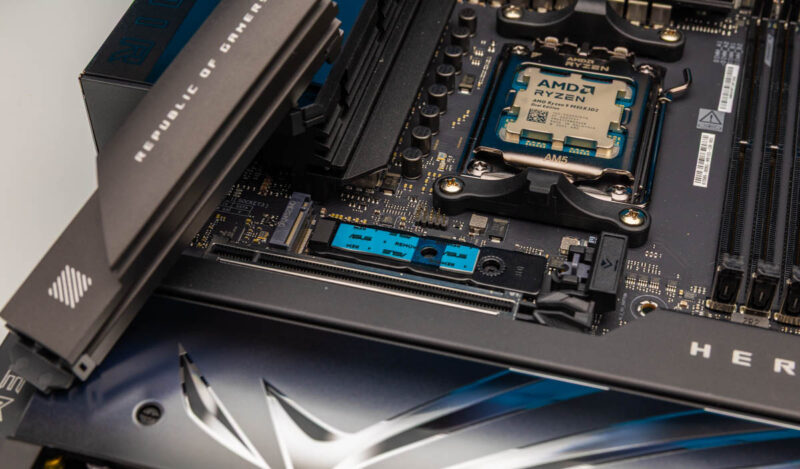
The primary M.2 heatsink sits above the main PCIe slot and covers the CPU-attached M.2_1 slot. With Ryzen 9000 and 7000 processors, that slot supports PCIe 5.0 x4 for a Gen5 NVMe SSD. Given how warm many Gen5 drives can get, the large heatsink is not just decoration.
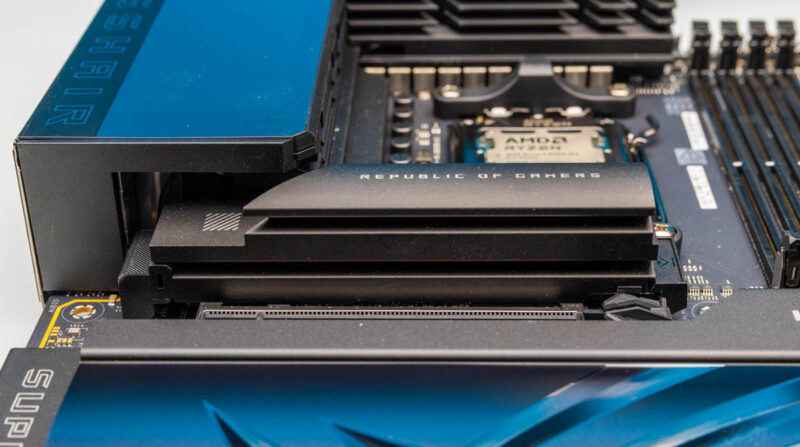
Removing the main M.2 heatsink shows ASUS’s current tool-less approach. The board uses features such as M.2 Q-Latch, Q-Slide, and Q-Release so a drive can be installed or swapped without hunting for tiny screws. That matters more than it sounds, especially for folks who test drives frequently or build systems on a bench.
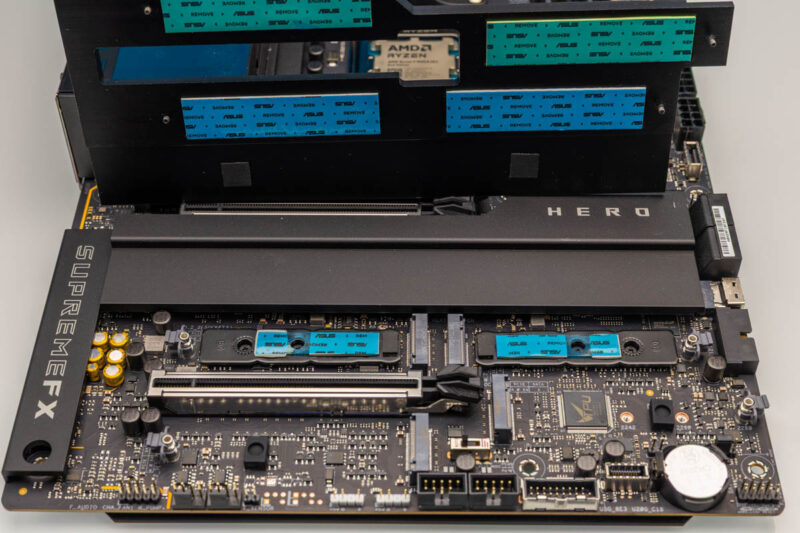
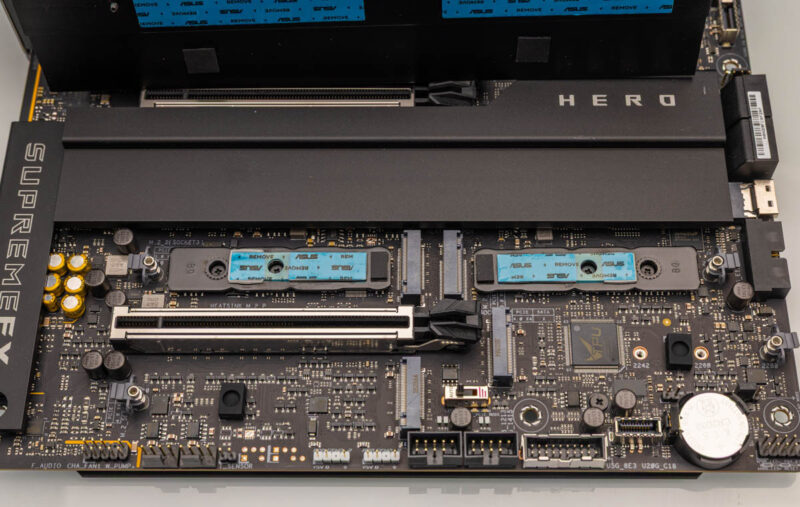
With the lower covers removed, the storage layout becomes clearer. The board supports five M.2 slots in total. With Ryzen 9000 and 7000 processors, the first three M.2 slots can run from CPU PCIe Gen5 lanes, while the remaining M.2 slots are chipset-connected PCIe Gen4. The tradeoff is that using the extra CPU-attached M.2 slots changes the PCIe x16 slot lane allocation, so this is a board where one should plan the GPU and SSD layout before the final build.
Looking at the lower section without the covers also makes the lane-sharing story easier to understand. If M.2_2 and M.2_3 are populated, the primary PCIe slot no longer has the same lane allocation as a simple one-GPU, one-SSD build. That is not a flaw as much as it is the reality of packing a lot of high-speed I/O onto an AM5 platform.
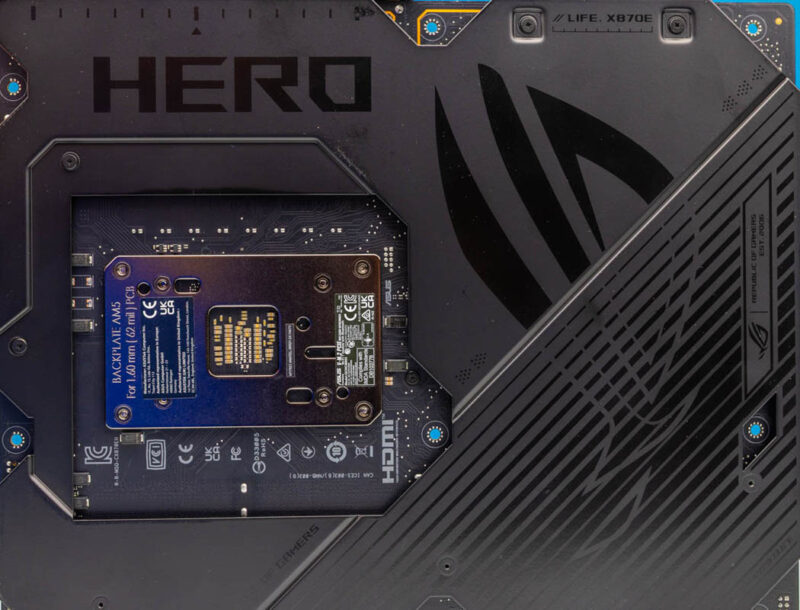
The rear of the motherboard has a metal backplate. On a board with this much heatsink mass and a reinforced PCIe area, the backplate helps with rigidity and gives the board a more finished feel. It also means one should do the normal quick check for case standoff placement before installing the board.
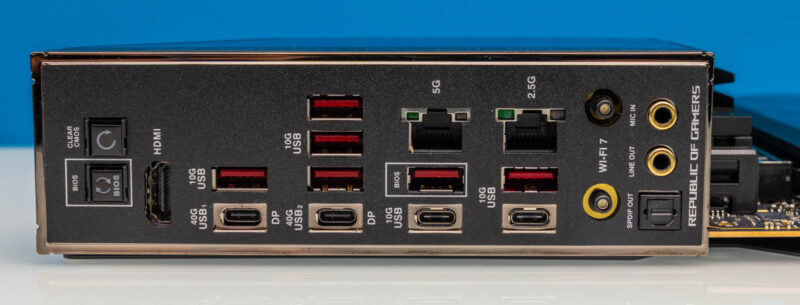
The rear I/O is strong. ASUS includes two USB4 40Gbps Type-C ports, six USB 10Gbps Type-A ports, two additional USB 10Gbps Type-C ports, HDMI, WiFi antenna connectors, Realtek 5GbE, Intel 2.5GbE, audio, optical S/PDIF, BIOS FlashBack, and Clear CMOS. That is a lot of connectivity before adding any PCIe expansion cards.
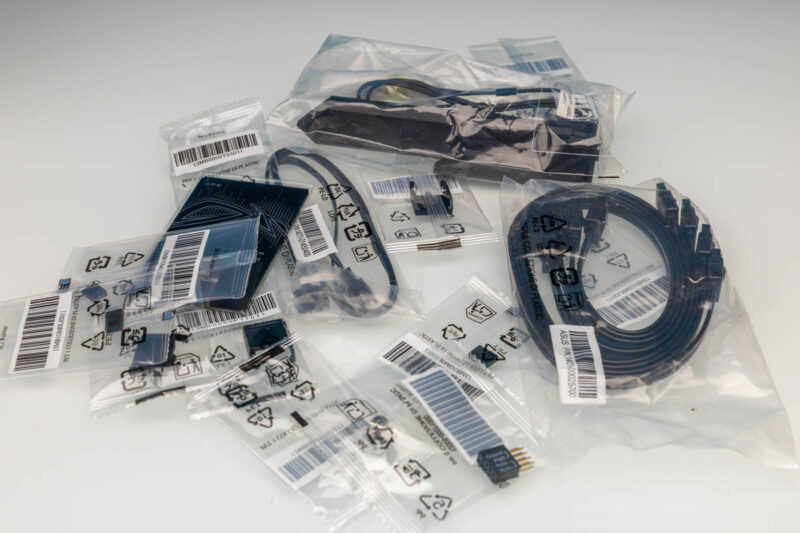
The accessory bundle is what we would expect from a higher-end ROG motherboard. There are SATA cables, the ASUS WiFi Q-Antenna, M.2 latch and slide hardware, rubber pads, a Q-connector, ARGB extension cable, documentation, stickers, and a USB drive for utilities and drivers. The useful bits here are the storage hardware and the Q-connector, since those are the items that tend to make an actual build easier.
Next, let us turn on the system and see how it works.


Expensive desktop motherboards like these honestly make no sense to me. The sheer amount of resource conflicts/lane sharing from the lack of pcie lanes means most of the slots are for show. I suppose if you are doing a basic 1 ssd 1 gpu build its fine, but if you’re doing that, why not opt for something cheaper that performs the same?
I really wish something like X99 would return. a HEDT platform that is somewhat cheaper than Xeon/Threadripper with about 48-60 lanes would be excellent.