

ASUS ROG Crosshair X870E Hero Topology
The topology view is important because the Crosshair X870E Hero is not just a collection of connectors. With a high-end Ryzen CPU installed, the board has to balance CPU PCIe Gen5 lanes between graphics and storage, while the X870E chipset handles additional storage, USB, and other I/O. That is why this board can offer a lot of connectivity, but also why the manual’s slot-sharing notes matter.
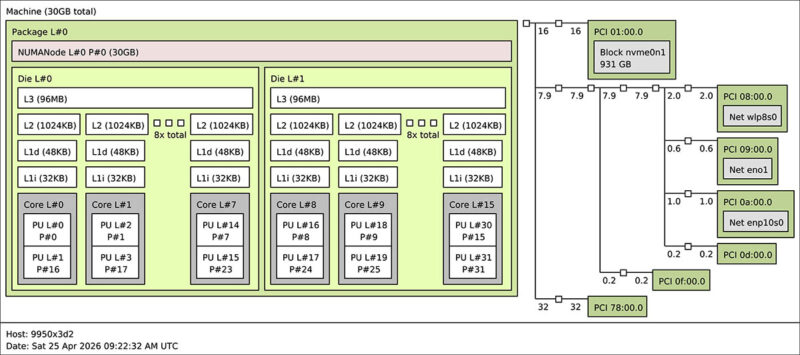
The practical takeaway from the topology is simple: decide on the expansion plan before building. A single GPU plus one or two SSDs is straightforward. If the goal is to populate several Gen5 M.2 slots and still use multiple PCIe cards, then the lane-sharing table becomes part of the build plan rather than something to ignore.
ASUS ROG Crosshair X870E Hero Performance
We used this for our AMD Ryzen 9 9950X3D2 Dual Edition Review, so you can check out some of the performance there.
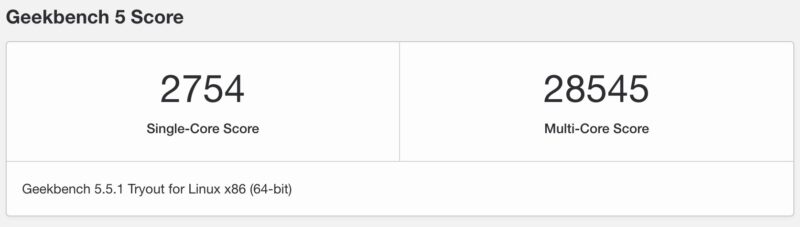
Of course, we used the top-bin CPU there, but this was a solid motherboard.
ASUS ROG Crosshair X870E Hero UEFI
The ASUS UEFI starts in a familiar ROG layout. The main screen gives the quick status view for the CPU, memory, BIOS version, and common boot settings. For folks who have used ASUS boards over the last several generations, this will feel very familiar, which is a good thing when troubleshooting a new platform.
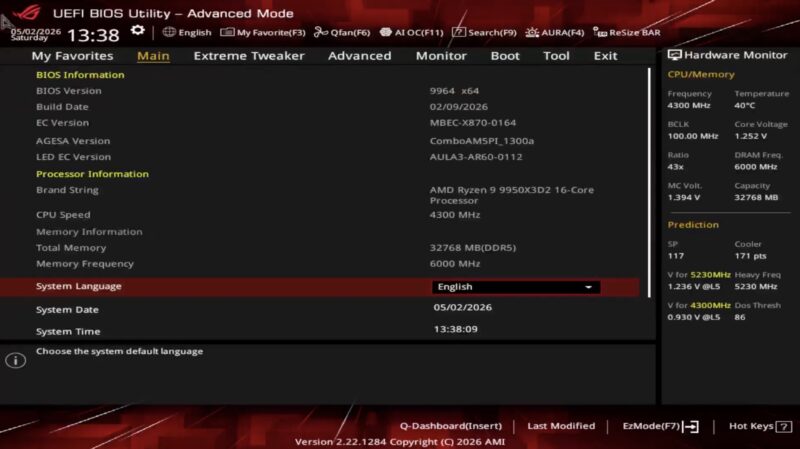
Advanced Mode is where most of the useful configuration happens. Memory settings, PCIe configuration, onboard device toggles, fan control, and the deeper AMD overclocking menus are all exposed here. The board also has the expected ASUS tools such as EZ Flash and profiles, which are handy when moving between test configurations.
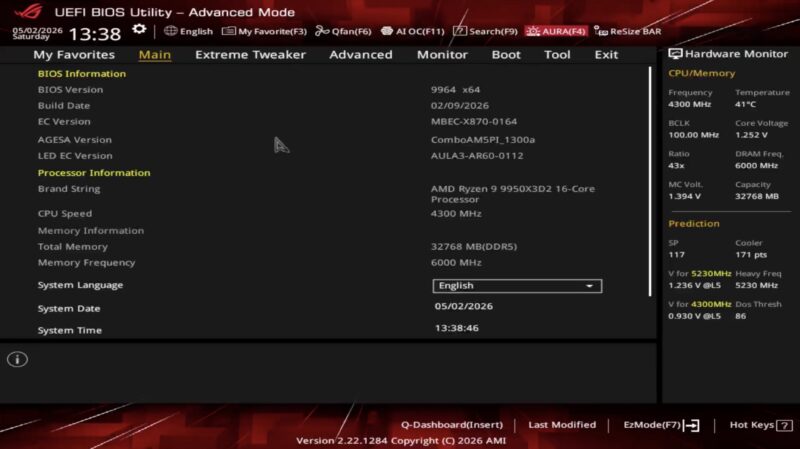
ASUS also includes its AI Overclocking interface. We tend to prefer manual validation for review systems, but the feature is useful as a quick reference point because it shows how ASUS is interpreting the installed CPU and cooling environment. For many desktop builders, it is also a lower-friction starting point than manual voltage and frequency tuning.
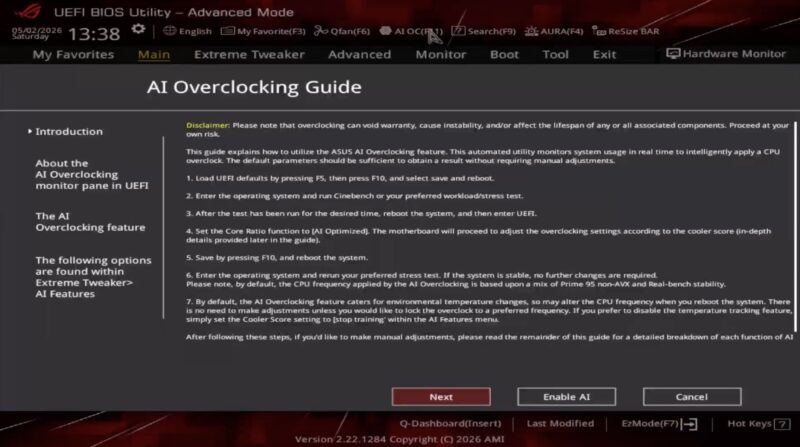
Overall, the UEFI was one of the easier parts of the platform. That may sound like a small point, but on a high-end AM5 board with multiple Gen5 storage slots, USB4, WiFi 7, and a large number of onboard devices, a clean UEFI matters. The more I/O a board has, the more time one can lose to firmware menus if the layout is poor.
One other item worth calling out is that this is a board aimed at folks who may actually use its troubleshooting features. Q-Code, onboard buttons, BIOS FlashBack, Clear CMOS, and profile support are not exciting in a spec table, but they are exactly the features that make repeated CPU, memory, and SSD swaps less painful.
Final Words
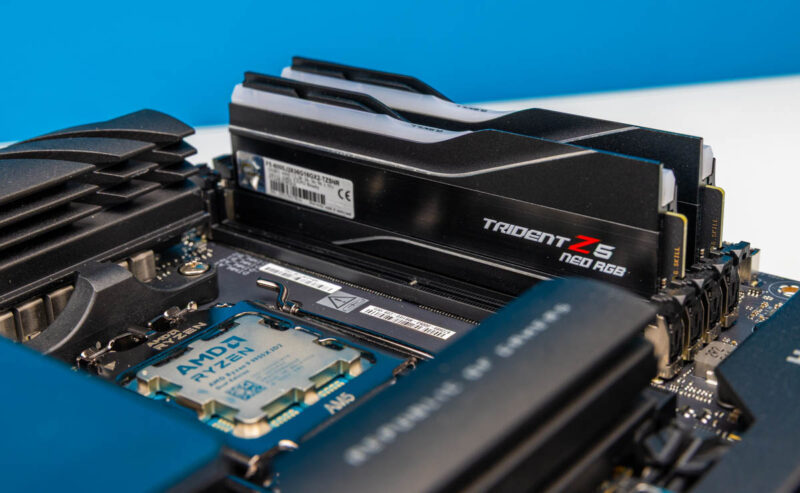
For memory, we used a G.Skill Trident Z5 RGB Neo DDR5-6000 32 GB kit. DDR5-6000 remains a very common sweet spot for AM5, and using a reasonably aggressive CL28 kit gave us a good baseline without turning the article into a memory overclocking exercise. The board handled the kit without drama in our testing.
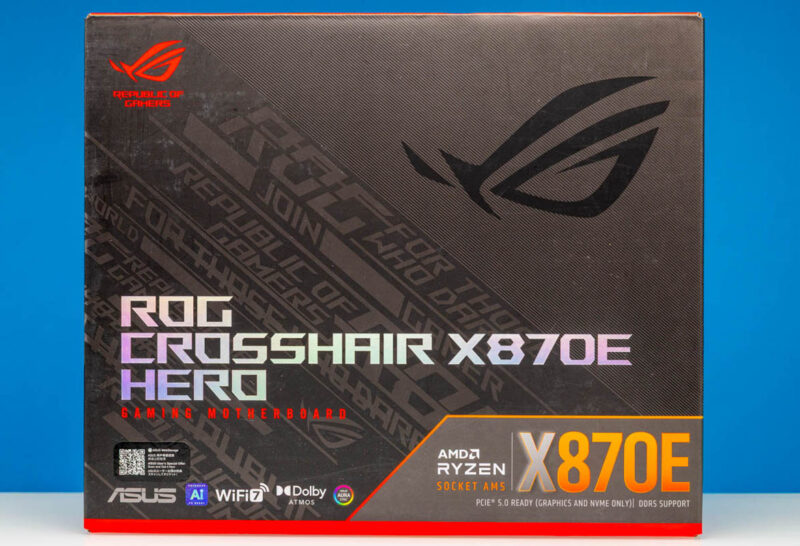
The retail packaging is very much in line with the ROG Crosshair branding. This is a premium motherboard box, but the more important point is that the board inside is built for folks who want a high-end AM5 foundation without stepping into an even larger E-ATX halo product.
The ASUS ROG Crosshair X870E Hero is not the board for every AM5 build. If the goal is a simple Ryzen 5 or Ryzen 7 desktop with one SSD and a midrange GPU, there are far less expensive options. Where this board makes sense is for folks building around a high-end Ryzen CPU, multiple fast NVMe SSDs, USB4, faster-than-2.5GbE networking, and a motherboard that has enough onboard controls to make tuning and troubleshooting easier. It is expensive, but the feature set is real.
Where to Buy
If you want to purchase this unit, here is an Amazon affiliate link.


Expensive desktop motherboards like these honestly make no sense to me. The sheer amount of resource conflicts/lane sharing from the lack of pcie lanes means most of the slots are for show. I suppose if you are doing a basic 1 ssd 1 gpu build its fine, but if you’re doing that, why not opt for something cheaper that performs the same?
I really wish something like X99 would return. a HEDT platform that is somewhat cheaper than Xeon/Threadripper with about 48-60 lanes would be excellent.