

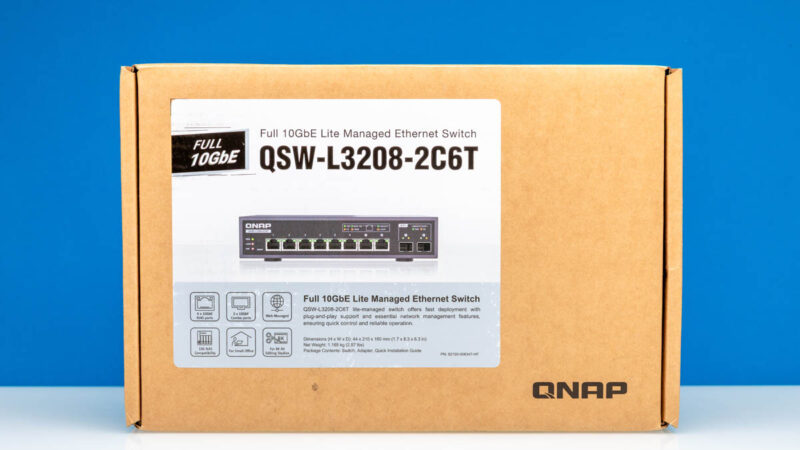
QNAP QSW-L3208-2C6T QSS Management
This is a “Lite Managed” switch, which means we get some basic management features.
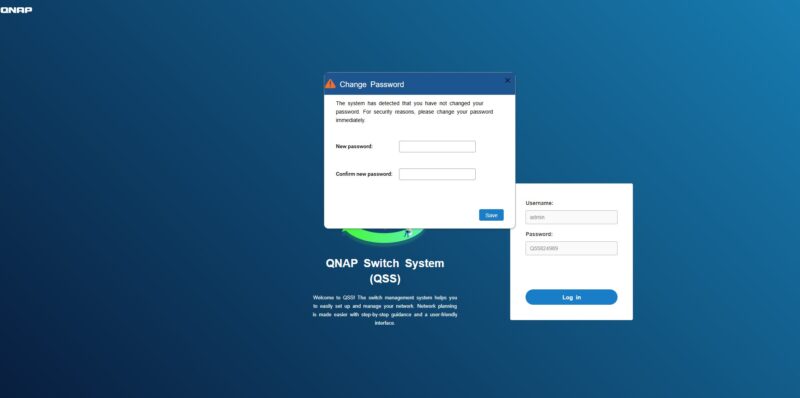
Upon logging in to QNAP’s QSS management interface we are prompted for a new password.
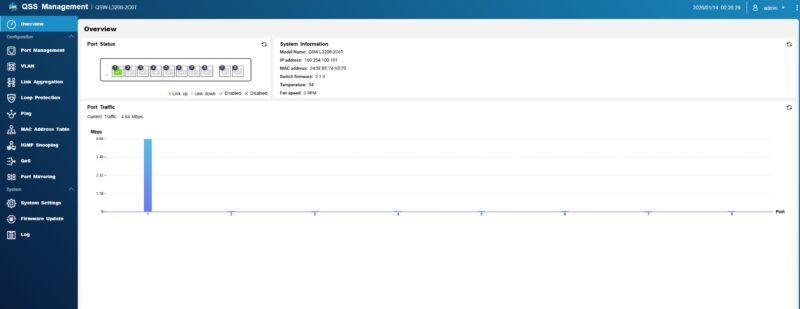
Once we logged in, we were greeted by the QSS dashboard.
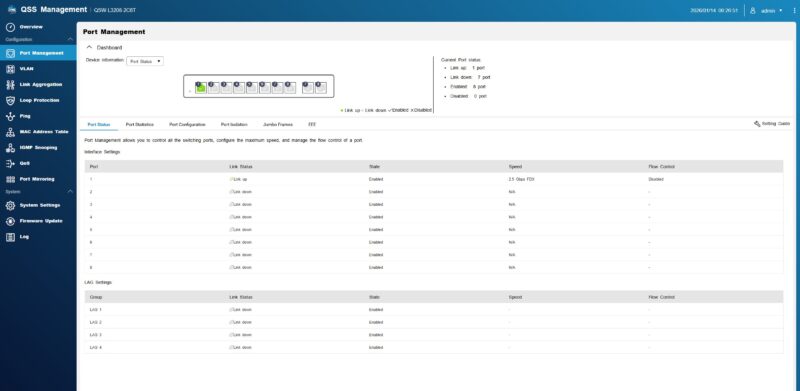
There are some basic port management features, and you can see the link state, speeds, and so forth in here.
You can also setup the IP address information for the management of the switch.
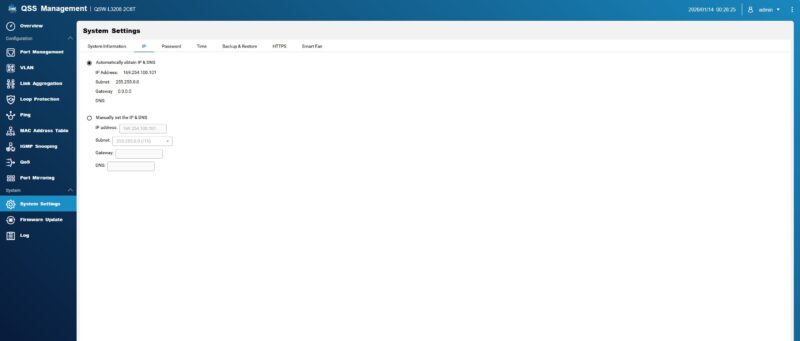
Something different in this switch is a fan modes. Here you can select normal mode, full speed, or quiet depending on what you might want. This type of setting is common in PCs, but less so on switches.
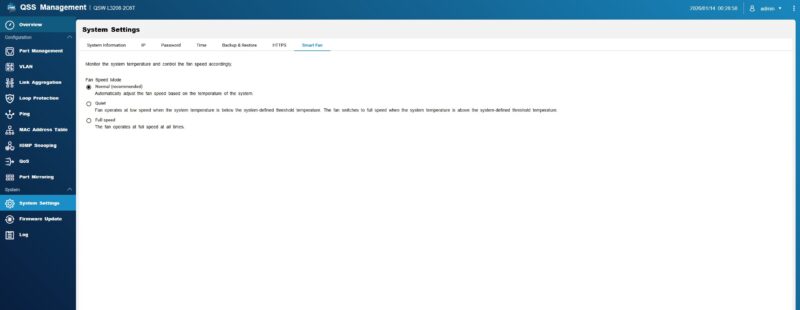
In the VLAN screen, we can tag ports and one of the four LAG groups.
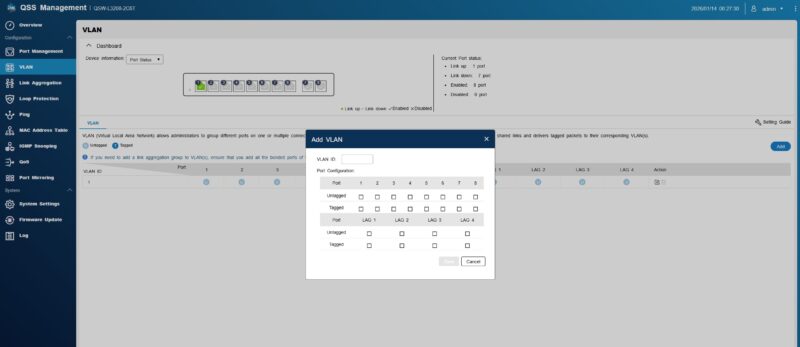
There is also a QoS feature, with simple settings.
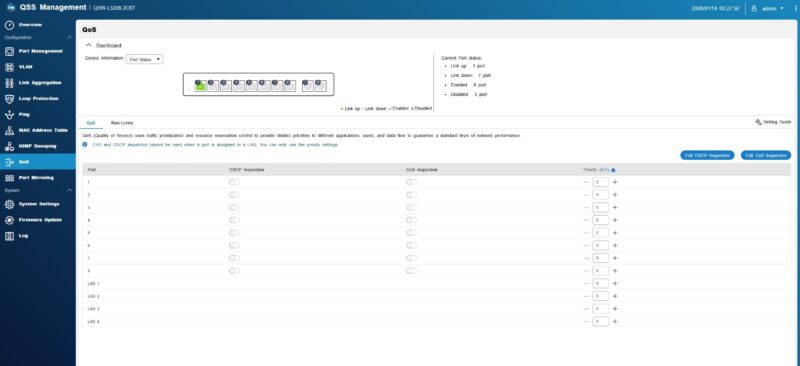
Switches all have lots of features these days. This is a case where the “lite” management allows you to do some basic networking functions. Our guess is that a large number of buyers will never go into the management interface. Of those who do, probably stopping at Loop Protection or VLAN is going to be most of the management users. You can tell you are in a “lite” managed switch when there is a top level menu item for “Ping”.
Next, let us get to the performance.
 performs using high-end IxNetwork testing)
About what data to show: There’s no point in showing us bps and pps charts or tables is it’s perfect line rate. Just say that.
Oops. “*if* it’s perfect line rate”.
I’d like to see an estimated BOM, as I still feel they are over priced, for the components.
I just wanted to point out that this switch is introducing 5.37 microseconds of latency, or 0.00537 milliseconds. That is such a ridiculously low number! I have seen some online that say a switch can add 1ms or more, and we see here that you would need about 200 of these switches chained together to get to 1ms of latency. The extra cabling would add some delay to that end-to-end packet transmission time as well.
Just a fun observation that the new testing hardware is letting us see!
I have been trying to get more answers about this switch so here is a short update and summary of the specs:
Manufacturer: QNAP Systems, Inc. is a Taiwanese corporation with Headquarter in New Taipei. The switch is made in Taiwan.
Switch Chip: I tried to figure out what switch chip is used. The user guide says CPU Realtek RTL9303-CG and Ethernet PHY Realtek RTL8261BE.
Management: It uses lite-management for Layer2/3. You can use the nice web GUI for management or the RJ45 console port on the backside for management with CLI.
The Console port/CLI can be used with an RS-232C or RJ45-to-USB console cable from the switch to a PC. Connect with terminal software like PuTTY.
QNAP QSW switches internally have a full blown Cisco-style management CLI hidden behind the dumbed down web interface. More at Github (https://github.com/marcan/qsw-tools) which has a useful guide on how to use the built-in CLI.
Ports: 6 ports are 10GbE BASE-T (RJ45). 2 ports are 10GbE SFP+/RJ45 Combo Ports. All ports supporting 10G/5G/2.5G/1G/100M.
It’s Broadcom based, I asked at Computex.
So how does this compare to the mikrotik 12 port switch with 4 combo for €550?
The Amazon price is jumping around a bit, currently it’s at $439 which removes some of the appeal this switch had at $350. At $439 it is close in price to USW-Pro-XG-8-Po ($499) but with 2 fewer ports and no poe++
That’s insane
I’ve bought a switch on the same platform (also 8port 10G), based on the reference design from realtek, with the same software – for 90£ (120$) and you say that this one is cheap?
@Val what switch manufacturer and model is that ?