

Lenovo ThinkStation P3 Tiny Gen 2 Internal Hardware Overview
Digging in to Lenovo’s tiny workstation, we have always been a fan of Lenovo’s single-thumbscrew design for opening up their 1L systems. And the P3 Tiny does not disappoint here, with only a single thumbscrew between us and the system internals, making it among the easiest-to-open mini-PCs we have had the pleasure of reviewing.
Starting from the top, the P3 Tiny is essentially split into two halves. The top half features the CPU, PCIe slot, and cooler, while the smaller rear half of the system is where the SO-DIMM slots and remaining M.2 slots reside.
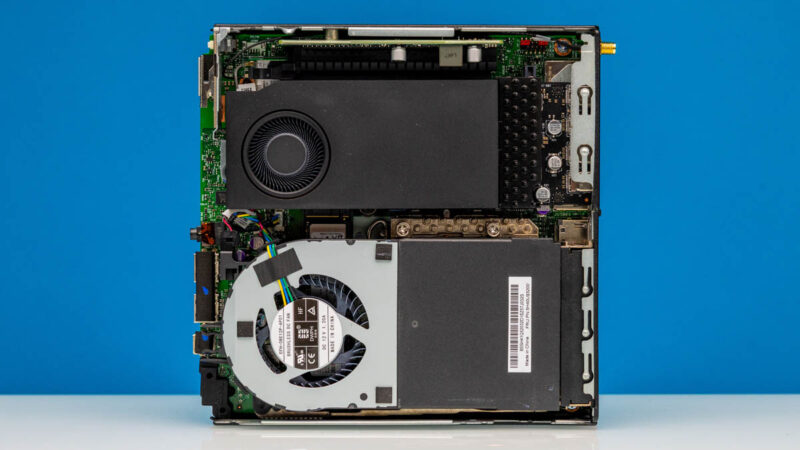
The one downside of such a tiny system is that while almost every part is removable and replaceable, there is not really room to access these parts. As a result, it is necessary to do some further disassembly to get to the rest of the system.
Removing the main blower fan – a fairly powerful 14-Watt design – gives us access to the top-side M.2 slot, as well as the heatsink that is sitting over the CPU.
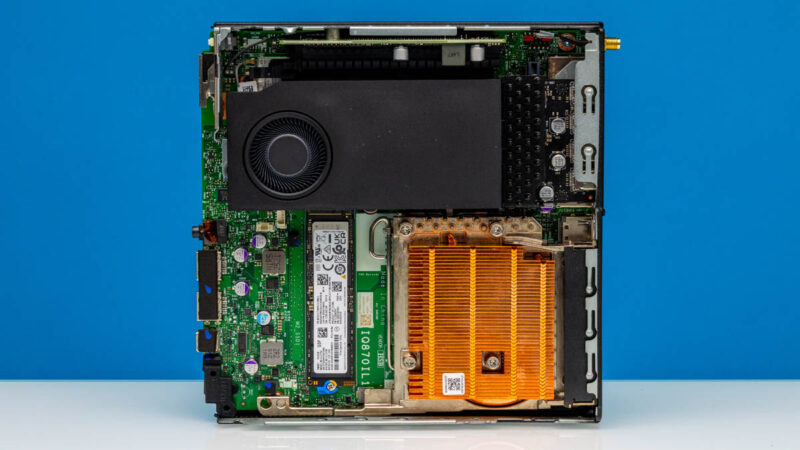
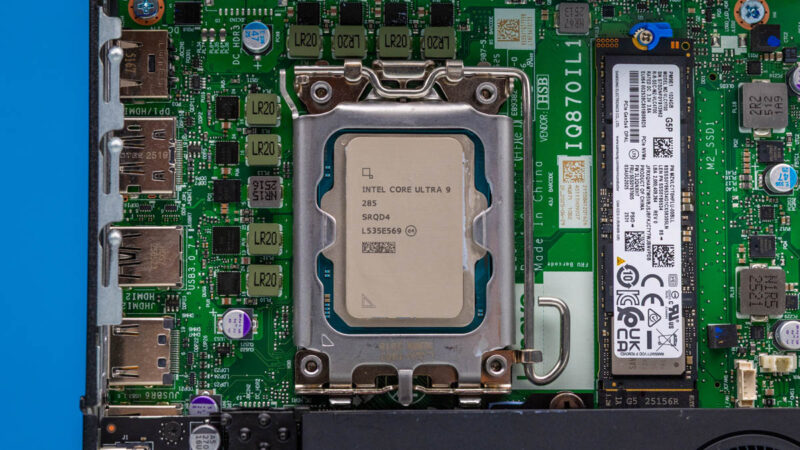
Removing the heatsink, in turn, finally gives us access to the Intel CPU. As noted earlier, this is a proper desktop CPU socket (LGA 1851), with Lenovo’s system able to accommodate most non-K Core Ultra 2 series CPUs. This includes the Core Ultra 9 285, the most powerful of Intel’s standard TDP (65W) chips.
Based on Intel’s Arrow Lake architecture, the 285 is plenty powerful chip, featuring 8 P cores and 16 E cores, with a top boost clockspeed of 5.4GHz. The integrated graphics are less impressive, however, with the unbranded Intel Graphics configuration based on the company’s Xe-LPG architecture sporting just 4 Xe GPU cores.
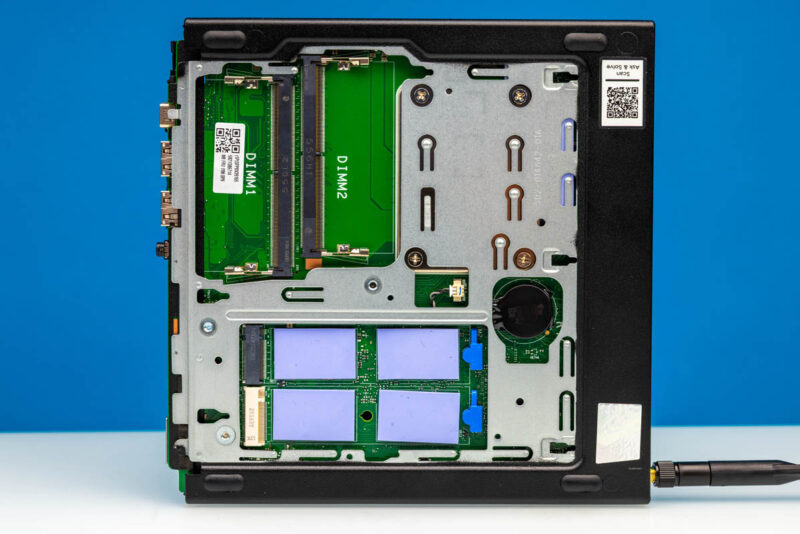
On the reverse side of the system are the SO-DIMM slots for the P3 Tiny. And unfortunately, this is the one place where an otherwise fine system takes a stumble. While Lenovo includes 32GB of DDR5 with this configuration – even using newer CSO-DIMMs in order to hit DDR5-6400 speeds – the company only includes a single 32GB CSO-DIMM by default. As a result, the P3 Tiny is only operating on a 64-bit memory bus, throwing away the other half of its bandwidth potential. In practice this is mostly just a problem for the integrated graphics, but it is an entirely unforced error on Lenovo’s part, albeit one they have been making off and on for the last 20 years.
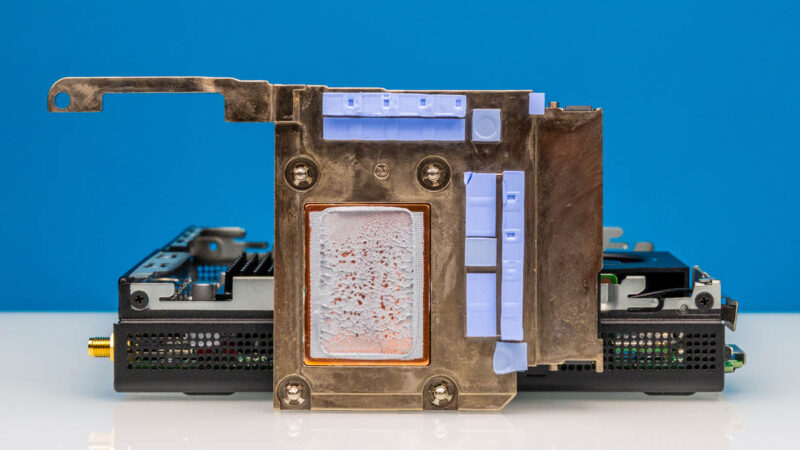
Getting back to the CPU, the heatsink itself is also fairly beefy. Lenovo uses it to cool not only the CPU, but the VRMs immediate around it. Which in this configuration would not be getting any cooling otherwise, as they are well away from any blower fans.
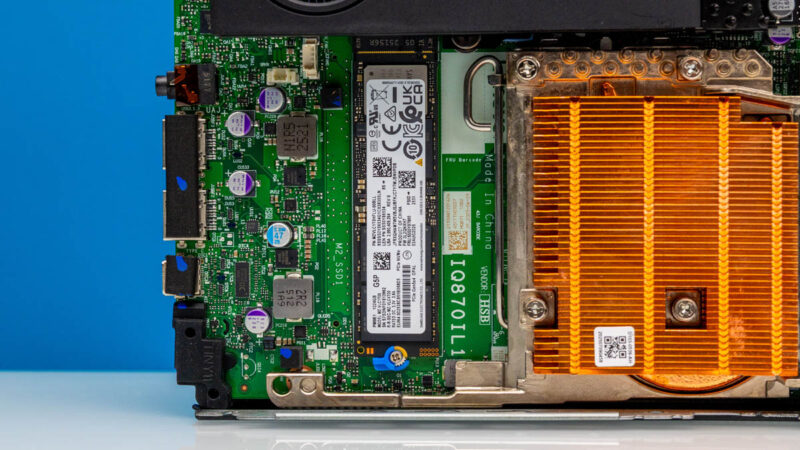
Meanwhile at the other corner of the system we find one of the P3 Tiny’s three M.2 storage slots. The top slot is fully wired for PCIe Gen5 x4, allowing for some very fast sequential SSD speeds. And Lenovo populates these systems accordingly with PCIe Gen 5 drives – our system coming with a 1TB version of Samsung’s latest OEM drive, the PM9E11. The drive itself does not have any kind of heatsink attached, but as it is sitting directly under the system’s blower fan, it still receives some active cooling.
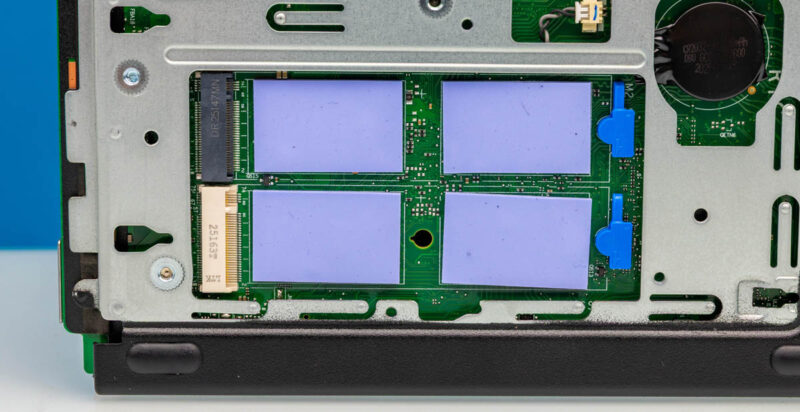
On the rear side of the system are two more M.2 slots for additional SSDs. Each is wired for PCIe Gen4 x4, which is a big part of the reason why Lenovo populates the front-side M.2 slot first.
Speaking of M.2 slots, there is also a smaller M.2 slot on the top side for the wireless radio. Optional on some of the P3 Tiny SKUs, our specific model comes with an Intel BE200 pre-installed, offering 2×2 stream Wi-Fi 7 as well as Bluetooth 5.4. As noted earlier, only one of the antennas in the P3 Tiny is internal, so an external antenna is needed to get the most out of the radio.
In the case of our system, that M.2 slot is also underneath the pre-installed NVIDIA RTX A1000 video card, marking one more component that needs to be removed to service a user-replaceable part.
And that brings us to the final internal hardware element, the PCIe bay and video card.
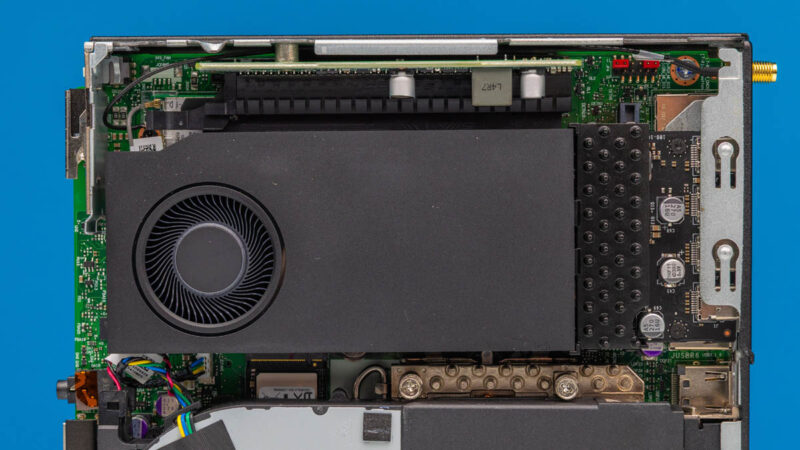
Using a riser, Lenovo offers a single PCIe x16 slot for a video card or other expansion card. The slot itself is a bit bandwidth constrained as it runs at PCIe Gen4 x8, though given the limited amount of power available to any installed cards, this is unlikely to present an issue. The bay itself is also quite small, and it is designed to accommodate a half-height, half-length (HHHL), single-wide card.
For installing a video card then, this limits Lenovo’s options. NVIDIA’s most powerful card in that form factor is the Ampere generation RTX A1000, a 50-Watt card with 18 SMs on the GPU and paired with 8GB of GDDR6 memory. Compared to the integrated Intel graphics, the A1000 still offers a solid step up in performance – not to mention more display outputs – but it is notable that it is not very competitive with SFF PCs based on laptop hardware that can integrate a GPU almost half a decade newer. Such is the cost of modular components, it would seem.
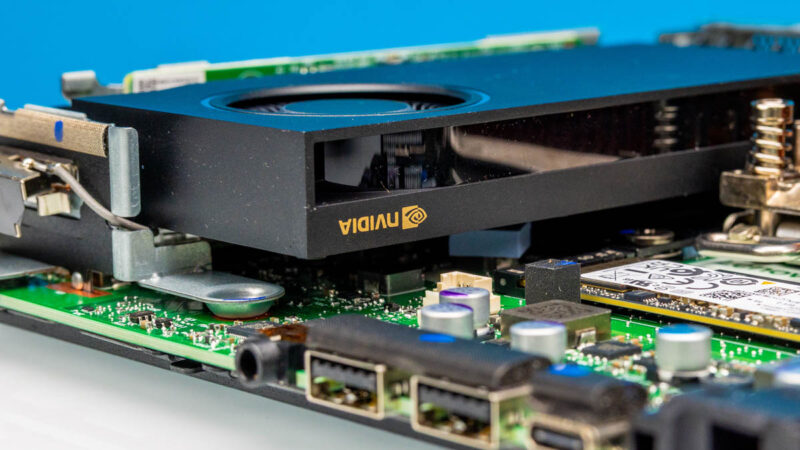
The A1000 is an actively cooled card with its own blower – and is why the top side of the system is vented, so that it has a place to draw in cold air.
So how does this all come together as a complete product? Let us take a look at performance.

Can I populate all nvme slots at the same time? Could I fit double sided nvme? With PLP?
@Florian
Yes, all of the M.2 slots can be populated at the same time. As for double-sided drives, I’m afraid I don’t have a well-informed answer for you. Lenovo provides no official guidance in their manuals; they don’t explicitly list DS drives as supposed, but they don’t list them as unsupported, either. Thermal pads are pretty squishy, though, so I would be surprised if you couldn’t make it work.
It really is a shame they didn’t opt for a bigger GPU, it might have needed a custom heatsink but the b2000 would be a huge upgrade and should fit inside the systems power profile
I don’t disagree in regards to a more performant video card. But heatsink size aside, the RTX Pro 2000 Blackwell is not a drop-in replacement. NVIDIA specs it as a 70 Watt card, which is much higher TDP than the 50 Watt A1000. It’s only a difference of 20 Watts, but that’s a significant difference for such a small PC. At the moment NVIDIA does not have another 50 Watt video card; they’ve yet to release a newer 1000-tier card for the desktop market.
Oh I’m not pretending the 20 watts doesn’t matter although I’m sure that power supply can keep up with it, I would imagine that they would need to use the lower profile he’s thinking probably make it out of copper possibly out of vapor chamber it’s not it insurmountable wattage when laptops have cards in that power range although they do have the advantage of more integrated cooling solutions than what would have to be used here. I’m sure that the unfortunate reality is that it’s not a high enough volume product to invest the engineering resources required into anything more than the custom I/O bracket for what’s probably otherwise a standard 1000 class card.
Ugh that should say lower profile heatsink, autocorrect strikes again. (We need a better comment system that we can edit)
The computer actually supports up to 8 displays if you use daisychaining or a MST-hub on the onboard Displayport.
But the benefit of the nvidia card is of course only available through the four Mini displayports.
Gjetting bigger GPUs in this chassis is usually prohibited by the length of the card (or the heatsink arrangement on the card).
New on this model is the third nvme slot.
It’s a sturdy powerpack actually tested and certified for Maritime use.
The little computer that could
Why, in 2026, are these still being shipped with a single 1Gbps ethernet port? Sure, you could throw a faster NIC in the PCIe slot, but I’d rather use that for other purposes. Would love to see a 10GbE port, but even 2.5GbE would be a big improvement.
Really happy to see new TinyMiniMicro content … I’d also love to see links to new articles & videos posted on Mastodon, if you can spare the time. Lots of engagement from a strong homelabber crowd there. Great work as always!
I have been looking for something like this. I like it. It could be glued to the back of a 4K TV and used as a media machine. No extra box sitting around, out of sight.
Agh, 1GBe ethernet port…. why oh why is this a thing still! 20 years ago I can understand, but now? Integrating 10GBe onto motherboards will drive down the cost, and increase rate of adoption.
Also, why oh why is it DP1.4. DP2.1 is superior, offers higher resolution and display rate.
With 10GBe this could rival the Minisforum MS-01 and MS-A2, which are great machines but have drawbacks with remore management and heat dissipitation (and perhaps warranty replacement…), and are not 1U in height.
@Alan
The DP1.4 outputs are a function of the video card. The A1000 is an Ampere architecture product; Ampere doesn’t support DP2.x. That didn’t come until the Blackwell architecture (RTX 5000 series/RTX PRO Blackwell).
In fact, there simply isn’t an RTX PRO video card available that would fit into the P3 Tiny that offers DP 2.1. This is the best card available in the single-wide HHHL form factor.
Just an FYI – while it’s nothing even remotely approximating cost effective, there are a small handful of potential GPU upgrade options for these machines, most pertinently the RTX 2000E Ada Generation (note the “e”). Priced at around a frankly absurd $750 US, it performs roughly on par with (if not a few percentage points better than) the previous gen RTX A2000 in most cases.
It’s essentially, the same card as the RTX 2000 Ada Generation, except with a single-slot cooler, and BIOS Throttled to pull only 50w. Given that the 2000E costs the same as its beefier twin brother, it’s not a very compelling purchase…but it is a pretty substantial upgrade over the A1000. Worth mentioning that the gulf in performance between the 2000E ada and the 2000 ada is about the same as the gulf between the A1000 and the A2000.
@CantankerousRex
That’s a great find! Thank you for that.
When I was putting together this article, I was looking solely at NVIDIA’s official listings. I never thought to look at PNY’s listings.
As best as I can tell, the 2000E is a PNY-exclusive card. So I won’t hazard a guess as to what OEM availability is like. But if nothing else, that is a very interesting option as an end-user upgrade. Ada has a huge performance advantage at iso-power, to say the least.