

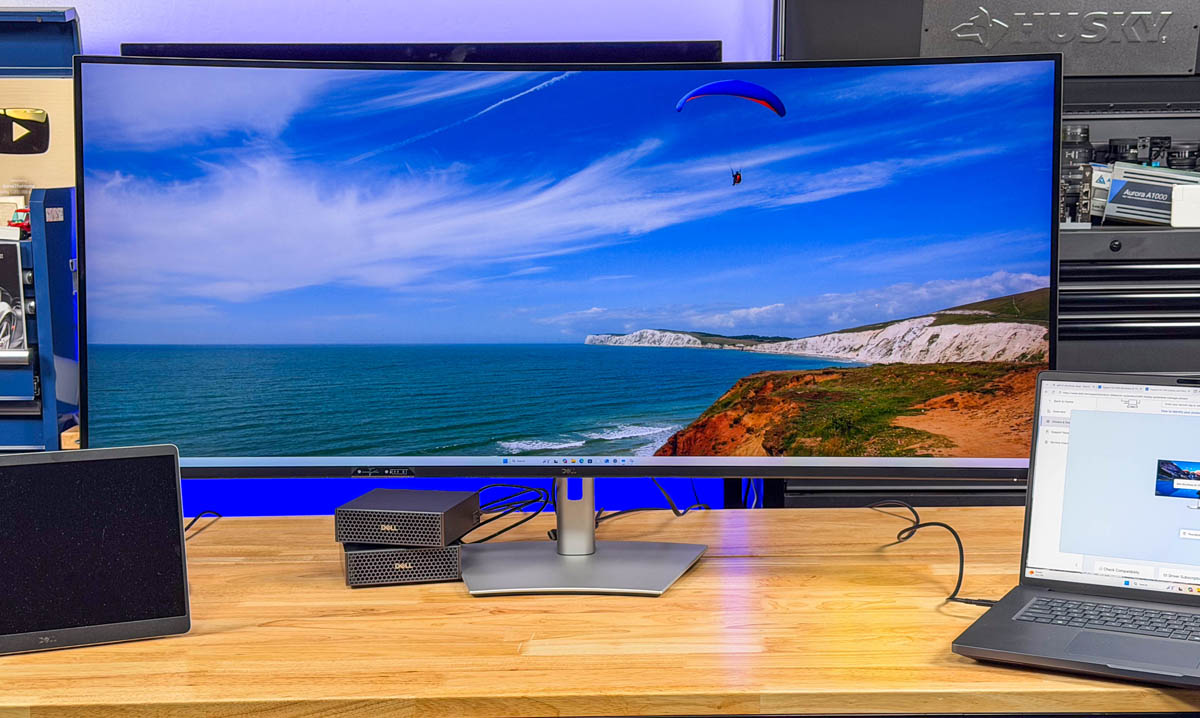
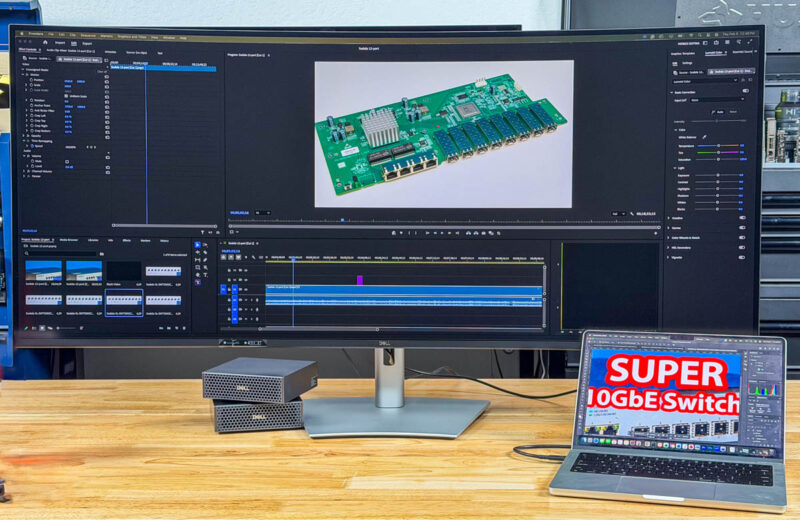
The Dell UltraSharp 52 Thunderbolt monitor is easily one of the coolest pieces of technology we have received in the studio recently. This 52″ 6K monitor is not cheap, but it is also not small, and it has a lot of functionality built into the unit, making it more than a monitor. When we talk about functionality, we are not just talking about a few extra inputs. Instead, this has a Thunderbolt 4 dock with a built-in 2.5GbE adapter, a KVM feature, and the ability to support multiple systems at the same time with picture-in-picture. The number one comment we got with this was “that is a TV!” Luckily, it is a lot more than just a TV, even though we have been using 4K TVs as monitors for almost a decade. This is an absolute game-changer, but after using it, there is clearly something we wish it had.
Of note, Dell sent this monitor. There is a decent chance we will be buying another for Sam. Here is an affiliate link to this monitor from Dell.
Dell UltraSharp 52″ Thunderbolt Hub Monitor Hardware Overview
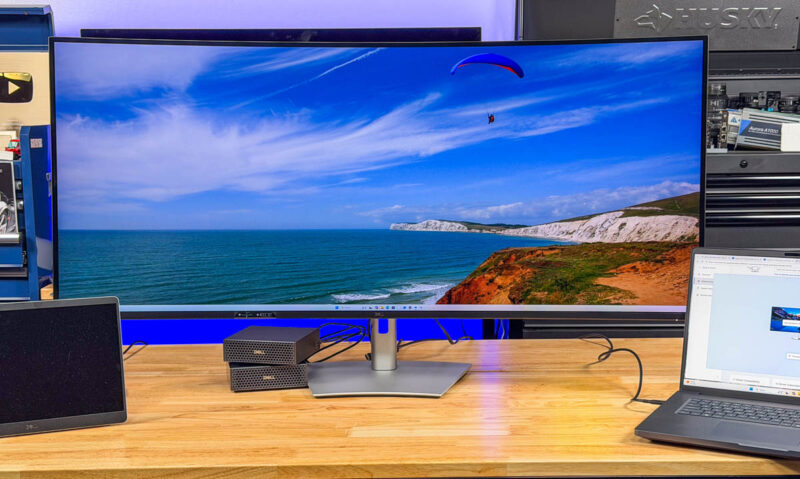
The first thing that stands out about this monitor is size. Just for some frame of reference 52″ is so big that it is too wide to photograph on our normal photography set. The best place we had was on the 2nd set where it takes up so much of the 62″ Husky workbench/ tool chest that fitting the Dell Pro 14 Plus Portable Monitor and Dell Pro Max 18 Plus on the table alongside was not going to happen. When you are sitting arm’s length from the monitor, it takes up the majority of your field of view, which is great. There are, however people who will not have the desk space for something this large.
Even just moving this around is not trivial. Here is the box in a Cybertruck bed, and remember that the Cybertruck bed is about 1″ narrower but 6″ deeper than a standard Ford F150 bed.
2026’s hottest monitor comes in a box the size of a truck bed. The Dell UltraSharp 52″ 6K Thunderbolt display is HUGE pic.twitter.com/FPli2fkHk1
— Patrick J Kennedy (@Patrick1Kennedy) February 4, 2026
This all may seem trivial, but really, the remarkable part of this monitor is the size. From the minute you see the box to the first time it is sitting on your desk, ready to be powered on, to when it lights up and the LCD panel’s glow envelops you, the size is what sets this apart. Sam’s desk has a 34″ curved OLED display, sitting behind this one, and it looks tiny in comparison.
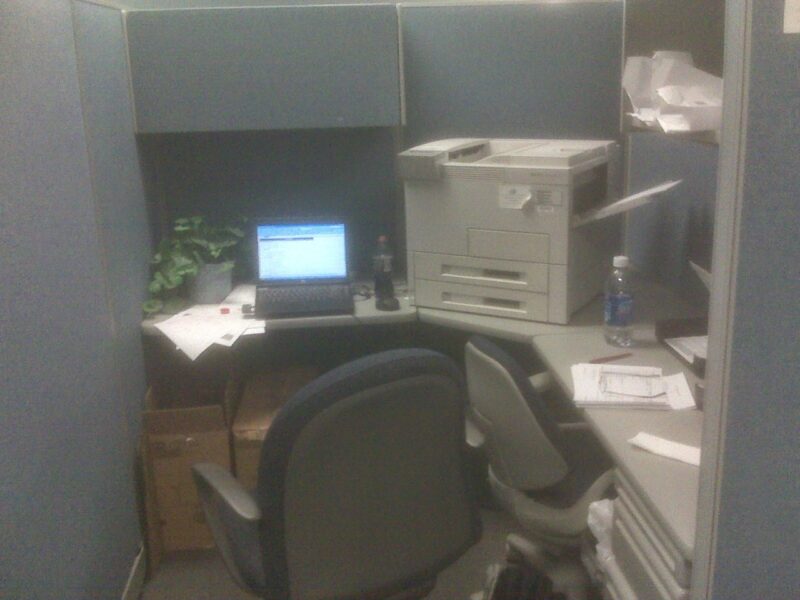
One fun thought I had while using this was back to my old consulting days almost two decades ago now. We were doing a multi-billion-dollar M&A due diligence project at an IT equipment and services company in Plano, Texas, when I was a Senior Associate. For a week, I worked out of a tiny cubicle that I shared with a laser printer and a fake plant. That cubicle would not have fit the Dell UltraSharp 52″ display.
Much will be made about the 6K (6144 x 2560) resolution, but there are two major points worth noting. First, folks will correctly note that it is only 129 PPI, which is not mind-blowing these days. The other is that if you are coming from a 2160p monitor, you will immediately notice the difference in the extra vertical pixels offered by a dual 4K monitor setup versus this single ultrawide monitor. Going beyond the pure resolution is also the port configuration and the other tricks that the display has, making it so much more useful.
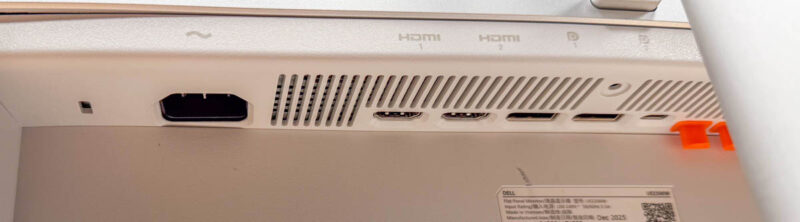
On the back, there is an AC power input (no DC power brick hanging around), then two HDMI 2.1, two DisplayPort 1.4 ports. Next to those, there is a Thunderbolt 4 port with 140W of power delivery. After that, there are three USB Type-C and four USB Type-A ports. There is even a 2.5GbE port.
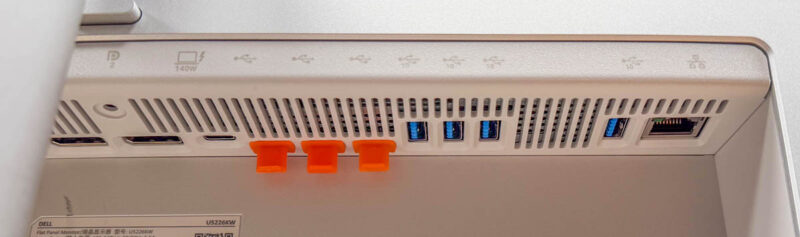
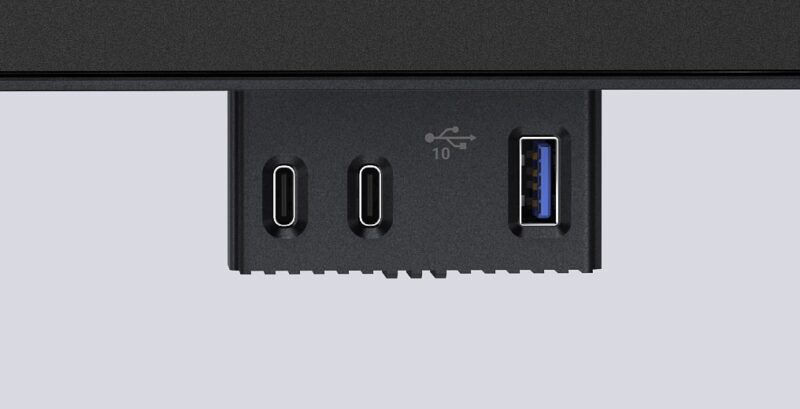
What you often do not see in the online photos is that there are actually three more ports. You can release three more USB ports (two Type-C and one Type-A) on the front of the monitor that drop down.
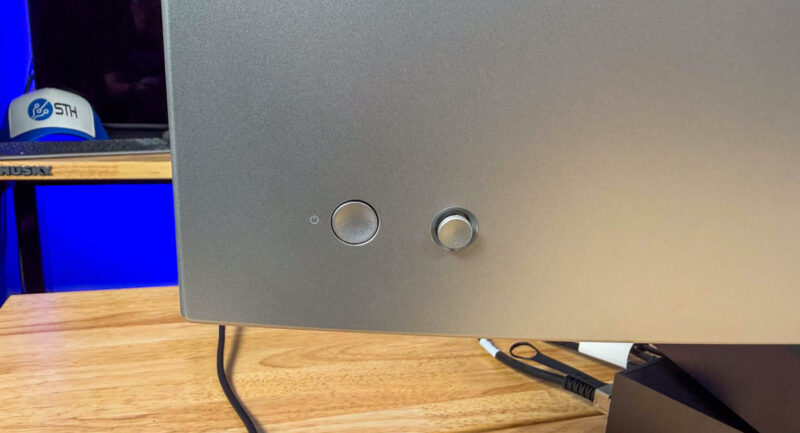
The back of the monitor has the control stick and button.
On the on-screen controls, there are many options. For example, you can adjust brightness, contrast, colors, and inputs as you might expect.
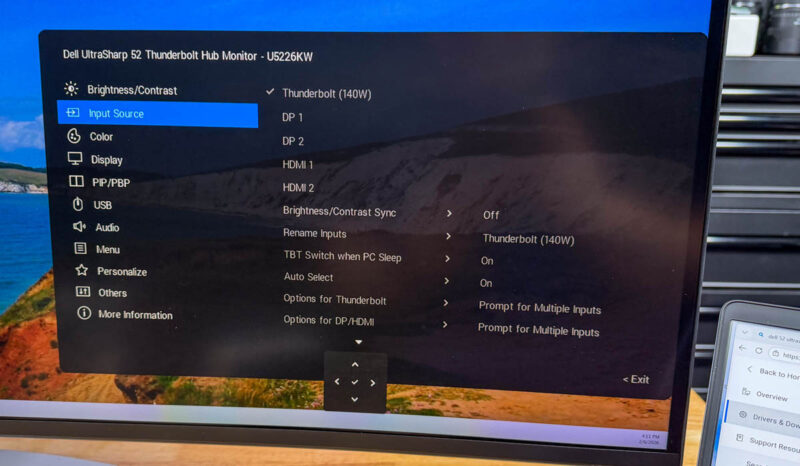
With all of the USB options, there is a lot more going on here. For example, you may want to tie a display input to a USB port. While this may not make sense at first, the reason is that this has a built-in KVM that is quite good. You can hook up a mouse, keyboard, and perhaps a USB audio stick to the display (there are dual 9W speakers, which are decent as well.) Then, you can switch display inputs, and those peripherals connected to the monitor are then connected to the same machine as is being displayed on the screen.
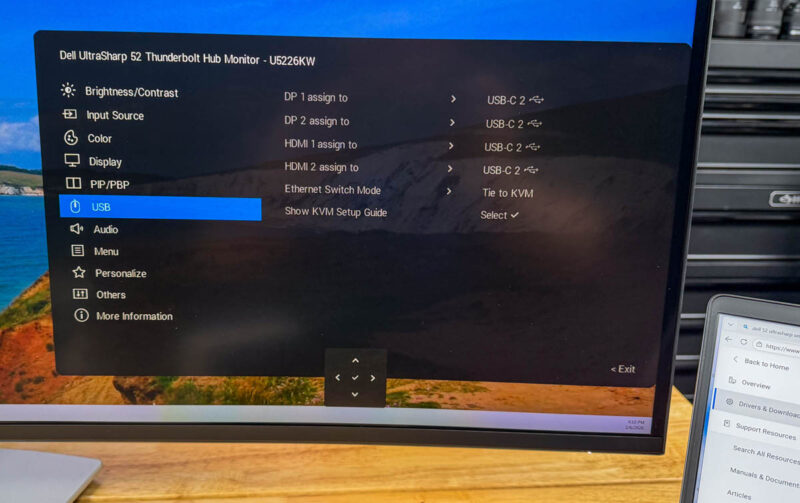
That KVM feature is great, and one that we have been using a lot. Another feature, however, is the picture-in-picture modes.
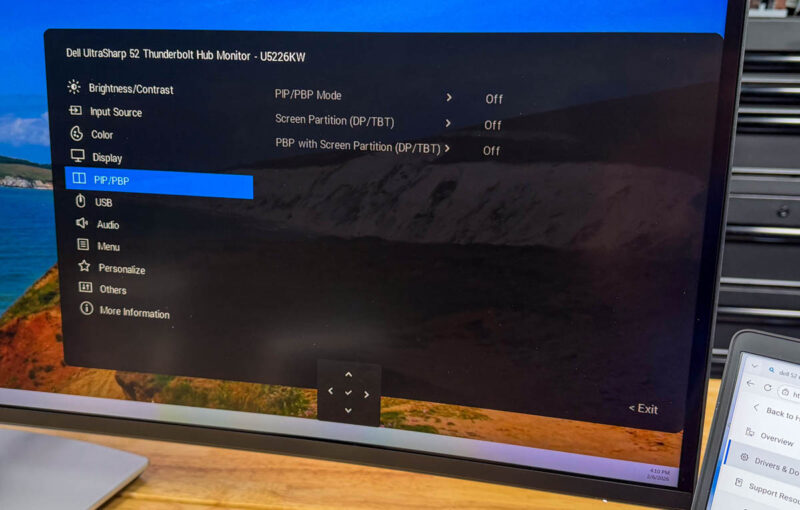
When we say there are PIP modes, this is not just a side-by-side PIP. There are a ton of different ways and numbers of displays you can have running at the same time.
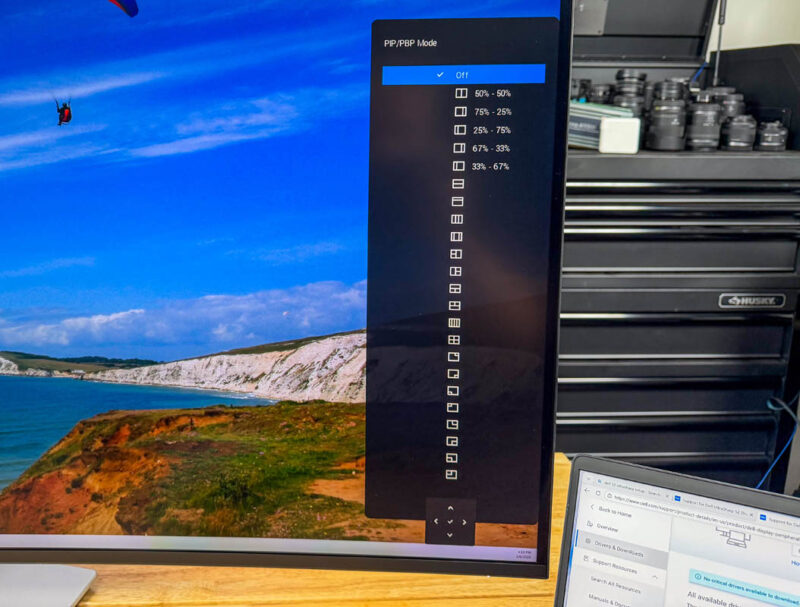
Here is a side-by-side mode as an example from the Dell Pro Max 18 Plus.
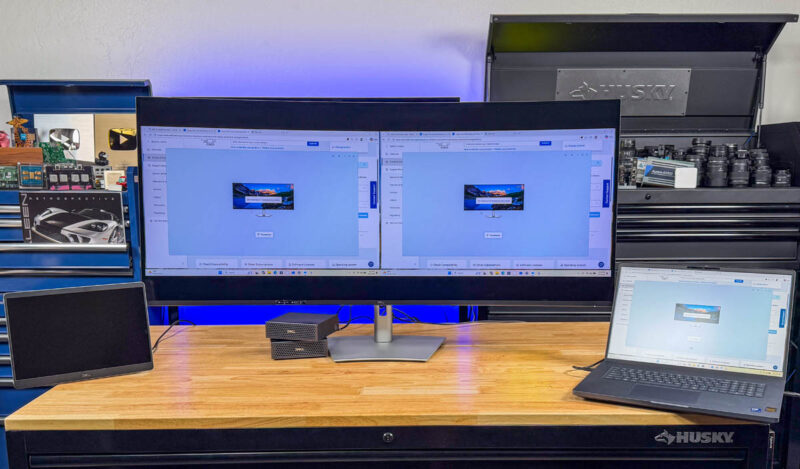
Here is the same with the Windows 11 notebook and the Dell Pro Max with GB10 running NVIDIA’s DGX OS.
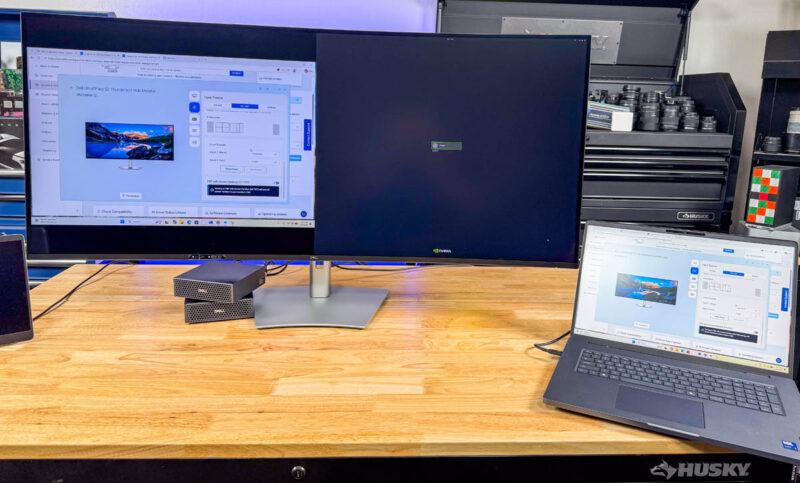
If you have two Dell Pro Max with GB10’s, and a notebook, then you can also display all of them on the same screen. Again, you can use the different inputs and display in different arrangements.
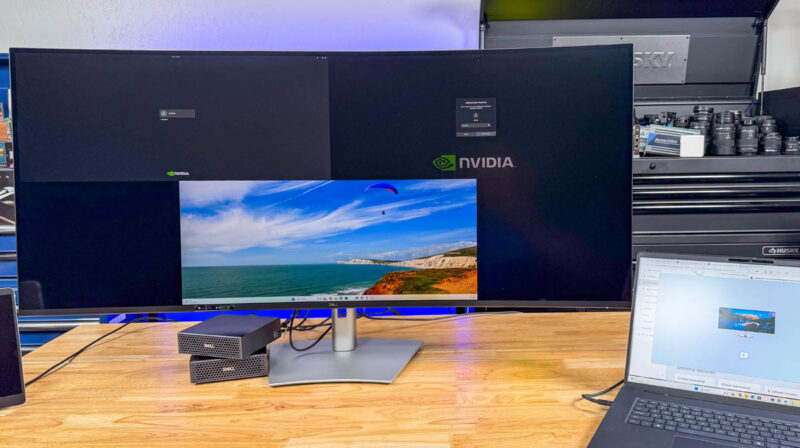
With that, some of our readers are going ask about the colors and the display quality.
Dell UltraSharp 52″ Thunderbolt Hub Monitor Display Quality
Dell rates this at a 2000:1 contrast ratio, and the DCI-P3 color gamut at 99%, sRGB at 100%, and so forth. Dell also says these monitors go through factory calibration. We wanted to test this, so we ordered a Datacolor SpyderPro (Amazon Affiliate link) to validate.
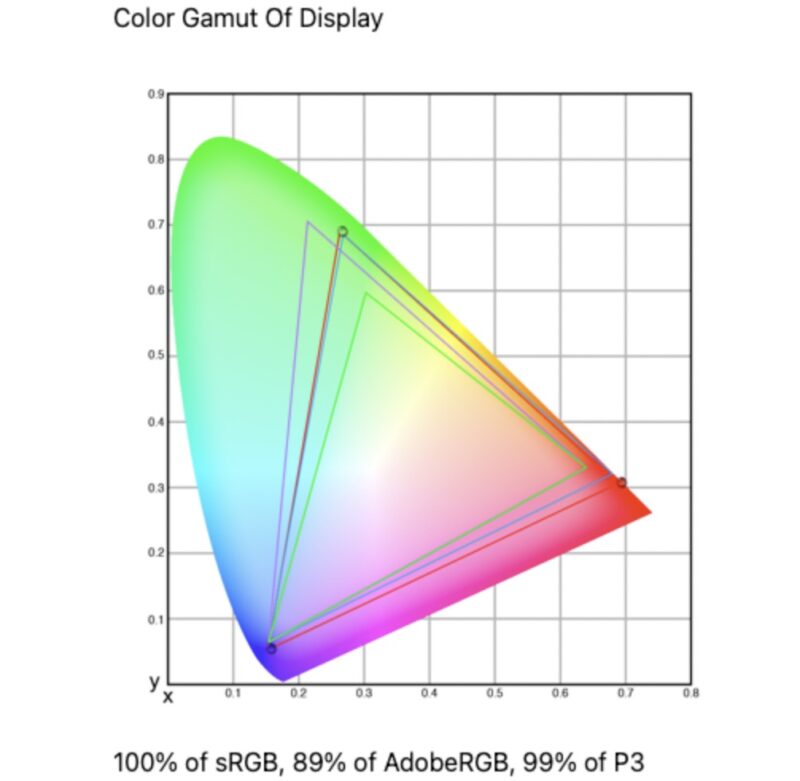
We tried both in the standard profile and the movie profile jsut to see if that made a difference, and we saw 100% of sRGB and 99% of the DCI-P3 color gamut.
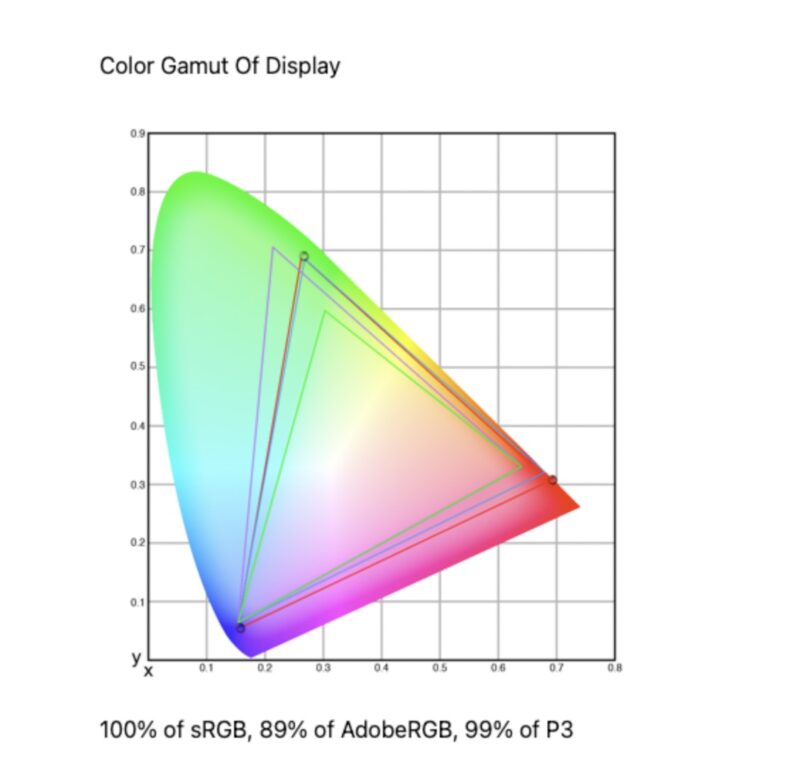
We only got 89% of the Adobe RGB color gamut, but others have much fancier monitor test gear and have been in the mid-90% ranges. Still, most of what we use this for, we have the color gamut we need (e.g. BT.709.) I will just say, there is a very notable difference in contrast ratio between this and an OLED display. You can tell the difference in black portions of the screen between the IPS and OLED displays without specialized test gear.
How This Can Be Better
It would be easy to just say this is the best monitor out there for productivity. Still, if we made a V2 of this, here is what would displace this monitor from my desk: a different panel.
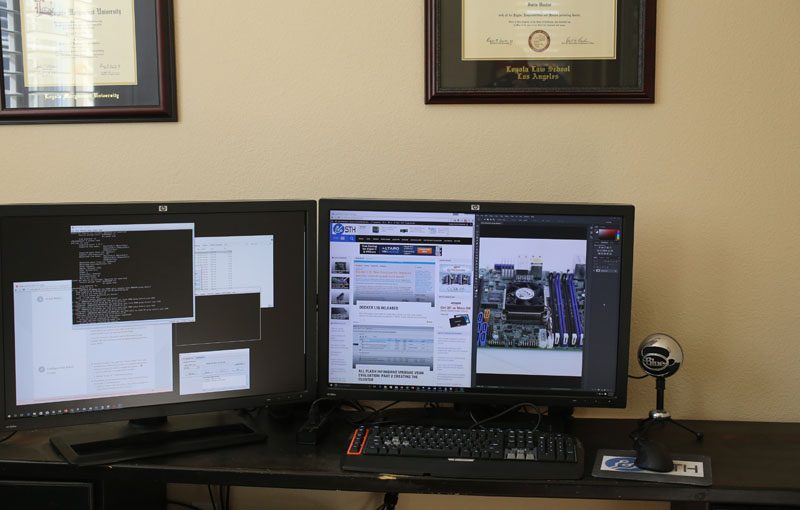
Years ago, I used two 30″ HP ZR30w IPS monitors and that was great. For the past five years or so, I have been using so many OLED panels that I just prefer the colors on them. At home, our main TVs are OLEDs. In the studio, our TVs are OLEDs. Replacing the OLED on my desk with the huge IPS display was a trade-off. I certainly notice the difference in black levels when editing photos and reviewing our video drafts for YouTube. If we did not have a substantial media operation, I would care less about this. Still, the trade-off of black levels versus just having a giant screen for everything Adobe Premiere Pro offers is one I would take every day of the week. I just would rather not have to make the trade-off.
Second, 240Hz. Someone told me to play a game on it. I do not get to play games these days, but I tried loading Battlefield 6. My reaction time sucks compared to 25 years ago, but I was getting shredded faster than mozzarella cheese. I realized that it defaulted to 60Hz. Changing to 120Hz was significantly better, but I was still off. Part of that might also be that spatially, a 52″ screen leads to a lot of display to cover and react to. When you have to turn your head to focus and identify something on screen, that is not ideal for reaction times.
Now, driving a 240Hz+ 6K display is not a simple challenge. I would imagine an OLED display would cost more. Still, if the Dell UltraSharp 52 had those two features, it would have everything. Make no mistake, for the target market, this is just about perfect. I think that an OLED display version would make Apple monitors look old-fashioned.
Final Words
We have hooked up around two dozen systems to this display. Everything from the Dell Pro Max with GB10, the Dell Pro Max 18 Plus, and even an Apple Mac Studio M3 Ultra that is hosting MiniMax-M2.5 for OpenClaw. That also brings up the point that just because this is a Dell monitor, does not mean you need a Dell system. If you have an Apple, HP, Lenovo, ASUS, or other system, they all worked as well. If you are collecting systems because you have a lot of local AI nodes spawning on your desk, then the built-in KVM feature is a game-changer.
Price-wise, these are not inexpensive. The list price is $2899 with the stand and $2799 without the stand (but you will need a heavy-duty mount), which is a significant price tag. Still, this is both a productivity booster and, if we are being honest, almost a status symbol of a monitor like the 32″ Apple Pro Display XDR 6K. Folks out there with 32″ Apple Pro Display XDR 6K displays are spending $5998-6998 with the Pro Stand, but do not have the same KVM features, and Apple’s monitors are tiny in comparison. If you look at this compared to 2-3 small 1440p monitors, it might seem expensive. If you take the lens of a single big and high-quality IPS panel, then it might be a good value. To be fair, if you just need screen space and your job heavily utilizes it, then you can make a business case at work to pick one of these up.
Overall, if you can, this is what winning in monitors looks like in 2026.
Where to Buy
Here is an affiliate link to this monitor from Dell.

If I was buying a new monitor this year this might well be the one I picked. But comparing it to Apple’s 6k is really silly. They’re for completely different markets.
That said, Apple’s 6k is getting very long in the tooth. I think an update is due shortly.
2 Things:
1. One of the reason I have loved Dell Ultrasharp monitors for years is because of the internal power supplies. External power bricks for something the size of a monitor are straight up dumb and pointless in my mind. Weird that several other manufacturers insist on using them.
2. Mentioning that you don’t have to use a Dell monitor with a Dell system. Are there any monitors outside of Apple’s that are hardware locked within their own ecosystem? Is there enough concern to actually warrant the comment?
You’ve never worked an IT Helpdesk. I’ve had people come up and ask if they can use a Samsung USB SSD in a Dell laptop’s USB port.
Looks very similar to the U4025QW, but larger. Very nice.
@James What Apple monitor is locked to Apple hardware?
I’m happy with the Dell I’ve had for years, but I’d probably be happier (and poorer) with Apple’s 6k. And it would work fine with my Linux boxes.
@James
the problem with internal power supplies, is they’re another point of failure that a user can’t replace.
Bad DC power bricks – you can replace out for a dozen or two bucks.
A bad internal PSU = entire unit replacmeent = $$$ shipping and downtime for the replacement
Just goes to show Dell are more confident in the quality of their power supplies, since they are the ones on the hook for warranty replacement. I would believe them though, of the hundreds of Ultrasharps I’ve managed professionally and privately, I’ve only seen one power supply failure which (of course) was one of my own. It was a failed diode in their second generation 30″ monitor, which turned out to be a known issue so one I was able to repair and get another few years use out of it before the insulation degraded and fell off the internal signal cable, corrupting the signal and preventing an image from being displayed. Something to repair one day…
Is that 2.5 Gbit Ethernet port USB or PCIe based? If it is USB based, can it be assigned to a specific KVM host? Ditto for the internal speakers? I’d be hand to assign those to a specific system that would need them dynamically (say a laptop which doesn’t have Ethernet vs. desktop which already has a hardwired port).
You write:
“Much will be made about the 6K (6144 x 2560) resolution, but there are two major points worth noting. First, folks will correctly note that it is only 129 PPI, which is not mind-blowing these days. On the other hand, if you are coming from a 2160p or 1440p monitor, you will immediately notice the difference in the extra vertical pixels offered by a dual-monitor setup.”
Wait, aren’t you reviewing a single monitor?
Sometimes the lackluster editing and copy and pasting on this site is tiring…
I have a Dell monitor that is a hub and has switch features. It is not as large. The output is fine, but I hate wrangling needed to do anything with those ports on the back. For me one of the best feature of this monitor is the drop down ports available in the front. Ideally there would be a “breakout box” available that would replicate the ports in a convenient unit accessible on the desk. I don’t understand the concern with a power brick that is on the floor someplace near a power outlet. If it makes the actual monitor a bit lighter, why not? And finally, aspect ratio. Why not some more vertical space? Reflecting the monitors on business laptops, where the manufacturers finally got the word.