

Many Windows Home Server (WHS) users use their machines as remote desktop gateways. Although remote desktop connection is functionally great, one annoyance sometimes rears its ugly head, the inability to reboot or shutdown a PC through RDC. Here is a screenshot of what this looks like:
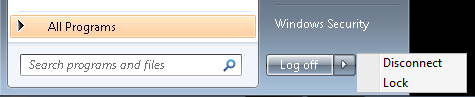
Luckily there is a simple solution. First, launch cmd.exe (you can type cmd in that search box depicted above). Next, type (without quotes) either “shutdown -f” or “shutdown -r -f” to shutdown and reboot (restart) respectively.


If this is a common issue. you can always make a batch file with the above commands to give either double-click or start menu/ windows menu access to shutdown and reboot over RDC.
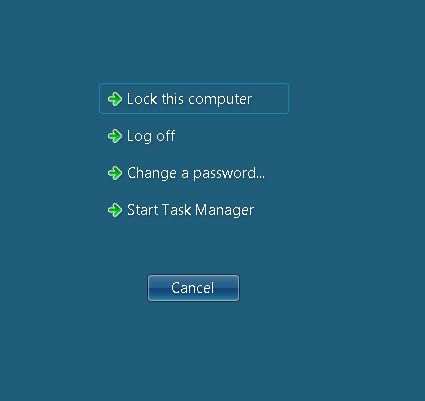
Update 13 March 2010: As an update to some comments saying one can just hit the Windows Security button (depicted above), the reason I did this via command line was because this is what I saw when hitting the Windows Security button:

Or you could click the Windows Security button just above the Log off button and select Shutdown from the buttons that appear, you also get the option of selecting Restart.
You can do this remotely without having to go over an RDC session. You can use the psshutdown command line utility from the Windows SysInternals PsTools suite to issue the shutdown command from another PC.
http://technet.microsoft.com/en-us/sysinternals/bb897541.aspx
yea, what Phil said.
I just use shutdown /m \\COMPUTERNAME /r
This restarts the remote PC in 60 seconds. I use this to restart my download box all the time when it has issues.
In response to the 13 March update, your screenshot shows the options in the middle of the screen. The shutdown option is found on the bottom right corner of that screen.
I just use control alt end in windows works so much faster
by the way i have added your site to my visit weekly group, i have enjoyed your articles and the following are techis are just as helpful
I’ve been using this for a while now. You should add -t 01 to your command line. -t is to set the time delay in seconds so 01 would be almost instant. (I’m impatient to have to wait 60 seconds sometimes…)
Derek
The ctr-alt-end sequence brings up the task manager, and there is a Shutdown menu that allows you to select Restart or Shut Down.
Kewl!
Pressing Alt+F4 at the empty (remote) desktop does it.
(Discovered accidentally, by sequentially closing a lot of windows and the n+1 one is the desktop (or better the OS itself))
Exactly what I was looking for. My sysadmin showed me this and I forgot how to do it. Its also nice to have a command line approach if all else fails.
Comments are closed.