

GL.iNet Flint 3 BE9300 Management
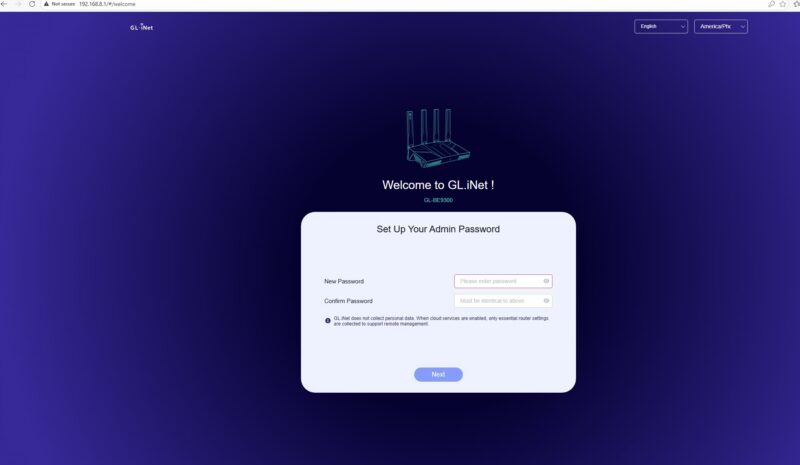
Logging into the FL.iNet Flint 3, you are prompted to change a default password.
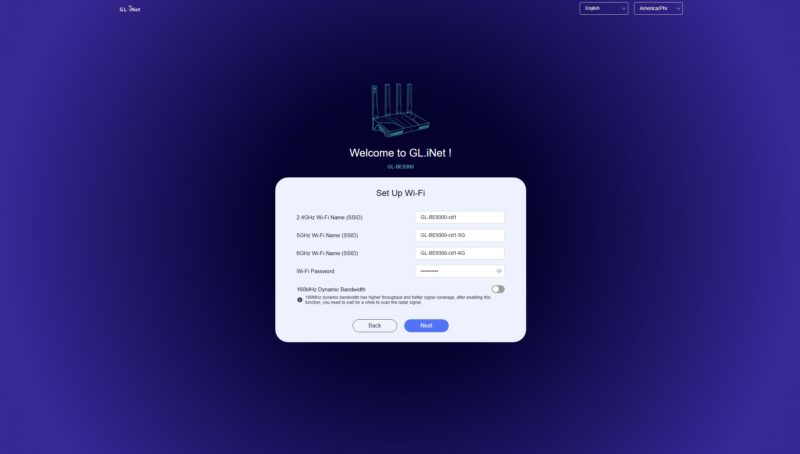
The next step is to set up WiFi.
Once you are through the initial setup, you will likely see a prompt to upgrade the firmware.
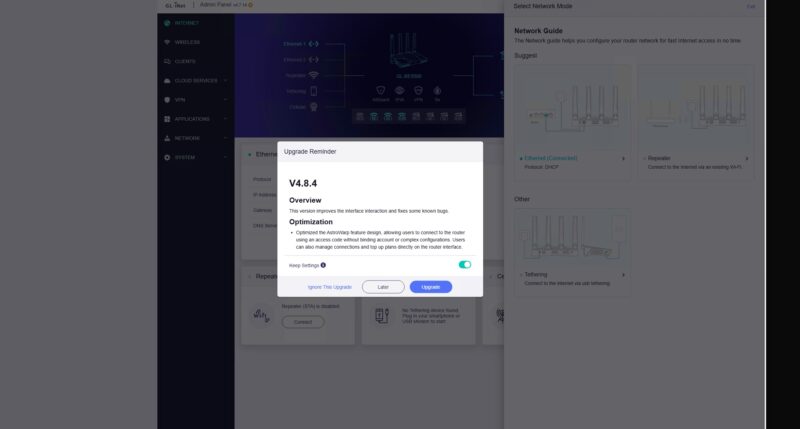
You will also see a prompt for how you want to use the device. You can use it as a router, but it can also be used as a WiFi repeater or as a tehthering device.
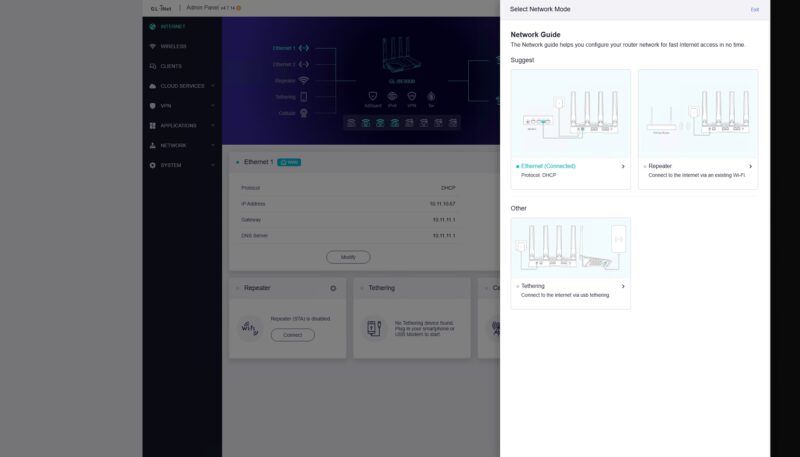
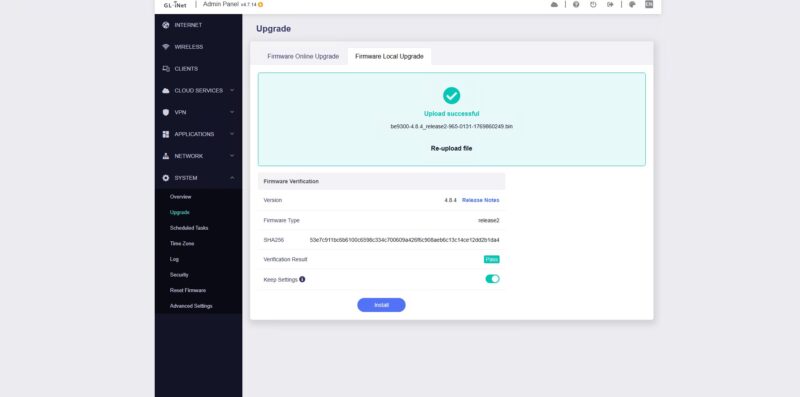
Once you get through these screens, you can also update the firmware manually.
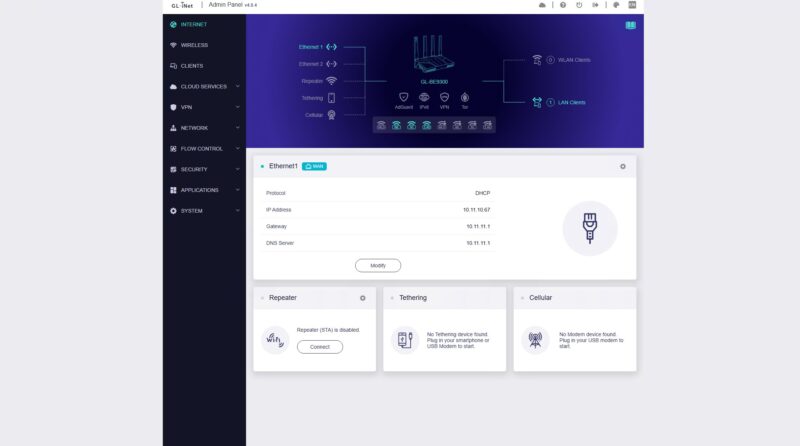
The dashboard shows some basic status items.
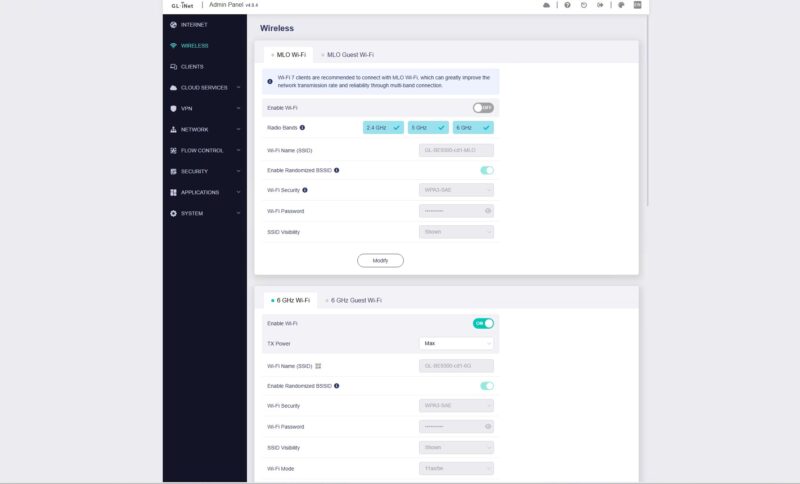
Of course, a major feature here is the wireless. Although we do not performance test the wireless, the high-speed WiFi 7 setup is one that has a lot of options you can set.
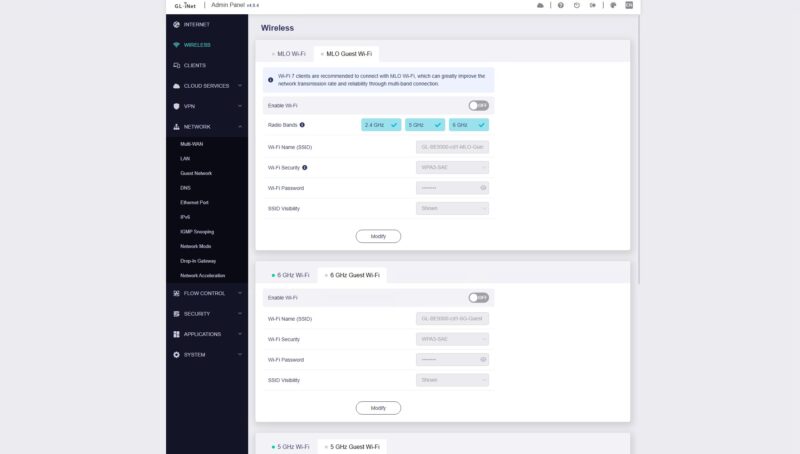
You can also setup a guest WiFi network.
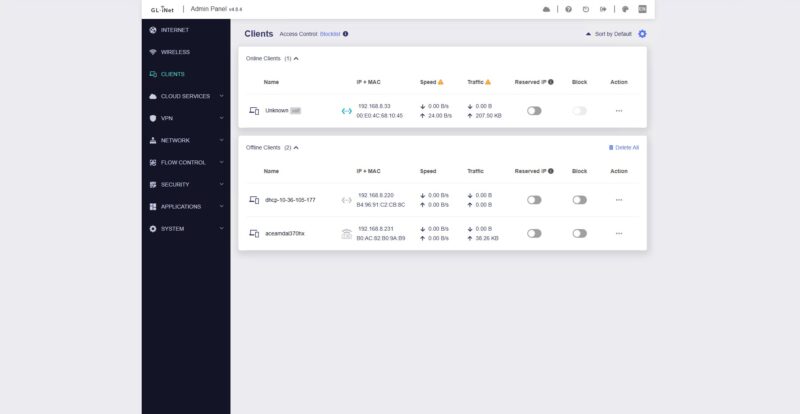
You can see WiFi clients which is important if you need to do troubleshooting.
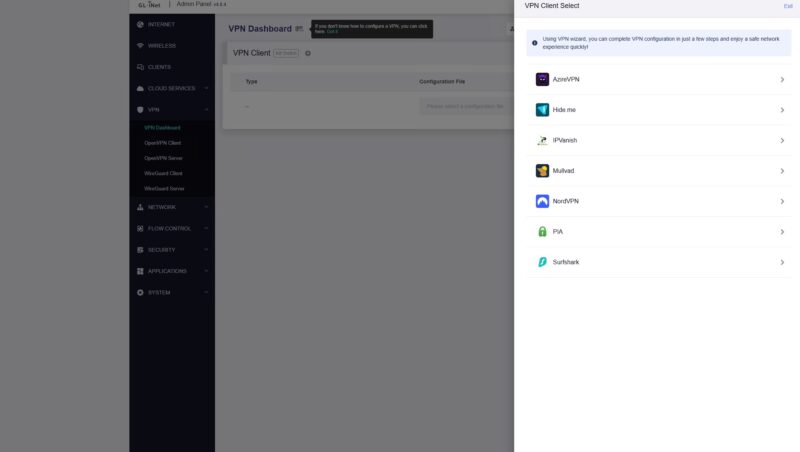
You can also setup various VPN services with connection wizards.
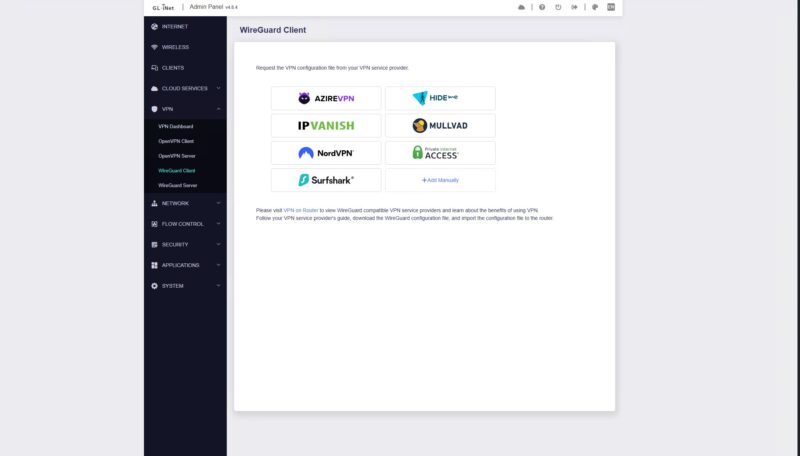
On the VPN side, you can also setup a WireGuard client and access a number of WireGuard providers.
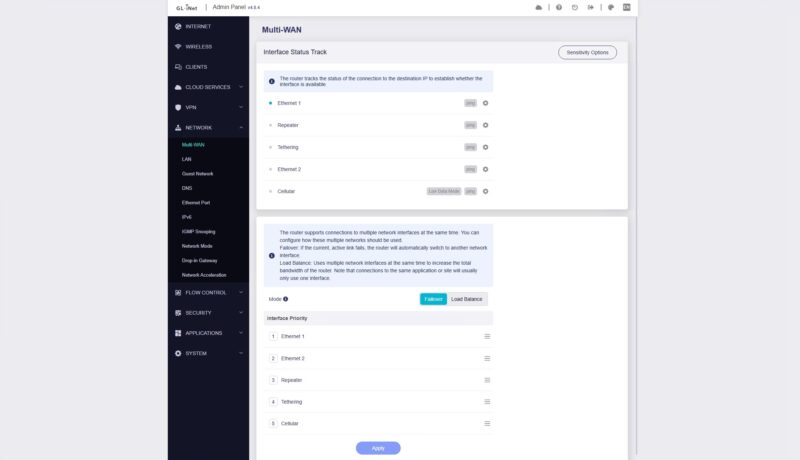
On the WAN side, there is also a multi-WAN feature.
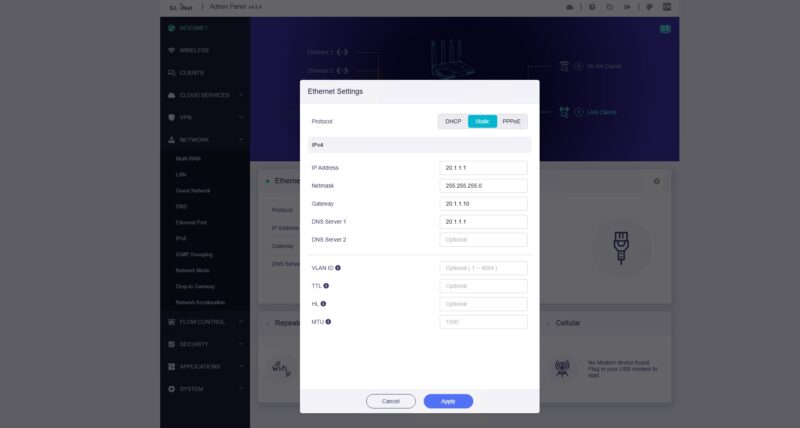
You can also setup the WAN manually if you need to for your ISP, or for a CyPerf test platform.
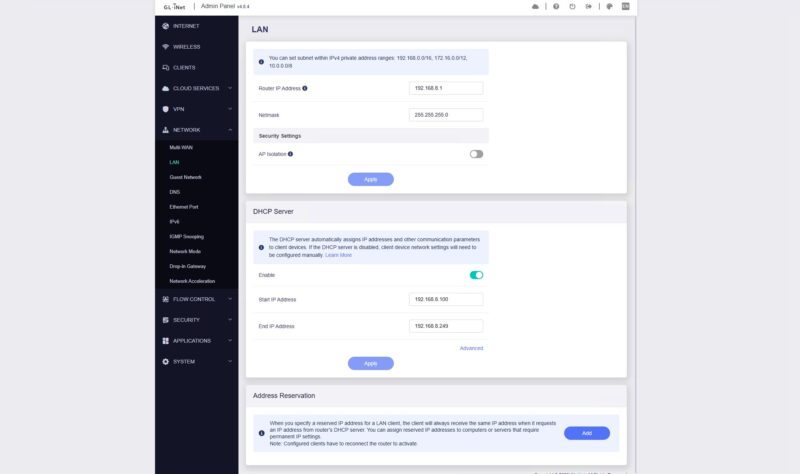
You can use a DHCP server for the LAN side, or set this up manually.
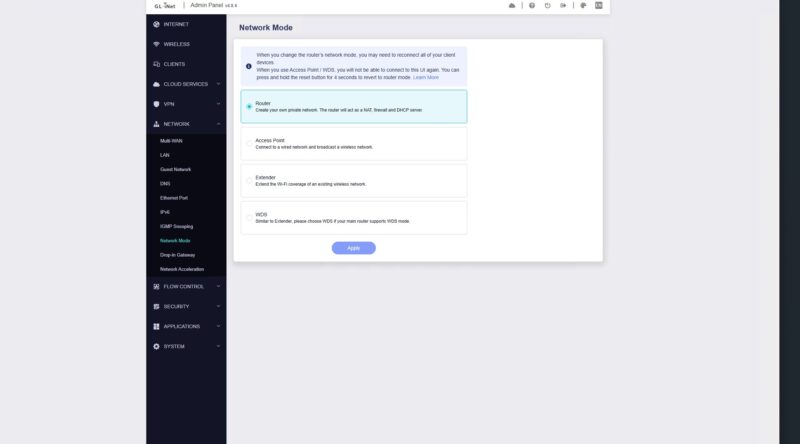
You can also setup the network mode here using a toggle.
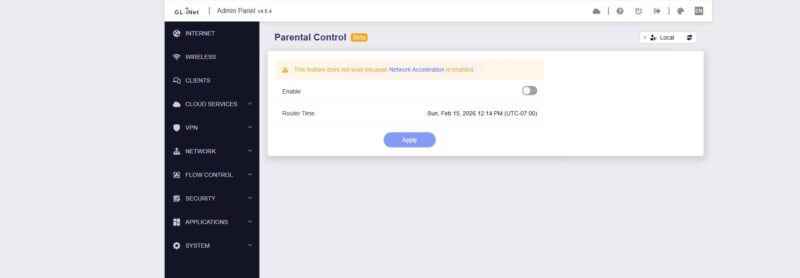
The flow control setting was interesting. It ended up giving us a Parental Control setting page.
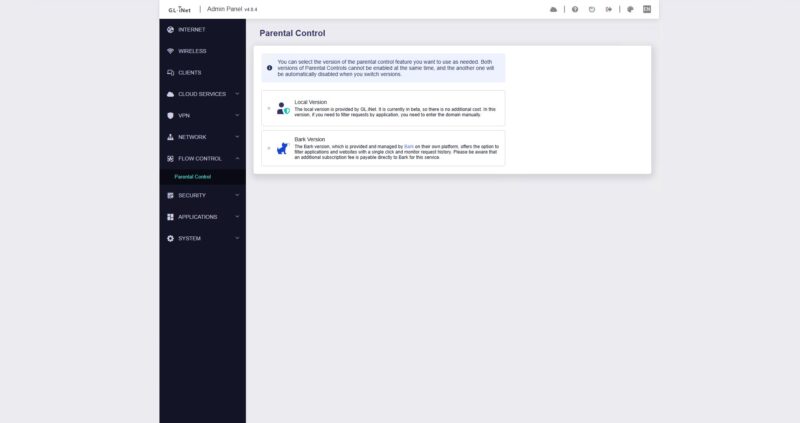
That was a bit strange to see here.
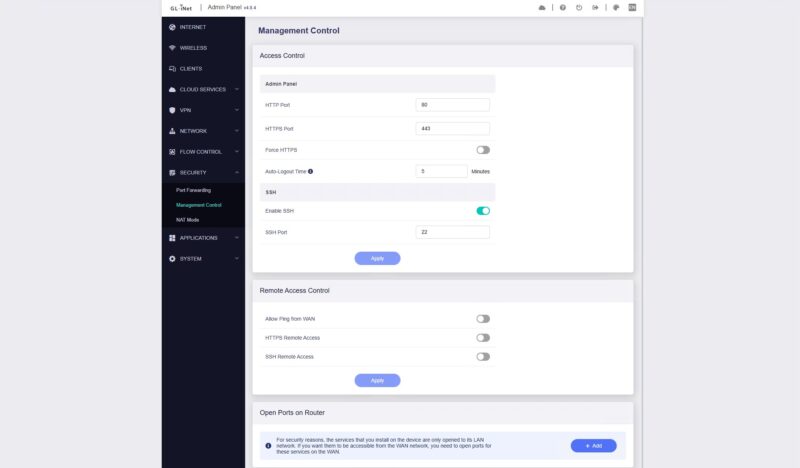
There are also controls for how the management interface can be accessed.
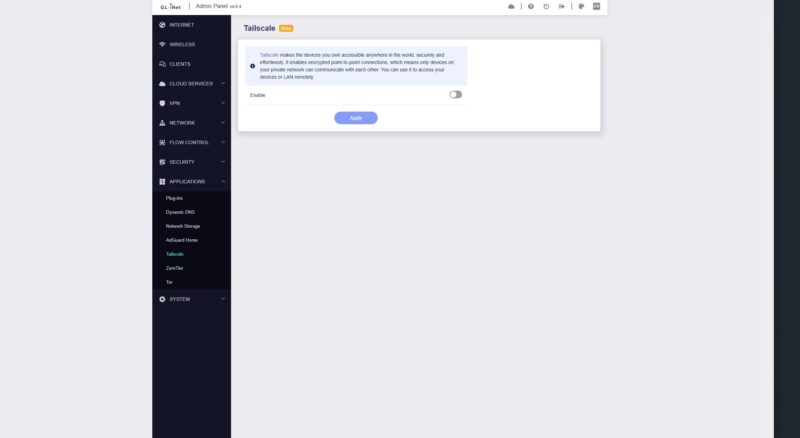
Something that was a bit strange was the under VPN and WireGuard sections, we did not see Tailscale. Instead, thsi is under the Applications setting. GL.iNet has been using Tailscale integration even in products like the GL.iNet Comet PoE 4K Remote KVM.
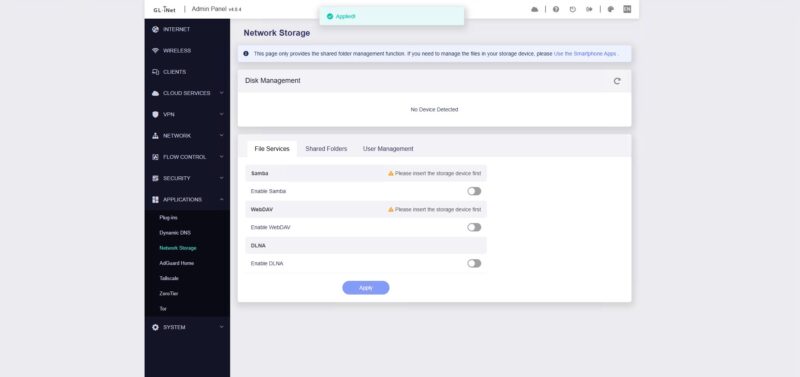
If you recall the USB port, it can be used with a drive to provide network storage that can be controlled via the management interface.
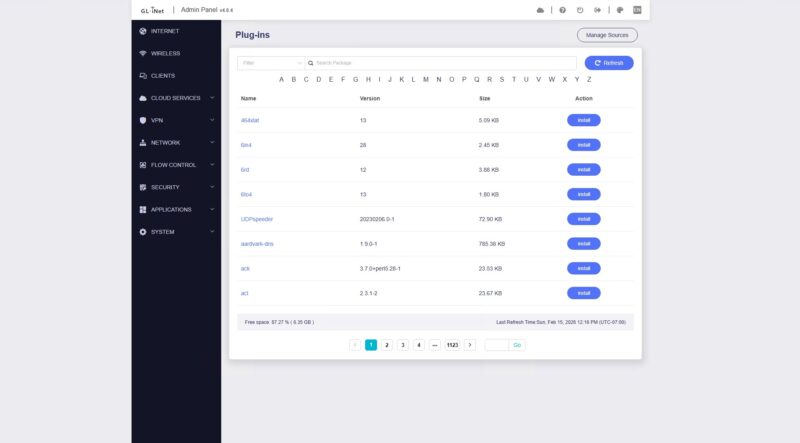
There is also a plug-in library.
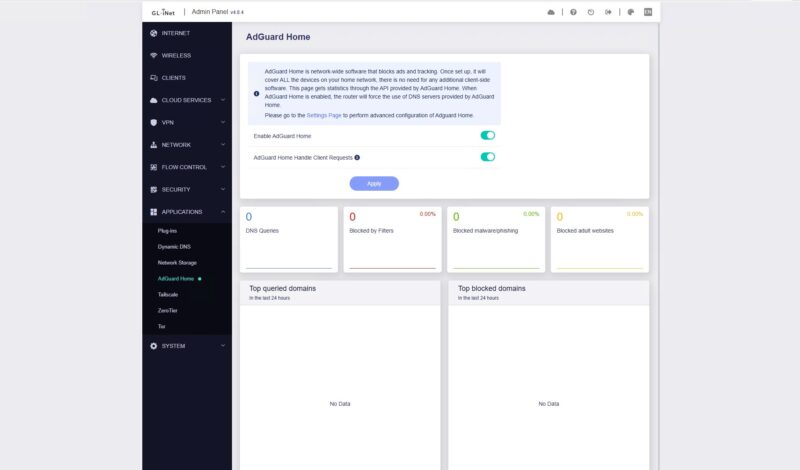
You can turn on AdGuard Home which we did for part of our testing.
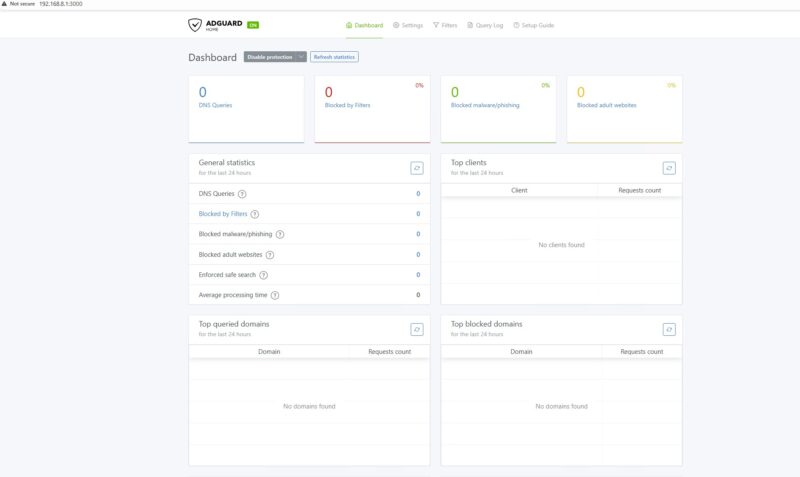
Here is the dashboard for that AdGuard Home.
One other interesting item is that the System Overview looks a lot like you might see in many other router/ gateway devices, but as their login dashboard.
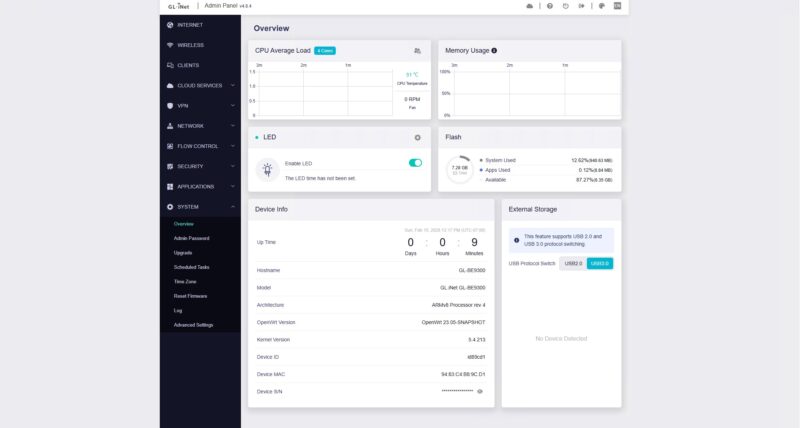
Again, this is not vanilla OpenWRT. Instead, it is like an older version of OpenWRT that GL.iNet customized to work on its hardware. Still, it is pretty easy to use.
Next, let us get to the performance.

Just a suggestion; Since you have a common test harness now for network and WiFi devices with your Keysight CyPerf , perhaps you can build a persistent chart on your website that reflects your test results.
Maybe I want to compare the number of sessions this GL.iNet or a recent Netgear or TP-Link model supports with a common test profile.
Or even with your LAN switches, NIC’s or IPS device tests. This way people don’t have to keep bouncing back and forth between the reviews to see who did what and when. OK, so a NICGIGA NIC can do 5Gbps, but what happens when it saturates? How do Marvell Aquantia AQC compare to Realtek RTL with the same speeds and the same test profile?
Some real opportunities to exploit your new found toolset.
Just a thought.
Peeve: The trademark is “OpenWrt” not “OpenWRT”.
Someone on staff may know a former website with a Bench section.
I believe this is one of the routers that RTINGS has found to have alternating MLO (that is, it can only use one band at a time instead of all of them together); would you be able to confirm that? You did note that you only tested wired networking, which I figure is fair.
Wi-Fi 7 doesn’t mean it’s faster than Wi-Fi 6 and you guys are making some very flawed assumptions here. The Flint 2 is a 4×4 router, whereas this is a 2×2 router. The Flint 2 will perform better with two devices connected to it, whereas the Flint 3 will suffer with performance degradation on the wireless side. Maybe don’t make blanket statements when you clearly don’t know what you’re writing?
China garbage, do not buy.