
ASRock Industrial AI Box-A395 Internal Hardware Overview
Digging into ASRock Industrial’s AI Box A395, as we noted from our external tour of the system, this is fundamentally a mini-ITX mini-tower PC with AMD’s Strix Halo inside.
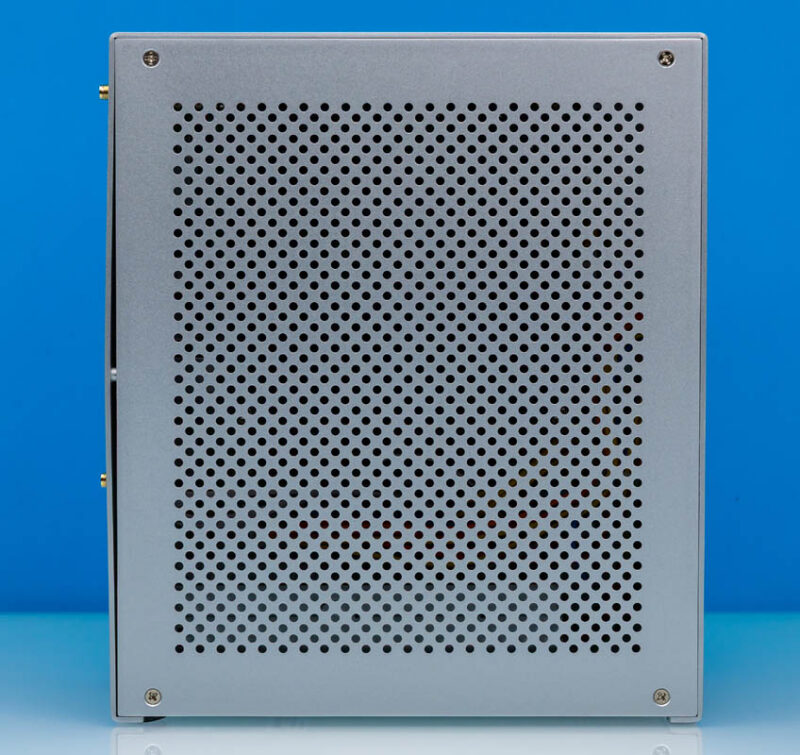
This also means that getting into the system is a snap. The four screws that hold the left side of the case on are all that cover access to the top side of the motherboard.
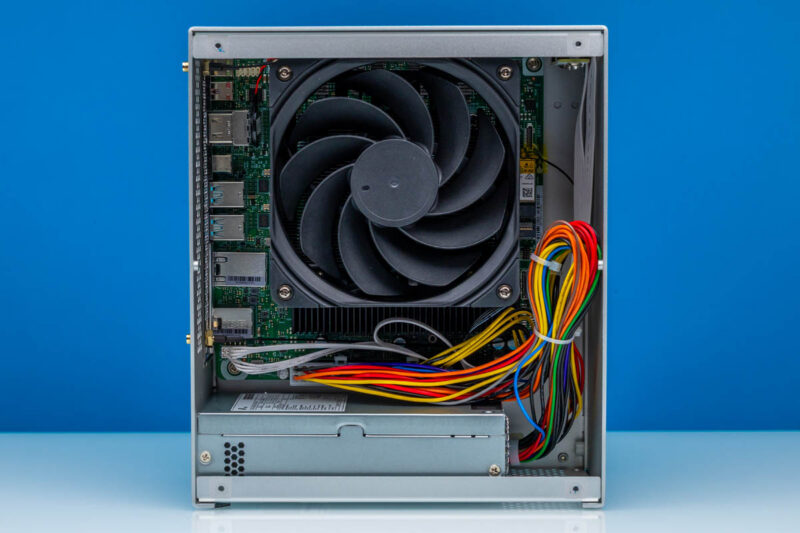
Once opened, we can see much more clearly how this is a mini-ITX system. ASRock Industrial has not done anything exotic here. The A395 is laid out and cooled exactly how you would expect a mini-ITX barebones system to be.
Front and center is a large 120mm fan mounted on a heatsink that, in turn, covers the SoC. Removing that, we quickly spot that this is a 5.4 Watt brushless fan from ZLC. Remember, this is all to cool what is essentially a mobile CPU running at a higher power level.
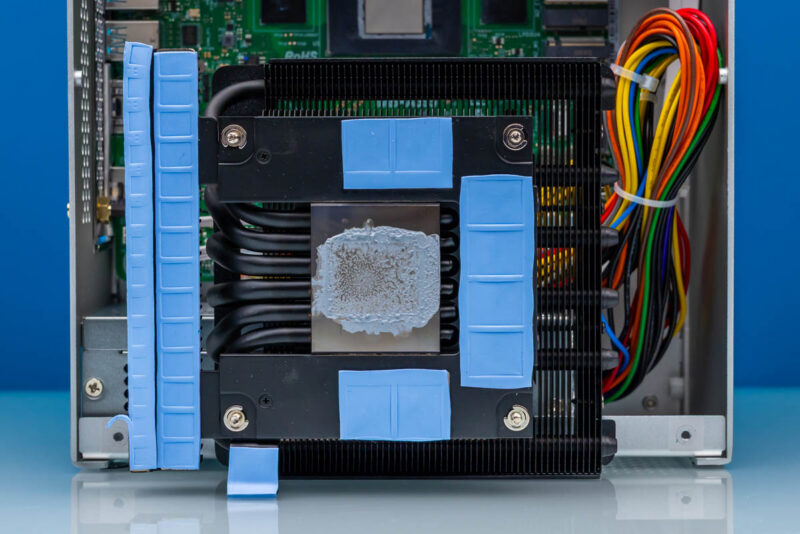
Removing the heatsink as well, we find a fairly complex, low-profile design. The heatsink’s core features 6 heat pipes that run through it and out to the heatsink fins. Meanwhile, a secondary base plate extends from there, covering the LPDDR5X memory chips and the MOSFETs that are part of the system’s voltage regulatory circuitry. These secondary components do not need much cooling, but they do need something, so having them connected to the heatsink is the most straightforward solution there.
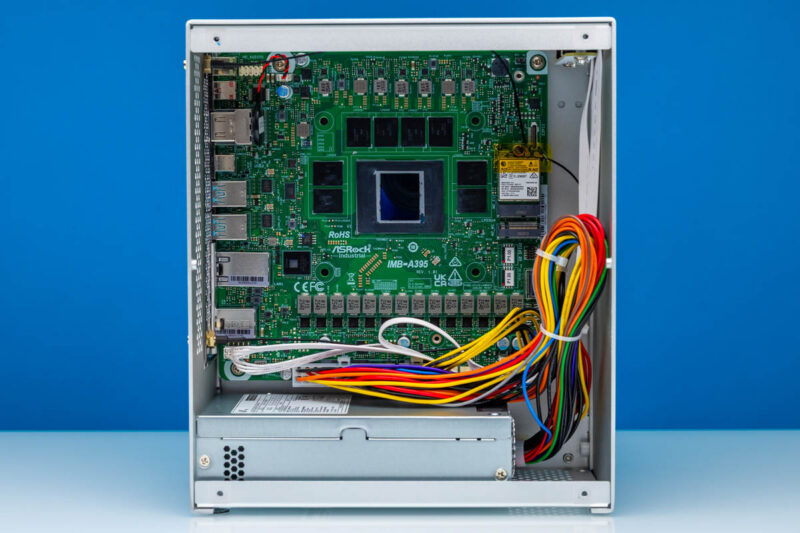
With the heatsink removed, we can finally get a better look at the motherboard itself, labeled IMB-A395, and the Strix Halo chip at its center. With such a large heatsink to provide the necessary cooling (the SoC alone can peak at 160 Watts) it eats up a lot space in the system, and to see much of anything it needs to be removed. Though, for better or worse, Strix Halo systems have few user-replaceable parts, so there is not much need to remove the heatsink in the first place.
With a closer look at the power delivery system, it is a bit surprising that ASRock Industrial went with such an extensive VRM configuration. All told, there are 14 MOSFET/choke pairs here, so this is not a system doing the bare minimum.
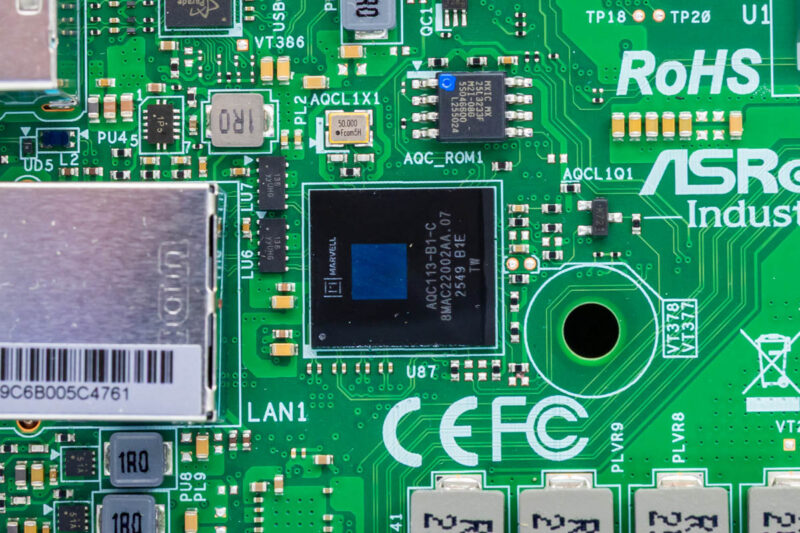
On the left side of the motherboard we find the Marvell AQC113 Ethernet controller chip, which powers the system’s 10GbE port. Notably, this chip is covered by the CPU heatsink, so it is normally fully covered. AQC113 is power-hungry enough that it typically needs cooling, so the CPU heatsink handles it.
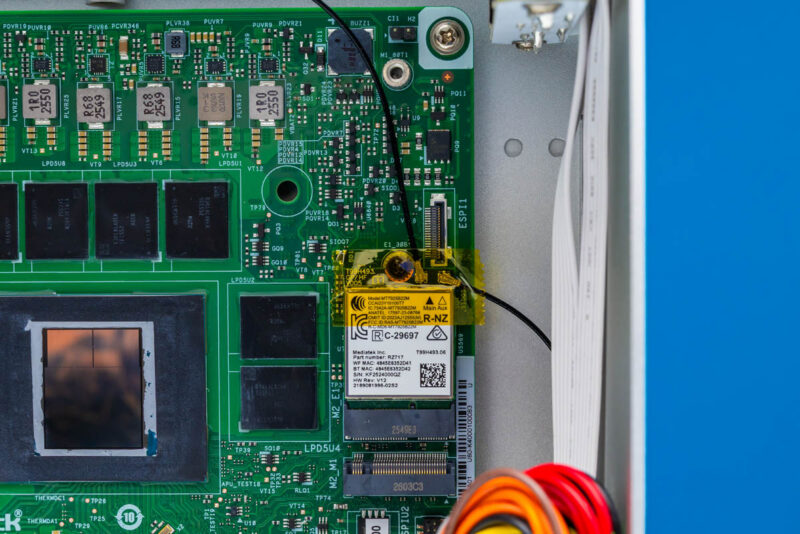
Meanwhile, on the right side of the system, we find two M.2 slots. The first of which is an M.2 2230 (E-key) slot for the wireless radio. As with virtually every other Strix Halso system, this is an AMD-supplied MediaTek MT7925 controller, which is a 2×2 MIMO Wi-Fi 7 + Bluetooth 5.4 controller. This comes pre-installed, and ASRock Industrial has further placed a small piece of tape over the antenna leads to insulate them from above.
What goes above? That is the system’s first PCIe Gen4 x4 M.2 2280 slot for storage drives. This is laid out directly above the smaller M.2 slot, with M.2 SSDs meant to be installed right on top.
The position of this M.2 slot does present some access issues. With the large heatsink over the CPU, there is not a lot of room around the heatsink to work to install an SSD. And since this is a barebones system, you will be installing an SSD of some kind. Removing the CPU heatsink opens things up greatly, but it is a rather invasive procedure since it covers so many smaller components with thermal pads.
It is probably no coincidence, then, that ASRock Industrial has posted a YouTube video to its product page outlining how to install SSDs in the A395, and thereby offering visual proof that an SSD can indeed be installed on the top side of the A395 motherboard without removing the heatsink. Regardless, it is certainly not the most user-friendly install.
Thankfully, unless you need to fill both M.2 SSD slots on the A395, you will not need to mess with this hard-to-access slot. ASRock Industrial put the other M.2 2280 slot in a much easier-to-access location on the back side of the motherboard.
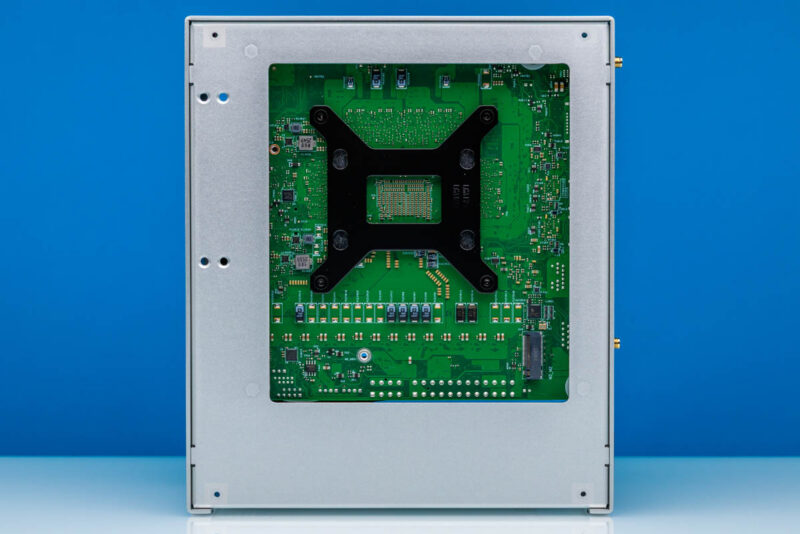
Removing the aluminum plate covering the right side of the system, and we are in. There is almost nothing else of note here, but that is okay, because it gives us very easy access to the one thing we do care about: the M.2 SSD slot just below the Realtek RTL8125 2.5GbE NIC.
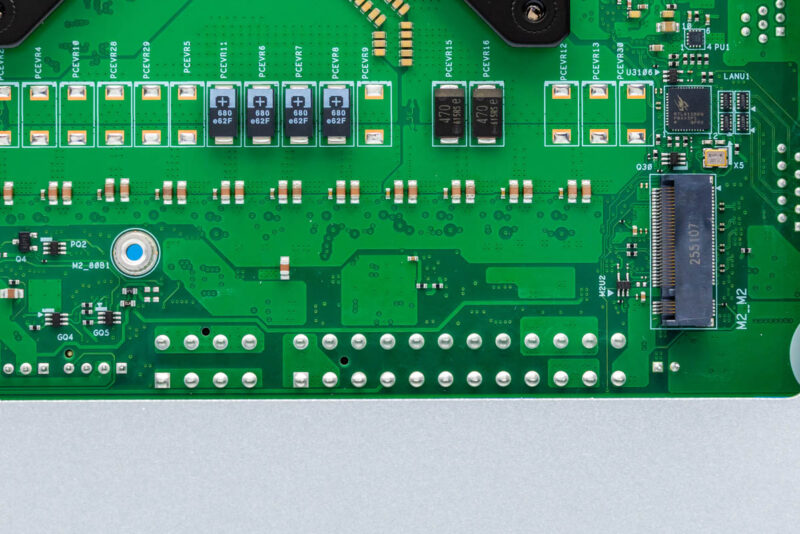
Like the front slot, this is a PCIe Gen4 x4 M.2 2280 slot and is just as good a choice for installing an SSD, and where we would recommend installing the first one.
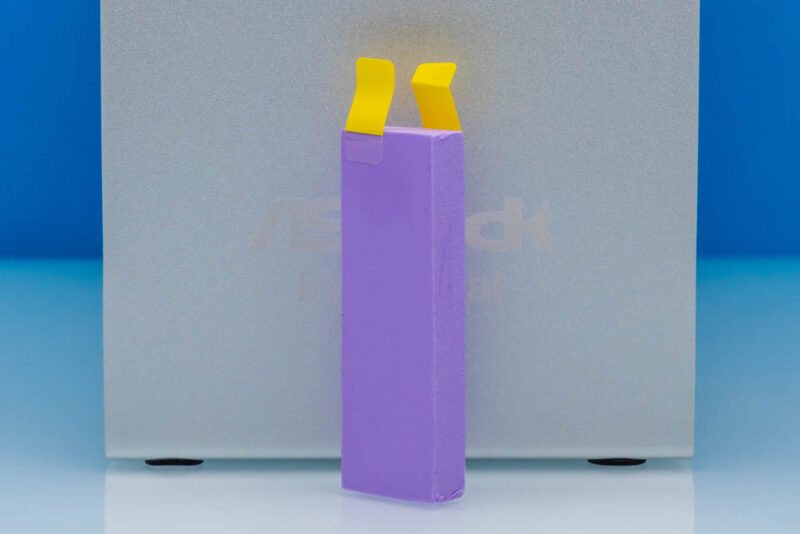
However, this M.2 slot location makes cooling the SSD a bit more interesting. Since even a traditional M.2 heatsink would not be enough due to limited airflow, ASRock Industrial included a jumbo 2280-sized thermal pad with the system. This pad contacts the aluminum case, allowing heat to conduct away from the drive and through the chassis. This setup would likely be less than ideal for a high-performance PCIe Gen5 drive running at full tilt, but for a PCIe Gen4 drive (the fastest speed the Strix Halo SoC supports), it is more than sufficient. Just do not plan on swapping SSDs regularly unless you want to track down another jumbo thermal pad.
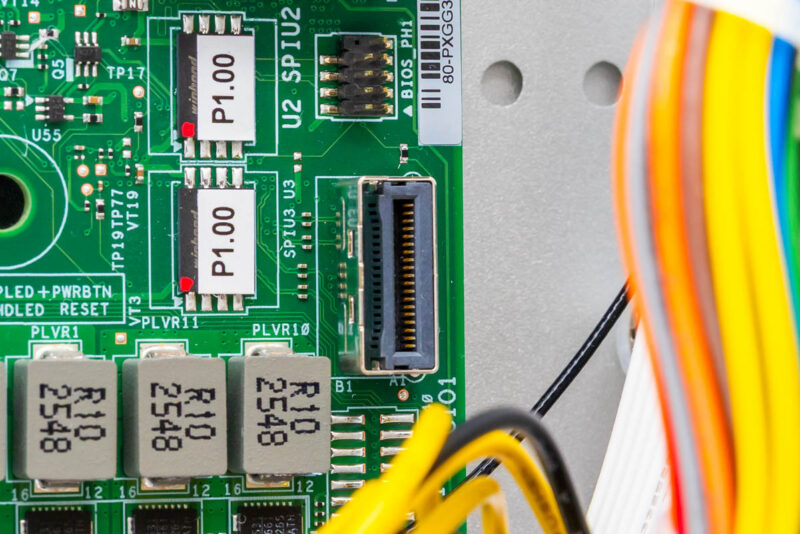
Moving back to the top side of the system’s motherboard, we find a few more industrial-focused surprises. Tucked away to the far right of the motherboard, below the M.2 slots, we find an MCIO x4 connector. Taking the final four PCIe lanes from the SoC, this connector lets you attach an external PCIe device to the motherboard, such as a U.2/U.3 or EDSFF drive. ASRock Industrial has even taken the extra step of installing a U.2 SPI connector above it in order to facilitate that.
If you will pardon the pun, an MCIO port is a cool find we do not normally see on Strix Halo systems (even beating the OCuLink port on GMKtec’s EVO-X3). It is also somewhat forward-looking, as the MCIO connector is primarily intended for PCIe Gen5 and Gen6 connections, though it does not in any way require them.
With that said, it is also hard to envision it being used. Simply put, there is not enough empty space in the A395 to easily fit a 2.5-inch drive, and there is definitely no place to mount it. Nor is there an open hole to route a cable for a truly external connection. As a result, the MCIO connector seems a bit vestigial. Perhaps it was intended for another system design using this same Mini-ITX motherboard?
Another industrial surprise is that this system has two BIOS chips on board, both right next to the MCIO connector. Dual BIOS support has been a rare feature in the Strix Halo systems we have seen so far. While it is common in higher-end devices, it is a neat find here. This also once again underscores how the A395 is not a run-of-the-mill desktop PC, as ASRock Industrial aims higher in regard to reliability.
Speaking of which, while this is not implemented as a discrete hardware device, ASRock Industrial has also baked in a watchdog timer into their BIOS. As a result, the A395 can be set to monitor and reset itself if it detects a hang. This is another feature that is right at home in an industrial PC.
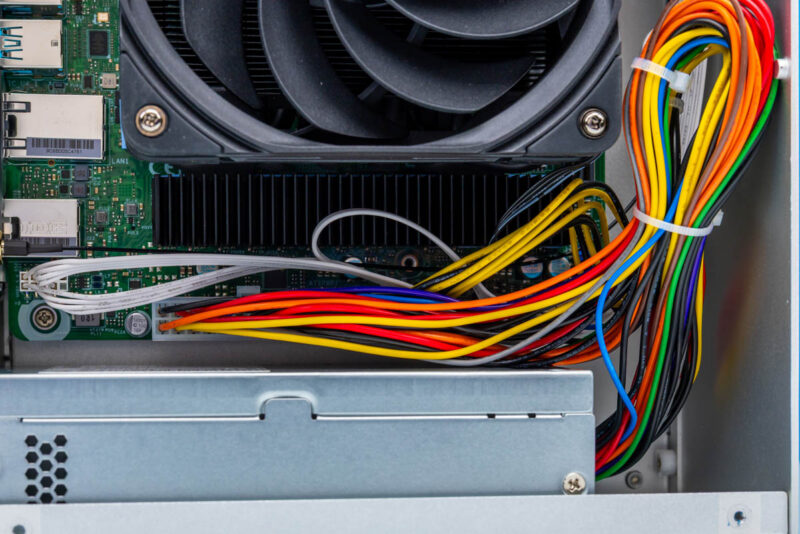
Rounding out our overview of the A395’s internals, here is a brief look at the power supply and the associated power connectors on the motherboard. Since this is a Mini-ITX system, ASRock Industrial kept things simple, equipping the motherboard with standard ATX connectors and a matching power supply. The PSU cable is a bit too long for the system, so there is significant slack. But ASRock Industrial has done what they can to make things neat and tidy by tying off the cable and keeping the bulk of it to the right of the motherboard, in the empty space between it and the front of the case
The motherboard uses a traditional 24-pin ATX power connector, plus a single 8-pin ATX12V connector to power the CPU. The power supply only powers the motherboard, so anything else that needs power (such as the CPU fan) is fed through it.
Now, with the hardware out of the way, let us look at the system’s performance.