All hard drives will eventually fail. Some earlier than others. As some readers may remember, The Big WHS lost three of eight new Western Digital Green 1.5TB drives earlier this year within a three month span, leading me to procure more and more Hitachi 2TB 7200rpm drives. Recently, I experienced my first Hitachi drive failure when a six month old drive started dropping from the Areca controller and started seeing rising error counts. One of the advantages of Windows Home Server is that pulling WHS drives and recovering data is a very simple task. I used my latest drive failure experience to take some screen shots for a guide on recovering data off of a WHS disk. Read the full story
This video tutorial will show you how to install the Windows Home Server Connector Software without using the CD/DVD. As netbooks, usually without optical drives, flood the market, this is often the easiest way to install the connector software. For those using a motherboard such as the Supermicro X8SIL-F or Supermicro X8ST3-F, with remote ISO image mounting at the motherboard level through IPMI 2.0.Also, for those that have lost the disk, this is much easier than searching Microsoft’s site for the download as the connector software already sits on your network!
Again, please thank my colleague new to WHS for reminding me about this video.
Sometimes you may want to uninstall a drive that you have connected to your Windows Home Server. WHS makes this easy and this guide and video tutorial will take you through the necessary steps to remove a drive without losing data. I had a colleague ask me how to do this so I figured that I would update the guide for others seeking help.
Please note: If you are passing disks through to a Hyper-V virtual machine or a RAID controller, this guide only covers the WHS portion, not extracting the drive from the virtual machine or RAID array.
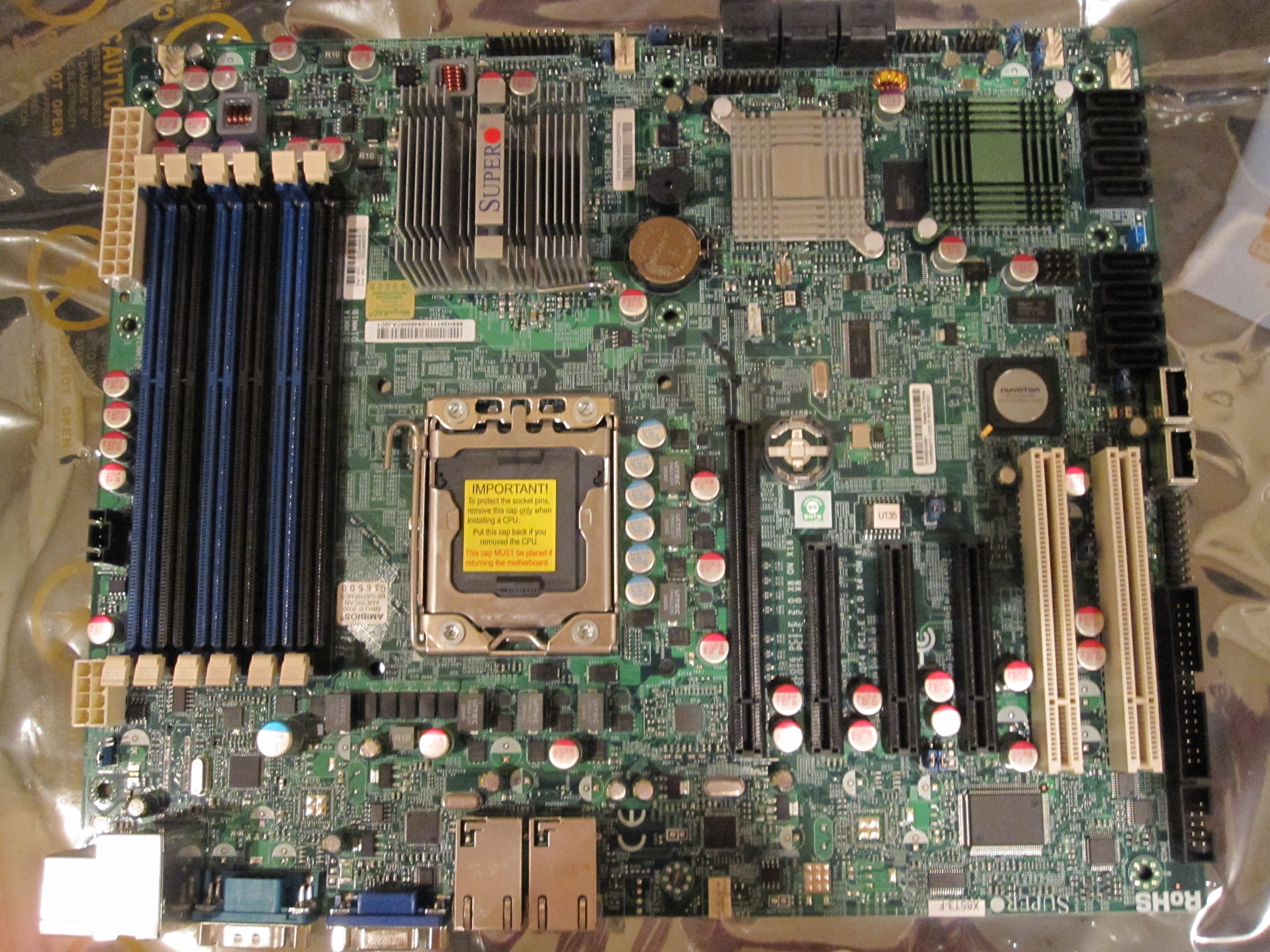
My main server, the Big WHS now houses over 60TB of storage, runs multiple VM’s, and has over 10 Gigabit NICs. At the heart of this server, is a Supermicro X8ST3-F. It was not the first motherboard I tried in the server, as I originally tried using an ASUS P6T7 WS Supercomputer in the Big WHS, but it has been running solidly since its first installation. Aside from its stability, it also comes with many PCIe slots, an onboard LSI 1068e based 8 port SATA/ SAS controller, dual Intel Gigabit NICs, onboard video, and IPMI 2.0 with KVM over IP.
As a quick update to the previous AdminiMe 2010 review, ASoft released an update to its popular AdminiMe 2010 Add-in.
It appears as though ASoft does take feedback very seriously as a bug/ quirky feature noted in the initial AdminiMe review, where drives were not displayed in completely sequential order if more than 10 drives are present has been corrected.
AdminiMe Storage Tab displaying disks out of order in old version
The Big WHS was originally supposed to house approximately 30TB of storage when the plans were first detailed on an Excel spreadsheet BOM in December 2009. This was a big upgrade to my first DIY Windows Home Server box that had well under 20TB. About five months later, the storage capacity has crested 60TB, with further room to expand. The Big WHS now spans two 4U Norco cases (using a total of 8U of rackspace and another 4U chassis is in the works) has over 60TB of storage, and requires well over a dozen ports on the gigabit switch.
The Supermicro X8SIL-F motherboard is an excellent board for home and small business servers. When building a file server built upon Windows Home Server (V1 or V2 Vail) or another open source NAS project such as FreeNAS, Openfiler, EON ZFS storage, the Supermicro has a feature set that differentiates itself from both AMD and Intel based consumer-level motherboards. Compatibility with those operating systems and virtualization platforms such as Microsoft’s Hyper-V make the X8SIL-F a strong contender for a DIY storage or virtual machine server.
As I mentioned in the previous post on the compatibility issue, I had to RMA my Supermicro X8SIL-F (mATX LGA 1156 server board with IPMI 2.0 and dual Intel gigabit NICs) last week because it was version 1.01 PCB instead of v1.02. The difference being support for Clarkdale CPU’s.
Just to give an idea of why Supermicro’s support is so good here is the timeline:
Sunday (day 0) - Sent a note to Supermicro tech support explaining my problem.
Monday morning (day 1) - Received a confirmation that I needed v1.02 PCB of the X8SIL-F to use with my Intel Core i3-530.
Monday afternoon – submitted my RMA request online
Tuesday mid-day (day 2) - was contacted by Supermicro RMA support, I gave the requried information for advanced RMA. Later that day I got a follow-up e-mail saying that the advance RMA request had to be approved and that it may take until the next day.
Wednesday (day 3) – confirmed that I accepted the Supermicro advance RMA policy, and that ground shipping would be fine (I live only a few miles from a Supermicro facility).
Thursday (day 4) – New X8SIL-F shipped.
Friday (day 5) – X8SIL-F was at my doorstep. I was not home to sign for the delivery, so made arrangements to pick up at the UPS facility. Bottom line is that Supermicro had the replacement board at my doorstep within 96 hours of submitting my RMA request.
Overall great service from Supermicro! I have also decided that I will house this in the Norco RPC-4220 that serves as the DAS box for the Big WHS. That way I can use it to add drives for the test environments. Odds are I will either run ESXi with a few Linux/ FreeBSD/ OpenSolaris virtual machines or just run OSes directly on the PC. I am also planning to power this system independently of the rest of the enclosure and drives so that I can power cycle the server without taking the drives off of the Areca array.
Windows Home Server v1 (WHS) was limited to using 2TB Master Boot Record (MBR) partitions in its storage pool, but the public preview of Windows Home Server V2 codename VAIL is not. This guide will show one how to use GPT Raid volumes passed through Windows Server 2008 R2 running Hyper-V into WHS V2 Codename VAIL. (That sounded way more complex than it actually is).
DuplicationInfo is a small Windows Home Server (WHS) add-in that allows one to see what Drive Extender is doing. More specifically, DuplicationInfo allows a user to map a specific file stored on the WHS to the drives being used.